1.2 Printing preferences
1.2.2 Adjusting papersize, orientation and printing quality
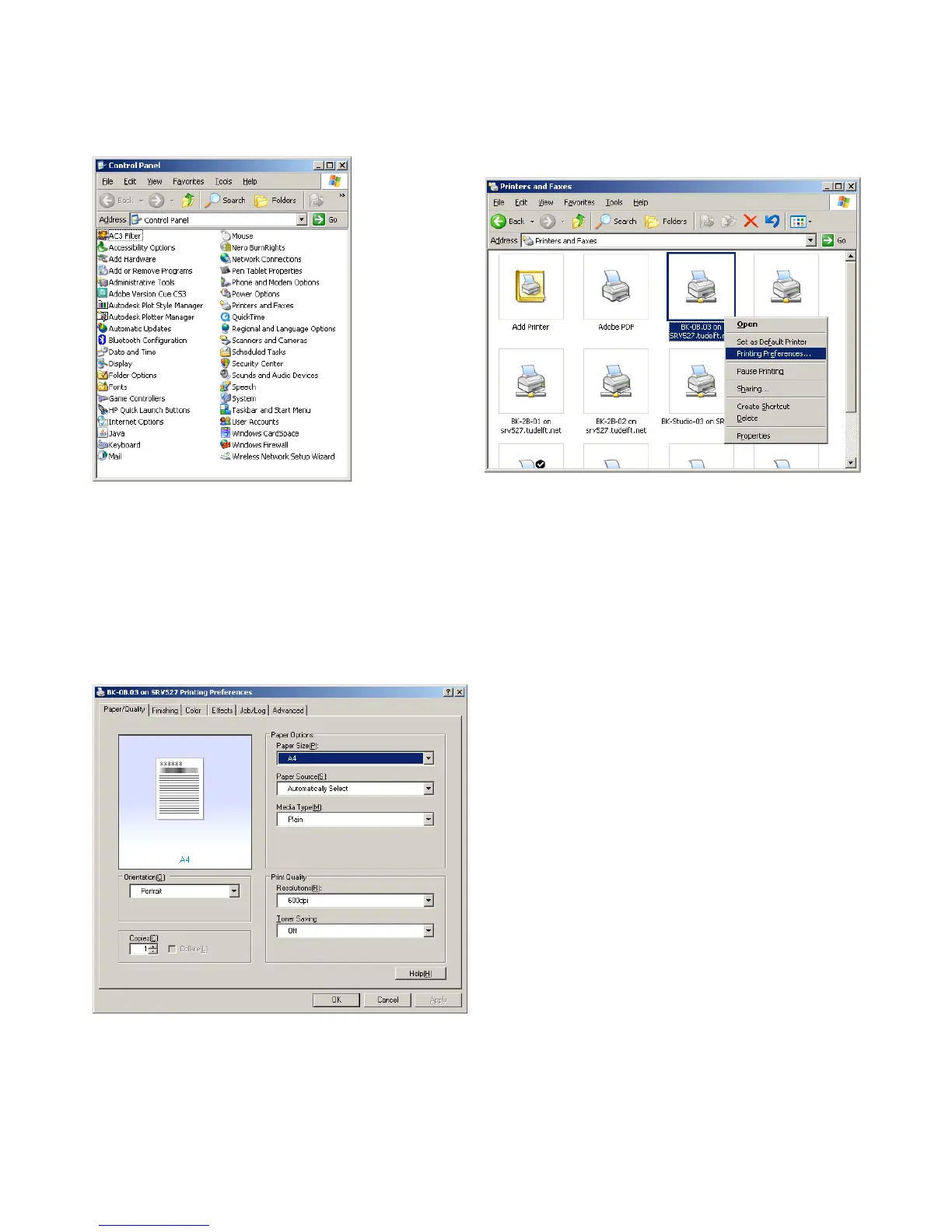
Open via ‘Start’ the ‘Control Panel’ and from here ‘Printers
and Faxes’:
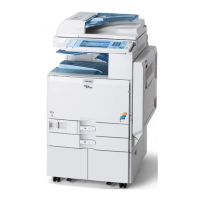
In the ‘Printers and Faxes’ window, right click on the
printer for which you want to adjust the preferences and
choose ‘Printing Preferences´:
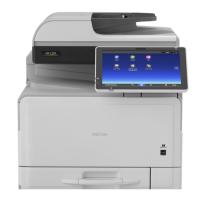
Open the tab ‘Paper/Quality’
Choose the desired orientation of the image on the paper
under ‘Orientation’. A rule of thumb: the orientation
should be identical to how it’s displayed on your screen.
We call an orientation ‘Portrait’ when the paper is stand-
ing on it’s short edge and ‘Landscape’ is when it’s lying
on it’s longer edge.
Under ‘Paper Options’ you can choose the ‘Paper Size’
you want to use for your print. Under ‘Paper Source’ you
can select the drawer from which the printer should take
the paper to make your print on.
Select the printing resolution under ‘Print Quality’.
1.2.1 Opening the printing preferences
Note
In the following paragraphs the preferences for a printer will be changed via the Control Panel. If you change the
preferences via the Control Panel, these changes will be applied immediately and will be the same in any program that
you use the printer in. If you would change the preferences from within a program, these will only apply to that mo-
ment and program. If you don’t want to use these settings any more, go back to the Control Panel, change them back
and click on ‘Apply’.



 To Next Page