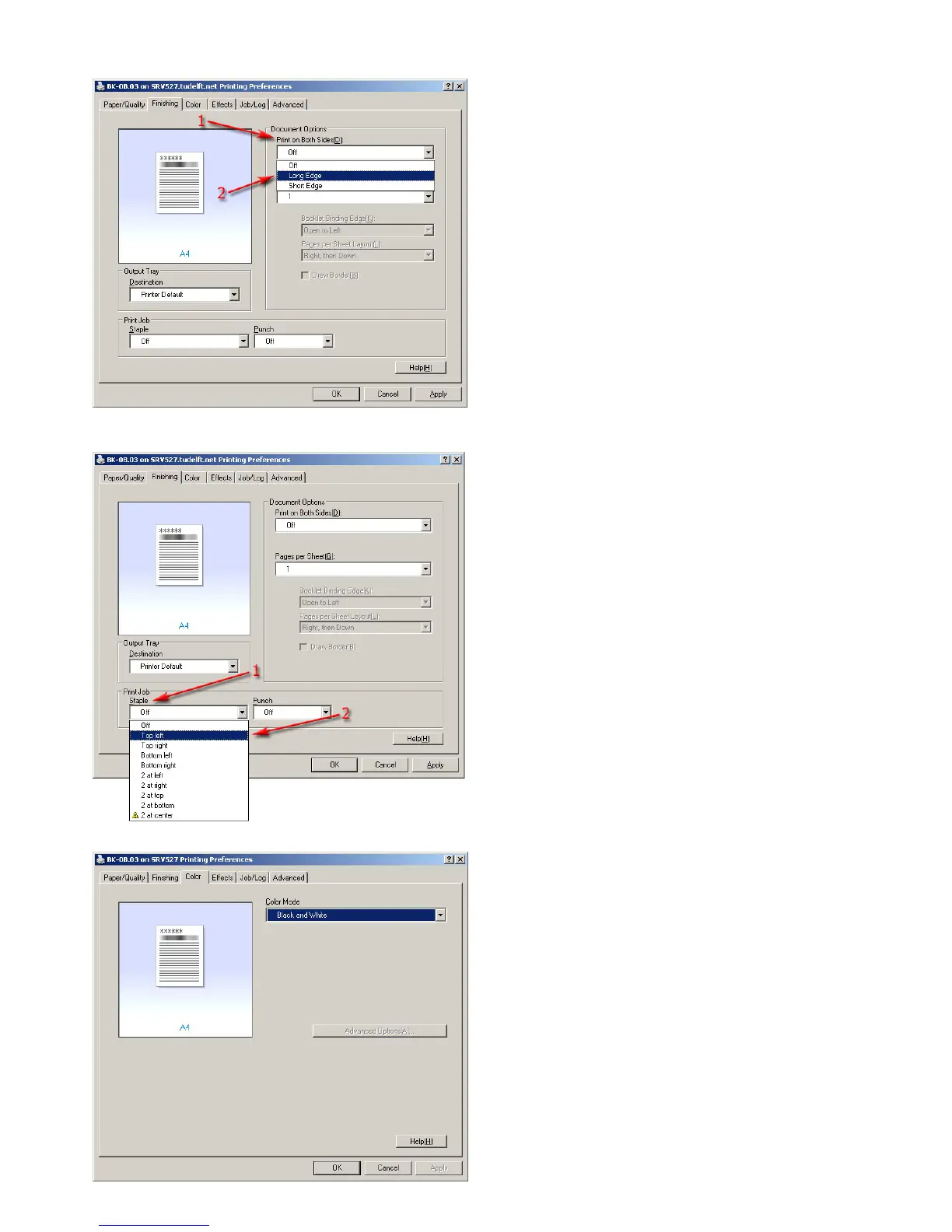
Click on the tab ‘Finishing’.
To print on both sides of the paper, you can choose from
two options. Select ‘Long Edge’ from the drop down
menuunder‘PrintonBothSides’ifyourdocumenthas
a ‘portrait’ orientation. If you choose this option you’ll
need to turn your pages over the long edge of the paper.
Choose ‘Short Edge’ if your document has a ‘landscape’
orientation.
1.2.3 Printing on both sides
1.2.4 Using the automatic staple option
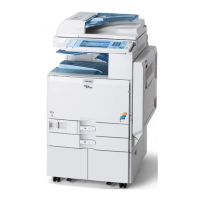
On the tab ‘Finishing’, under the option ‘Print Job’ you can
choose where you want to place your staples.
1.2.5 Printing in color or black and white
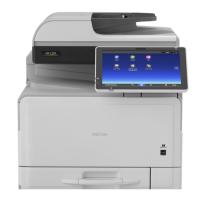
The default printing color setting is black and white.
If you want to print in color, select ‘Color’ under ‘Color
Mode’.
Note
Please don’t forget to switch the color mode back to
blackandwhite(andpress‘Apply’)whenyou’renished
printing in color. Otherwise your next prints will also be
printed in color.



 To Next Page