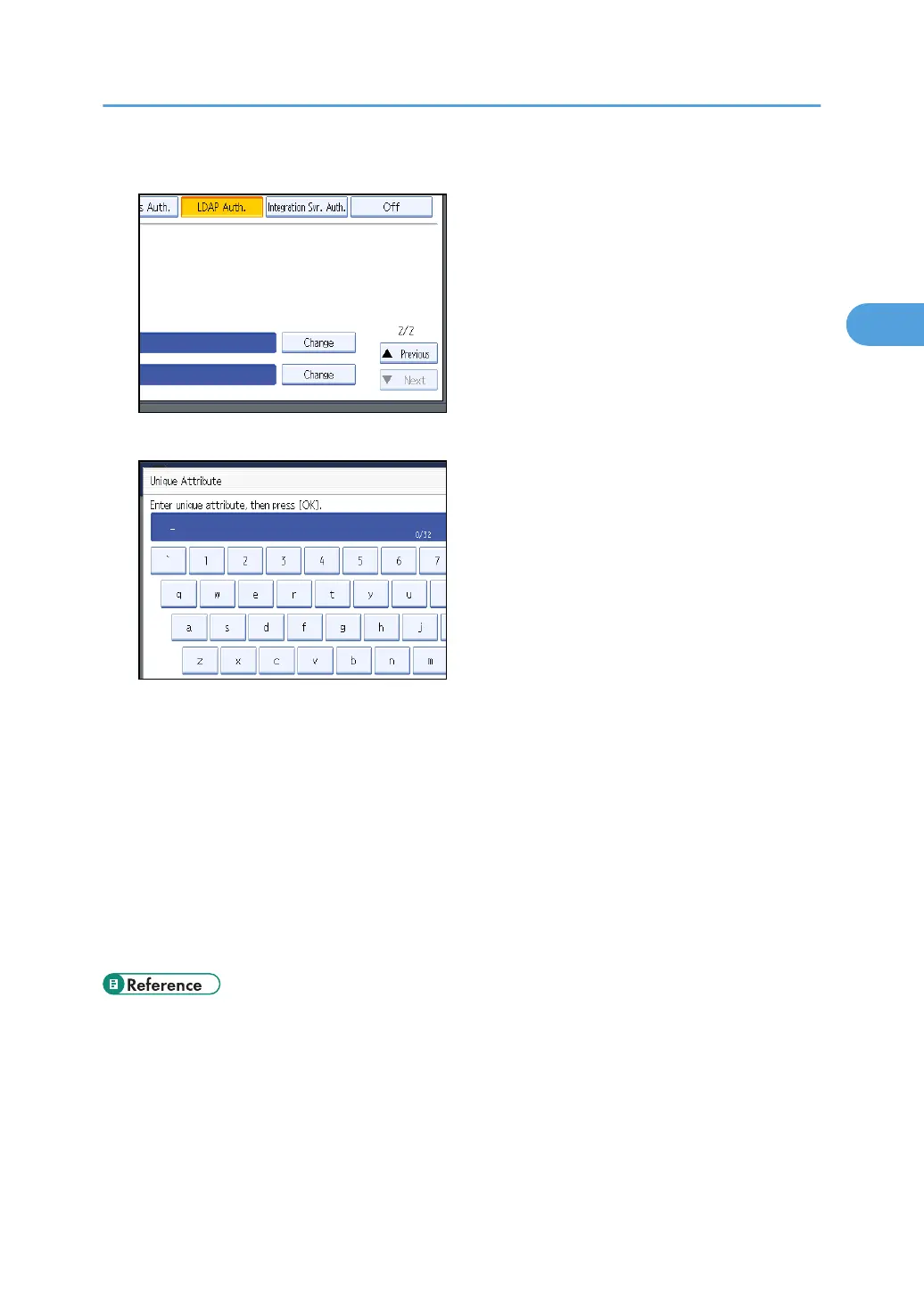
10. Press [Change] for “Unique Attribute”.
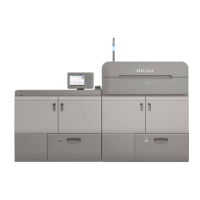
11. Enter the unique attribute and then press [OK].
Specify Unique Attribute on the machine to match the user information in the LDAP server with that in
the machine. By doing this, if the Unique Attribute of a user registered in the LDAP server matches that
of a user registered in the machine, the two instances are treated as referring to the same user. You
can enter an attribute such as “serialNumber” or “uid”. Additionally, you can enter “cn” or
“employeeNumber”, provided it is unique. If you do not specify the Unique Attribute, an account with
the same user information but with a different login user name will be created in the machine.
12. Press [OK].
13. Press the [User Tools] key.
A confirmation message appears.
If you press [Yes], you will be automatically logged out.
• p.32 "Logging on Using Administrator Authentication"
• p.34 "Logging off Using Administrator Authentication"
• p.92 "Limiting Available Functions"
• p.40 "User Code Authentication"
LDAP Authentication
61


 To Next Page