Setting of Original Feed Type
125
6
Divide
This section explains settings for dividing multiple originals by a specified
number of pages and then sending them.
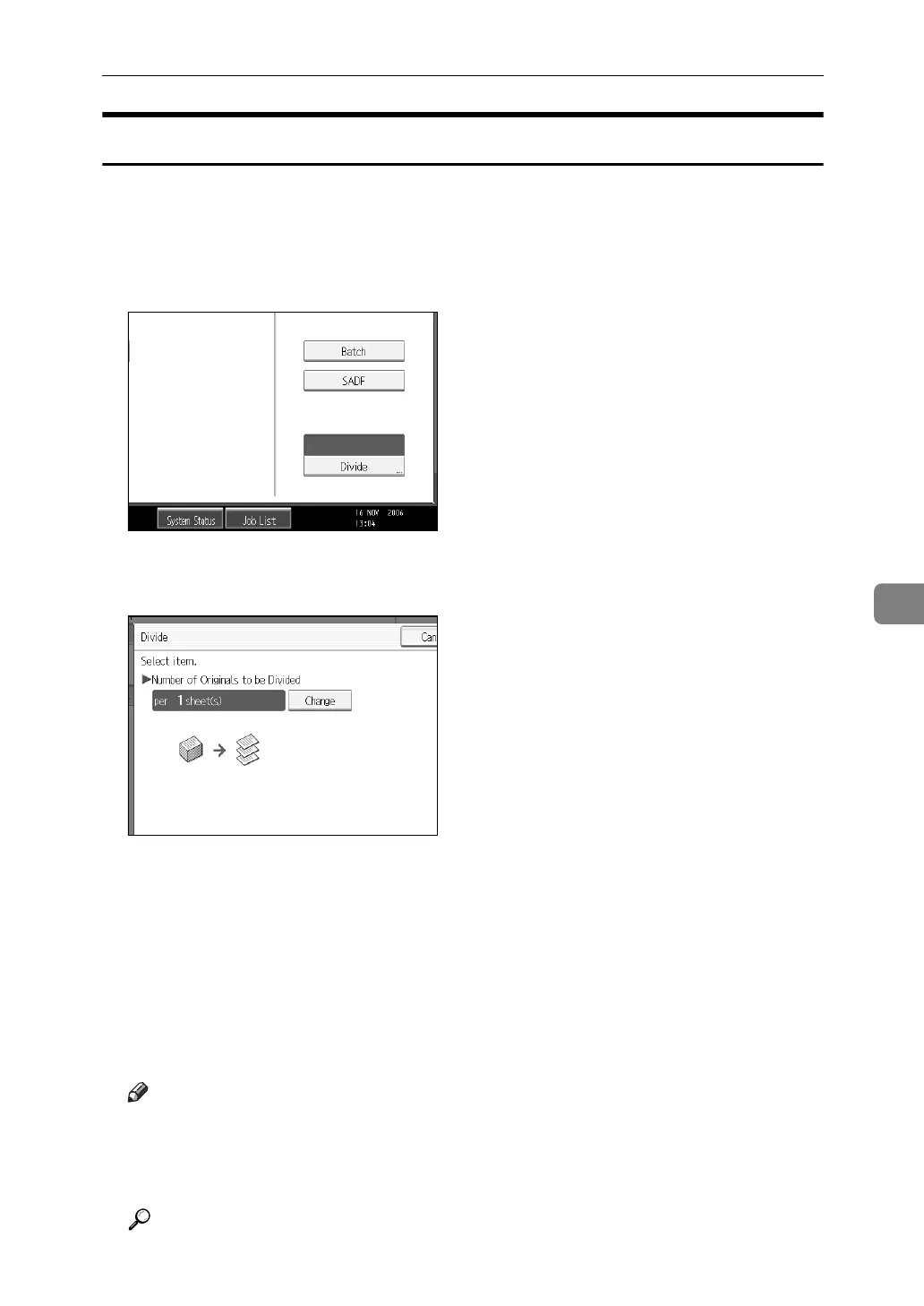
A Press [Original Feed Type].
B Press [Divide].
C Press [Change], and then use the number keys to enter the number of pages
you want to divide the job into sets of.
D Press {q}.
E If necessary, press [Division Check].
When you select [Division Check], if the originals were not scanned in order
due to a paper jam or multi-sheet feed, a screen for stopping or continuing
scanning appears at the end of the scan.
F Press [OK] twice.
The current settings are displayed.
Note
❒ If the last page of a batch of divided originals is blank, you can skip that
page. To skip scanning, in [Last Page] under [2 Sided Original], select [1 Side].
To scan the last page as a blank page, select [2 Sides]. For details, see "Two-
sided original".
Reference
p.122 “Two-sided original”









 To Next Page