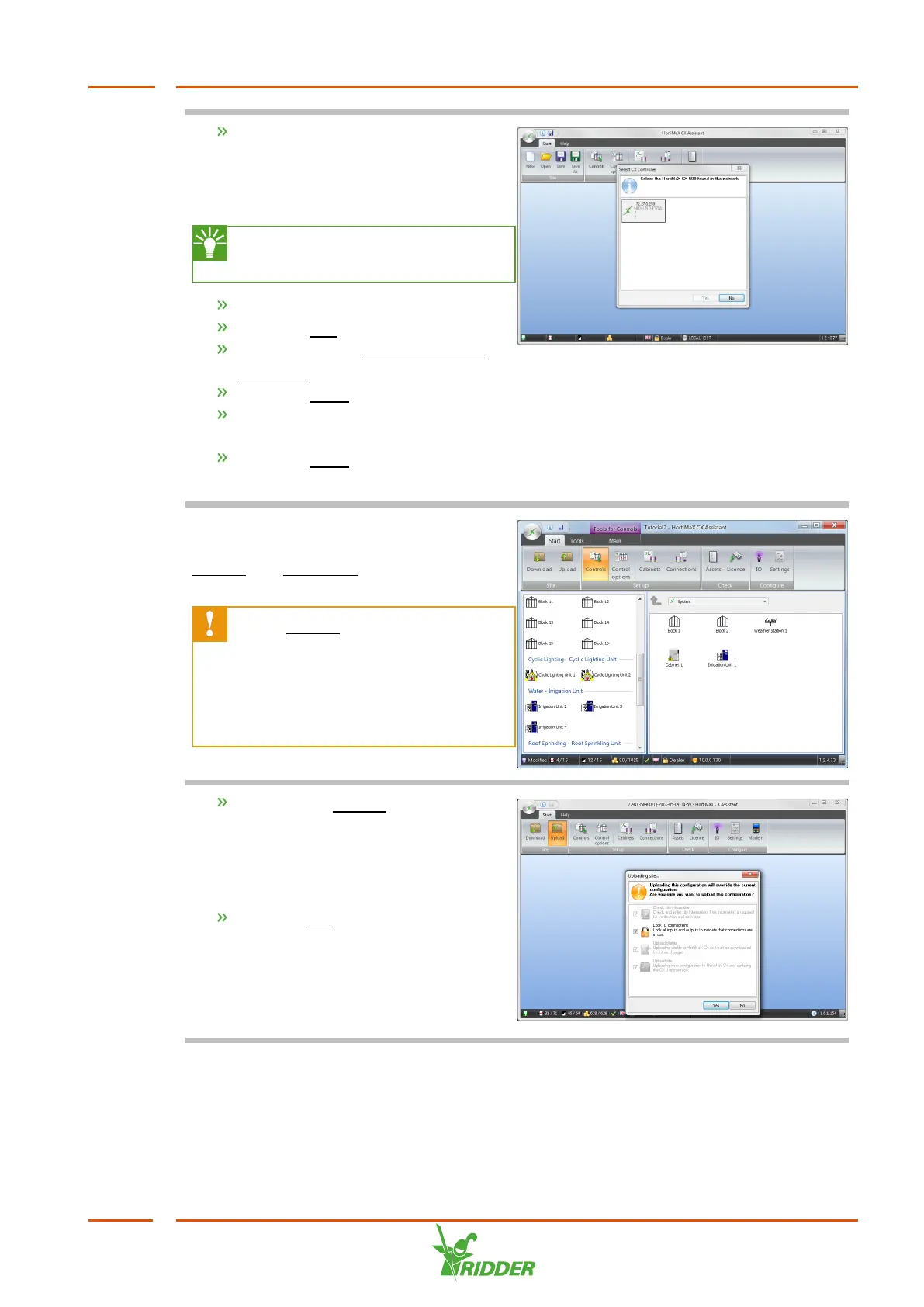
Launch the CX Assistant.
The Select CX controller screen
appears. The screen displays the IPC that
has been found.
If no CX500 is displayed, check
the connection and try again.
Click the desired IPC.
Click the Yes button.
Click the button Ridder Growing
Solutions.
Click the Open button.
Select the configuration (or site
file) you wish to upload.
Click the Open button.
The configuration opens.
The configuration is shown in the
workspace. The Start tab is open. The
Upload and Download buttons are
enabled.
If the Upload button is disabled,
then either the site file has not
been configured completely, or
you are not logged in as a dealer.
Check the site file and your log-in
mode.
Click on the Upload button.
The Uploading Site screen opens.
You can check or uncheck options. Once
you have chosen the desired settings,
click the Yes button.
The Site Information screen opens.
HortiJet Pro
35


 To Next Page