16
Exposure- you can choose from three levels (Low, Medium, High) of a light intensity in the position circle on
the screen to see objects hidden from reason of high light intensity in the position circle on the screen. The
item Auto switches o this function.
Reconnect- the item disconnects and again connects active camera to the RoboSpot. Use the item in case that
behaviour of the camera is not correct (e.g. long response time).
Factory Reset- use this item to set a camera to the current setting.
All items stated above relate to the selected camera in the menu bar.
When you switching between cameras, a eld with video synchronization status is displayed. This eld shows
a delay between the camera and the screen. The value 0% means max. delay, 100% is without delay (and this
eld will disappear from the screen after reaching 100%).
Every camera holds information about position of the position circle, its size and picture rotation.
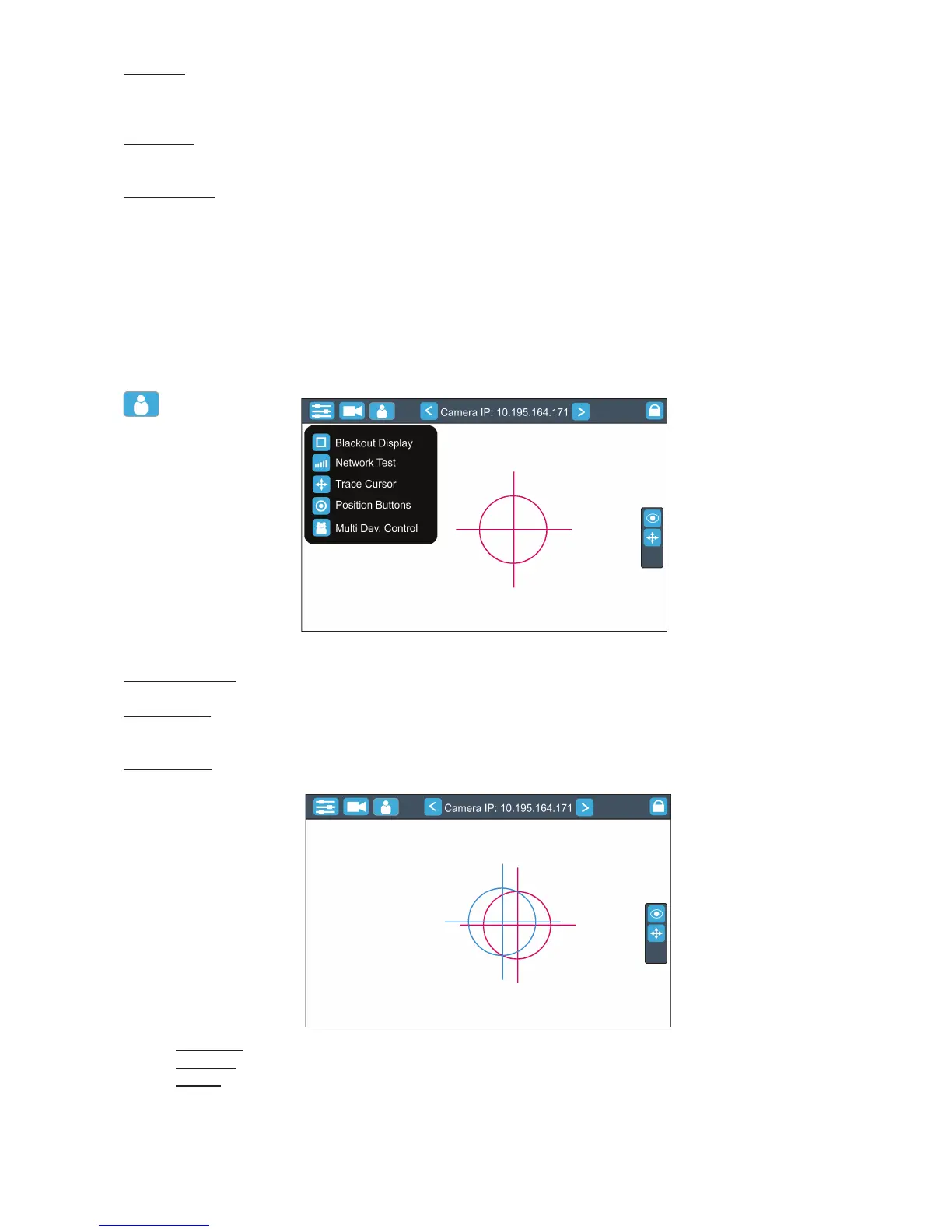
User menu
Blackout Display - use the item to darken the screen. To active the screen, touch it.
Network Test - the item runs a connection test between a camera and the RoboSpot. Do not touch any buttons
on the FollowSpot controller.
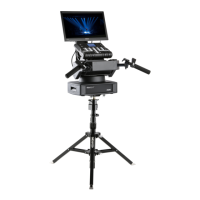
Trace Cursor - if the function is on, a blue circle will appear during (behind a red position circle) which gives a
target position of the position circle (beam image) during its movement.
Pan Invert - the item inverts a pan movement
Tilt Invert - the item inverts a tilt movement
Device - the menu allows you to select a device with camera. Correct device has to be chosen
if the "Trace Cursor" function is to work correctly.
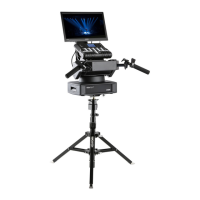
MotionCamera - select the item if you use the RoboSpot Motion Camera.
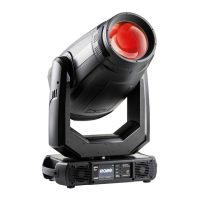
BMFL Follow Spot - select the item if you use the Robin BMFL FollowSpot with camera.


 To Next Page