Robustel GoRugged R3000 Quad User Guide
RT_UG_R3000 Quad_v.1.2.0 02.07.2015 79 / 136
Confidential
otherwise only allows one VPN connection with the same certificate.
Enable IP Persist @
VPN Server
Advanced
Maintain a record of client <-> virtual IP address associations in this
file. If OpenVPN goes down or is restarted, reconnecting clients can
be assigned the same virtual IP address from the pool that was
previously assigned.
Enable IP pool @
VPN Server
Advanced
Define the range of virtual IP address.
Define start virtual IP address
Define end virtual IP address
Click “Add” to add a OpenVPN client info which include “Common
Name”, “Password”, “Client IP”, “Local Static Route” and “Remote
Static Route”. This field only can be configured when you select
“Username/Password” in “Authentication”.
Note: “VPN Server Advanced” will show up when you select “Authentication” type as “Username/Password”, “X.509
cert” and “X.509 cert+user”.
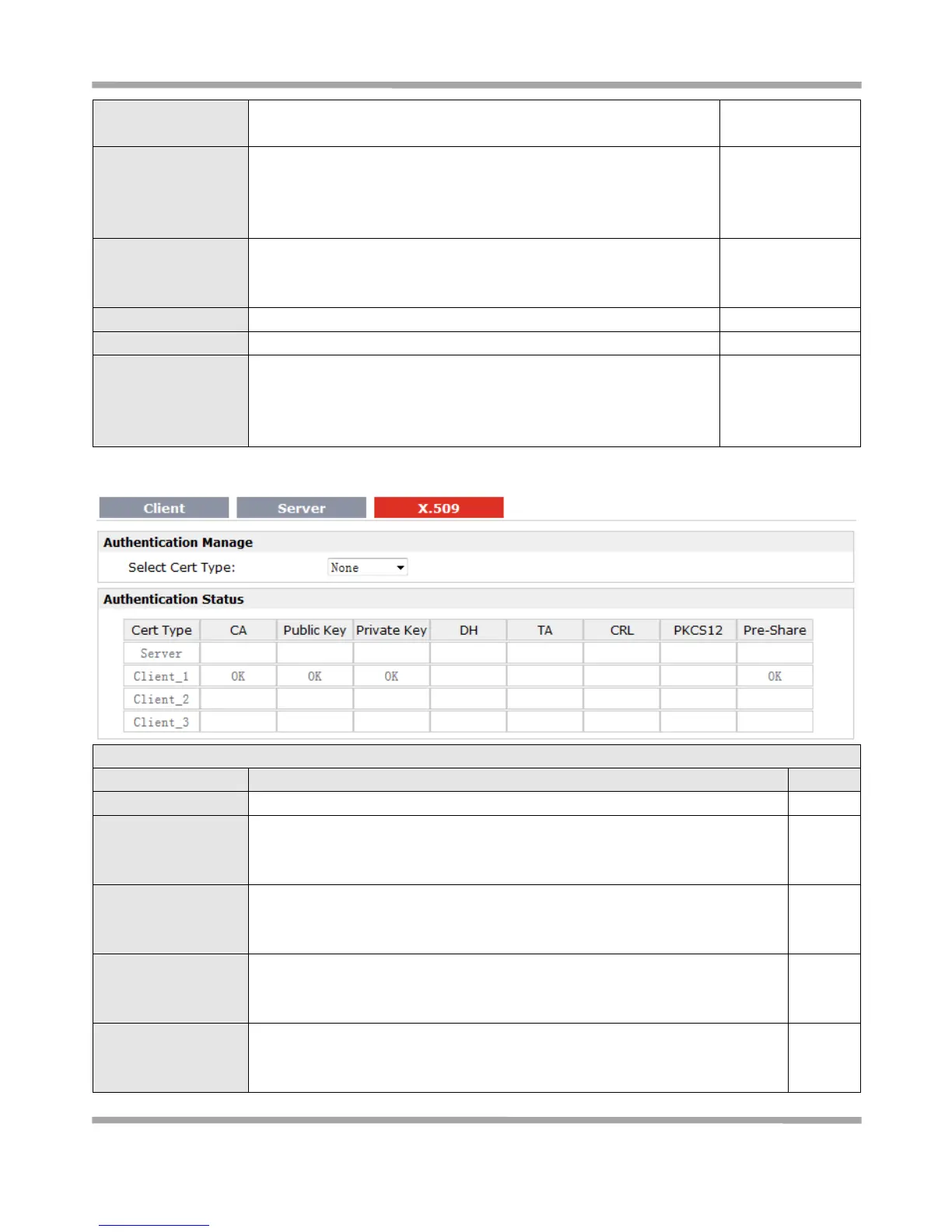
Select the OpenVPN client or server which the certification used for.
Click “Browse” to select the correct CA file from your PC, and then click
“Import” to import it to the router.
Click “Export” you can export the CA file from router to your PC.
Click “Browse” to select the correct Public Key file from your PC, and then click
“Import” to import it to the router.
Click “Export” you can export the Public Key A file from router to your PC.
Click “Browse” to select the correct Private Key file from your PC, and then click
“Import” to import it to the router.
Click “Export” you can export the Private Key file from router to your PC.
Click “Browse” to select the correct DH A file from your PC, and then click
“Import” to import it to the router.
Click “Export” you can export the DH file from router to your PC.







 To Next Page