Control Panel Overview
This chapter provides a basic introduction to the control
panel, including an overview of the different areas on
the control panel, using the menu system, as well as an
introduction to the various ports, and video buses.
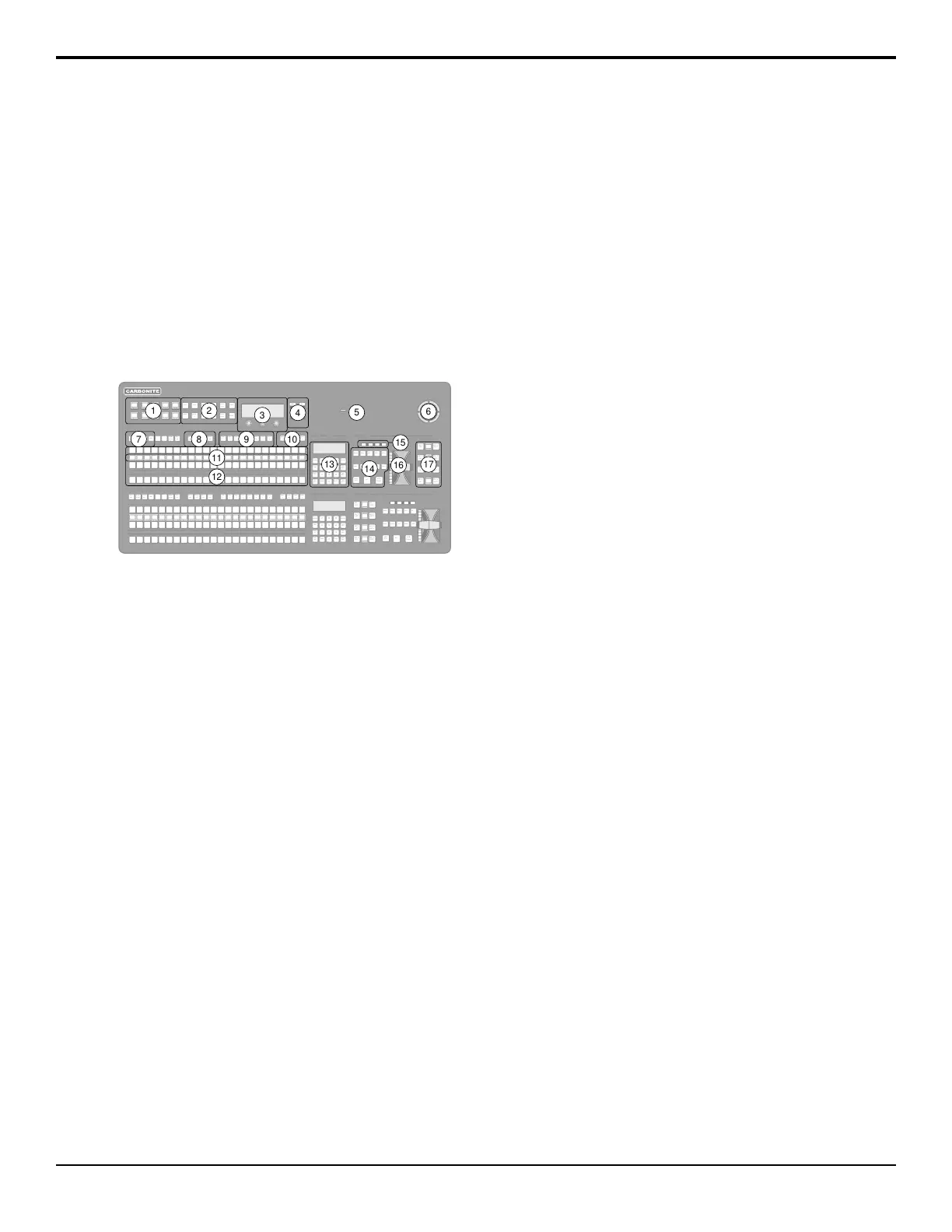
Control Panel Areas
Each Carbonite Black control panel is made up of a
number of distinct areas that control different aspects of
the switcher. Some of these areas may vary in size or
function, depending on the control panel you have.
PUSH PUSH PUSH
MULTI
SCN1
STORE
RECALL
ME2ME1
LOCK
HOME
CC
UP
MENU
BACK
NEXT
(SHIFT)
KEY/AUX/CUSTOMCONTROL
PROGRAM
PRESET
KEY2
SEL
KEY1
SEL
KEY3
SEL
KEY4
SEL
AUX
2
AUX
1
AUX
3
AUX
4
SHOW
ALPHA
KEY
PV
AUTO
SELECT
SELF
KEY
CHR
KEY
DVE
KEY2
SEL
KEY1
SEL
KEY3
SEL
KEY4
SEL
AUX
2
AUX
1
AUX
3
AUX
4
SHOW
ALPHA
KEY
PV
AUTO
SELECT
SELF
KEY
CHR
KEY
DVE
KEY/AUX/CUSTOMCONTROL
PROGRAM
PRESET
AUX
6
AUX
5
AUX
7
AUX
8
BANK
2
BANK
1
BANK
4
BANK
3
KEY2
SEL
KEY1
SEL
KEY3
SEL
KEY4
SEL
AUX
2
AUX
1
AUX
3
AUX
4
SHOW
ALPHA
KEY
PV
AUTO
SELECT
SELF
KEY
CHR
KEY
DVE
AUX
6
AUX
5
AUX
7
AUX
8
BANK
2
BANK
1
BANK
4
BANK
3
STORE
7 8 9
RECALL
BKGD KEY 1 KEY2 KEY3 KEY4
DISS WIPE DVE MEDIA USER
PGM
4 5 6
EFF
RATE
MEM
AI
1 2 3
ME
RATE
EFF
DISS
BANK
0
ENTER
KEY
RATE
TRANSITION 3EFFECTS MEMORY 3
ROLL
CLIP
CUT
AUTO
TRANS
KEY 4
CUT
KEY 3
CUT
KEY 2
CUT
KEY 1
CUT
KEY 4
AUTO
KEY 3
AUTO
KEY 2
AUTO
KEY 1
AUTO
TRANSITION 2
BKGD KEY 1 KEY2 KEY3 KEY4
DISS WIPE DVE MEDIA USER
STORE
7 8 9
RECALL
PGM
4 5 6
EFF
RATE
MEM
AI
1 2 3
ME
RATE
EFF
DISS
BANK
0
ENTER
KEY
RATE
KEY 4
CUT
KEY 3
CUT
KEY 2
CUT
KEY 1
CUT
KEY 4
AUTO
KEY 3
AUTO
KEY 2
AUTO
KEY 1
AUTO
ROLL
CLIP
CUT
AUTO
TRANS
EFFECTS MEMORY 2
MiniME
1
MiniME
2
MiniME
3
MiniME
4
MULTI
SCN2
ME3
USB
1
4
2
12
11
13
17
14
16
15
3
7
8
5
6
10
9
Figure 4: CB2S Control Panel
1.
Menu Selection Buttons — These mnemonic
buttons are used to access switcher menus and select
wipe patterns.
2.
Global Memory — These buttons are used to store
or recall memories to one or more MEs at the same
time. On the CB1 and CB2 control panels there are
only store and recall buttons for MEs 1 and 2.
3.
Main Display and Selection Knobs — The three
selection knobs are used to adjust and select various
menu items or values. The knobs are rotated to
choose a value, and pressed to make a selection. The
main display shows the menu system of the switcher.
4.
Menu Navigation Buttons — These buttons are
used to access switcher menus, move back and forth
between menus.
5.
USB — The USB port on the control panel can be
used to store and recall sets, copy logs, and perform
upgrades.
6.
Positioner — The positioner is used to position and
size keys in the DVE, control some wipe, border,
and wash parameters, as well as some control
external devices.
7.
Key Type Buttons — These buttons are used to
choose the type of key you want to use. Use these
buttons with the key select buttons to select the
keyer, and the type of key you want to use.
8.
Key Select Buttons — These buttons are used to
choose which keyer is selected. The key type buttons
and key bus follow the selected keyer.
9.
ME/Aux Selection Buttons — These buttons are
used to assign the control panel row to an ME,
MiniME
™
, MultiScreen, or Aux.
10.
Custom Control Bank Select Buttons — These
buttons are used to choose which custom control
bank is selected. The custom control bus follows the
selected custom control bank.
11.
Video Source Buses — These buses are broken into
the Preset, Program, and Key/Aux/Custom Control
buses. The Preset bus is the bottom row of source
buttons and selects the video source that will be
taken on-air with the next background transition.
The Program bus is the middle row of source buttons
and selects the video source that is currently on-air
on the background. The Key/Aux/Custom Control
bus is the top row of source buttons and selects the
video source that is chosen on the selected keyer or
aux bus, or the custom control that is chosen on the
selected custom control bank.
12.
Mnemonic Displays — The mnemonic display
shows the name of the source, or custom control,
assigned to the button directly below it. The
mnemonic display-name and color for each video
source or custom control can be adjusted.
13.
Effects Memory — These buttons are used to store
and recall memories on the assigned ME, and to
select the various transition rates used on the
switcher. These buttons are assigned to the ME that
panel row has been assigned to.
14.
Transition Area — These buttons are used to select
which video source buses will be included in the
next transition and what type of transition will be
performed. The Cut and Auto Trans buttons are used
to perform transitions. The user button is not
implemented at this time.
15.
On-Air Lights — These lights glow red to show
which keyers are currently on-air.
16.
Manual Transition Fader Bar — The fader is used
to manually control the rate of a transition. What is
being transitioned, and the type of transition, are
controlled from the Transition Area.
17.
Keyer Transitions Buttons — These buttons are
used to perform cuts or auto transitions on keys
directly, without having to include them as part of
the next transition.
Graphite Operation Manual (v1.1) — Control Panel Overview • 11



 To Next Page