Video Sources
The switcher has access to two basic types of video
sources, external and internal. All video sources can be
assigned to video source buttons. By pressing a video
source button on a bus, the video source assigned to that
button is selected on that bus.
• External — External video sources come from
cameras, video servers, character generators, or other
external devices into the switcher.
• Internal — Internal video sources come from
internally generated video, such as Media-Store
channels, matte color, and black, or from the
XPression subsystem.
To Select a Source on a Bus
To select a video source on a bus, you must identify
the ME, MiniME
™
, Aux, or MultiScreen and bus you
want to assign a video source to, and then press the
source button you want to select on that bus.
The user buttons on the control panel can be assigned to
any ME, MiniME
™
, Aux Bus, or MultiScreen for quick
access, or any button can be held to allow you to select
the ME, MiniME
™
, Aux, or MultiScreen.
Tip: Source selection can also be made from the Buses tab on
the Live Assist node in DashBoard. Key bus source selections
can also be made using the Key Source button on the Keyers
tab on the Live Assist node in DashBoard.
1.
Select the ME, MiniME
™
, Aux, MultiScreen, or
keyer that you want to select a source on.
Tip: The user select buttons can be assigned to select any
bus on the switcher. If you change what the button is
assigned to you should make sure to change the text on
the button cap.
• ME — press the user button assigned to the ME,
or press and hold a user button assigned to an
ME/MiniME
™
and press ME1 or ME2 on the
key bus.
• MiniME
™
— press the user button assigned to
the MiniME
™
, or press and hold a user button
assigned to an ME/MiniME
™
and press
MinME1-4 on the key bus.
• Aux — press the user button assigned to the Aux,
or press and hold a user button assigned to an
Aux and press AUX 1-8 on the key bus.
• MultiScreen — press the user button assigned
to the MultiScreen, or press and hold a user
button assigned to an ME/MiniME
™
and press
MultS1 or MultS2 on the key bus.
Tip: You can also press AUX X and press the knob for the
Aux Bus you want to select.
2.
Select the bus you want to select a source on.
• Background Bus — use the BACKGROUND
bus.
• Preset Bus — use the PRESET bus.
•
Key Bus — press KEY X SEL to assign the
KEY/AUX/CUSTOM CONTROL bus to that
keyer.
• Aux Bus — use the KEY/AUX/CUSTOM
CONTROL bus.
3.
Select the source you want to use on the bus. Use
the Shift button to access additional sources.
Tip: Double-press the SHIFT button to lock the button row
to the shifted bus. Press the SHIFT button again to return
to the non-shifted bus. The Shift-Lock is reset when the ME
is reset, but not when a factory default or switcher set is
recalled.
Video Layering
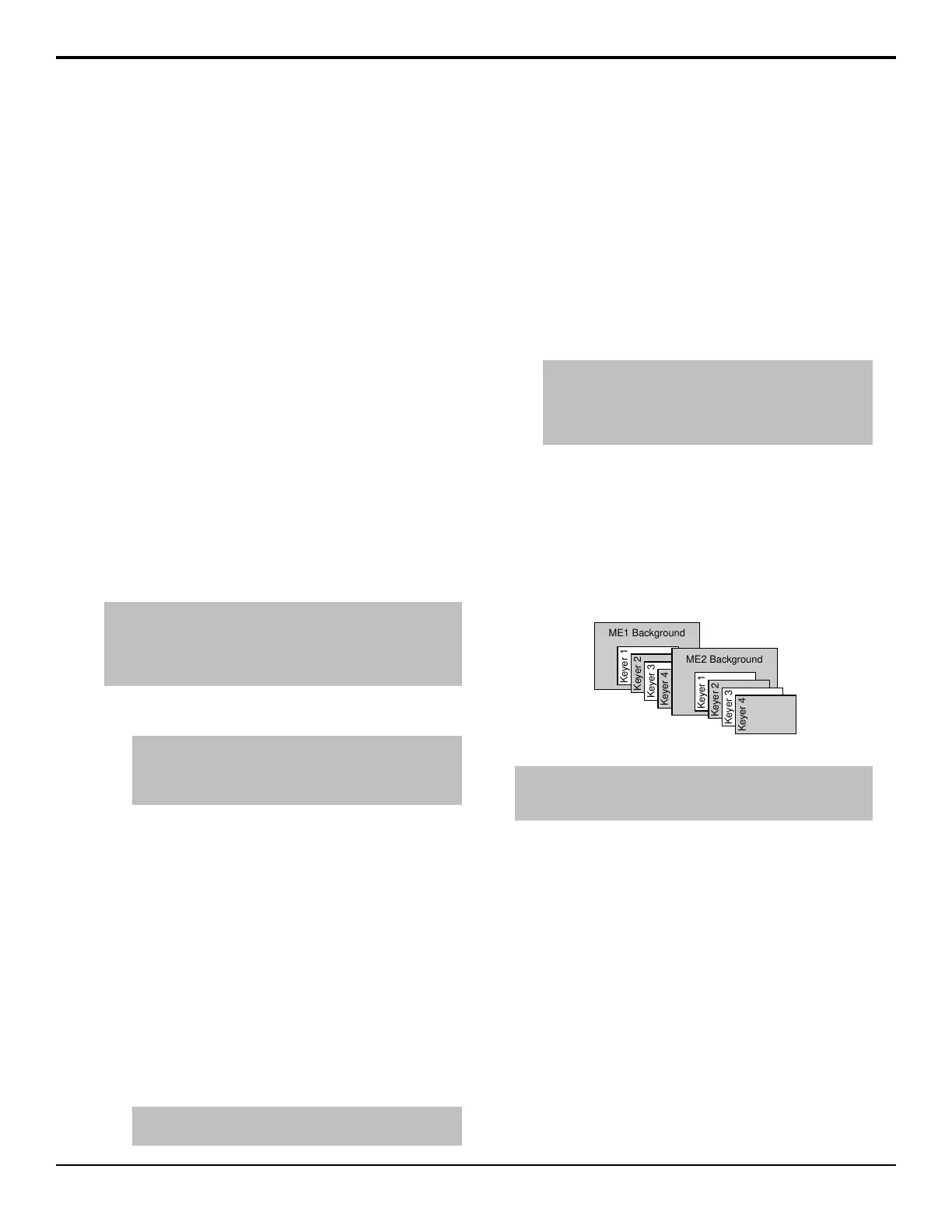
How video is layered in the output of the switcher
depends on how an ME is re-entered onto the other, and
what keyers are on-air for the ME. If we assume that
each ME has all keyers on-air, and that ME 1 is re-entered
into the ME 2, the layering will start with ME 1
Background and progress to the highest ME and keyer.
ME1 Background
Keyer 1
Keyer 2
Keyer 3
Keyer 4
ME2 Background
Keyer 1
Keyer 2
Keyer 3
Keyer 4
Figure 8: Video Layering
Tip: You can select a MiniME
™
on an ME or different MiniME
™
to re-enter it. Up to two MiniME
™
re-entries, including an ME is
allowed.
ME Re-Entry
Re-entry is the term used to describe the process of
selecting another ME on an ME. For example, if you
select ME 1 on ME 2, ME 1 is said to be re-entered onto
ME 2. Re-entry takes the output of an ME and uses it as
the background or key on the other ME. If you select an
ME on the background bus, the ME becomes background
video source of the other ME. If you select an ME on a
Key Bus, the ME becomes the key source of the other
ME.
Keep the following in mind when working with
re-entries:
• You cannot re-enter ME 2 into ME 1.
• You cannot re-enter an ME, or the Clean Feed of an
ME, into itself.
14 • Switcher Basics — Graphite Operation Manual (v1.1)



 To Next Page