the new rate, and press Enter. (Does not apply to CB1 or
CB2.)
3.
Use the DisTyp knob to select Diss.
4.
Press NEXT.
5.
Use the Key X knobs to select the length of the key
transitions.
Tip: Press KEY RATE in the Effects Memory area
repeatedly to select the Keyer you want to set the rate for,
use the keypad to enter the new rate, and press Enter.
(Does not apply to CB1 or CB2.)
WhiteFlash
Perform a two-step transition where a dissolve to and
from white, or other selected color, is performed in the
middle of the transition. The video signal on the
Background bus is transitioned to a color background of
the selected WhiteFlash color. The color background is
then transitioned to the preset bus. WhiteFlash consumes
a pattern generator for the transition.
Each ME has a separate WhiteFlash generator.
To Set Up a WhiteFlash
A WhiteFlash transition is performed just like a normal
dissolve except that you must set the color for the ash
and the rates for the onset, hold, and fade. transition is
performed just like a normal dissolve except that you
must set the color for the ash and the rates for the onset,
hold, and fade.
1.
Press DISS.
Tip: You can use the same procedure for a MiniME
™
or
MultiScreen.
2.
Use the Time knob to set the length of the
background transition.
Tip: Press ME RATE in the Effects Memory area for the
ME you want to change the rate for, use the keypad to enter
the new rate, and press Enter. (Does not apply to CB1 or
CB2.)
3.
Use the DisTyp knob to select Flash.
4.
Press NEXT.
5.
Use the Key X knobs to select the length of the key
transitions.
Tip: Press KEY RATE in the Effects Memory area
repeatedly to select the Keyer you want to set the rate for,
use the keypad to enter the new rate, and press Enter.
(Does not apply to CB1 or CB2.)
6.
Press NEXT > NEXT > NEXT.
7.
Use the Onset, and Offset knobs to select the
percentage of the transition that each phase of the
WhiteFlash takes.
•
Onset — duration of the dissolve to the
WhiteFlash color.
•
Offset — duration of the dissolve to the preset
video source.
•
Hold — duration of the dissolve that the
WhiteFlash color is held. This value is the
residual of entire duration minus the onset and
offset.
8.
Press NEXT.
9.
Select a default or custom color for the WhiteFlash.
•
Default — use the Load knob to select a preset
color for the WhiteFlash.
•
Custom — press NEXT and use the Hue, Sat,
and Lum knobs to select your own color.
Wipe Transitions
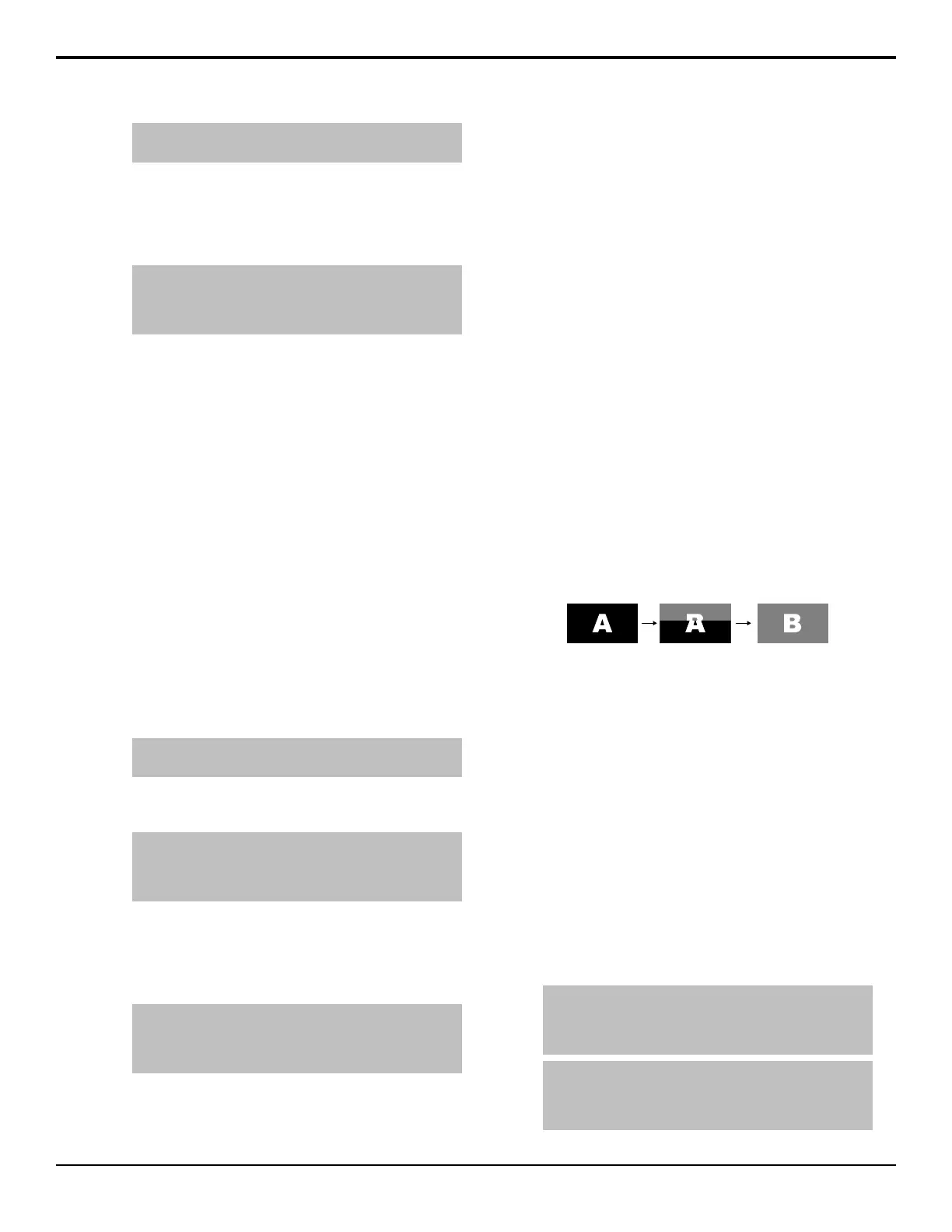
A Wipe is a gradual transition where one video signal is
replaced with another according to a wipe pattern. In the
example below, a line wipe is being used.
Figure 23: Wipe Transition
For Key transitions, the key is wiped on or off-air with
the transition and the background remains untouched.
The duration of a wipe transition depends on either the
transition rate for the ME, or the rate at which the fader
is moved.
To Set Up a Wipe
A wipe transition requires that you select a wipe pattern,
set the direction and number/size of wipe pattern, as well
as set a background and key transition rate for the auto
transition. A fader transition does not use the transition
rate.
1.
Press WIPE.
2.
Use the Time knob to set the length of the
background transition.
Tip: Press ME RATE in the Effects Memory area for the
ME you want to change the rate for, use the keypad to enter
the new rate, and press Enter. (Does not apply to CB1 or
CB2.)
Tip: Press KEY RATE in the Effects Memory area
repeatedly to select the Keyer you want to set the rate for,
use the keypad to enter the new rate, and press Enter.
(Does not apply to CB1 or CB2.)
Graphite Operation Manual (v1.1) — Transitions • 23



 To Next Page