69/74
Switch on again the meter and verify that the initial splash screen displays the new firmware
version.
If you find some troubles during the upgrade procedure or the meter doesn't upgrade correctly,
please contact our Customer Support Department at (+39)0309198299 or by e-mail at
wecare@roverinstruments.com
Channel Plans upgrade
The channel plans upgrade is very similar to what has been described in the section above.
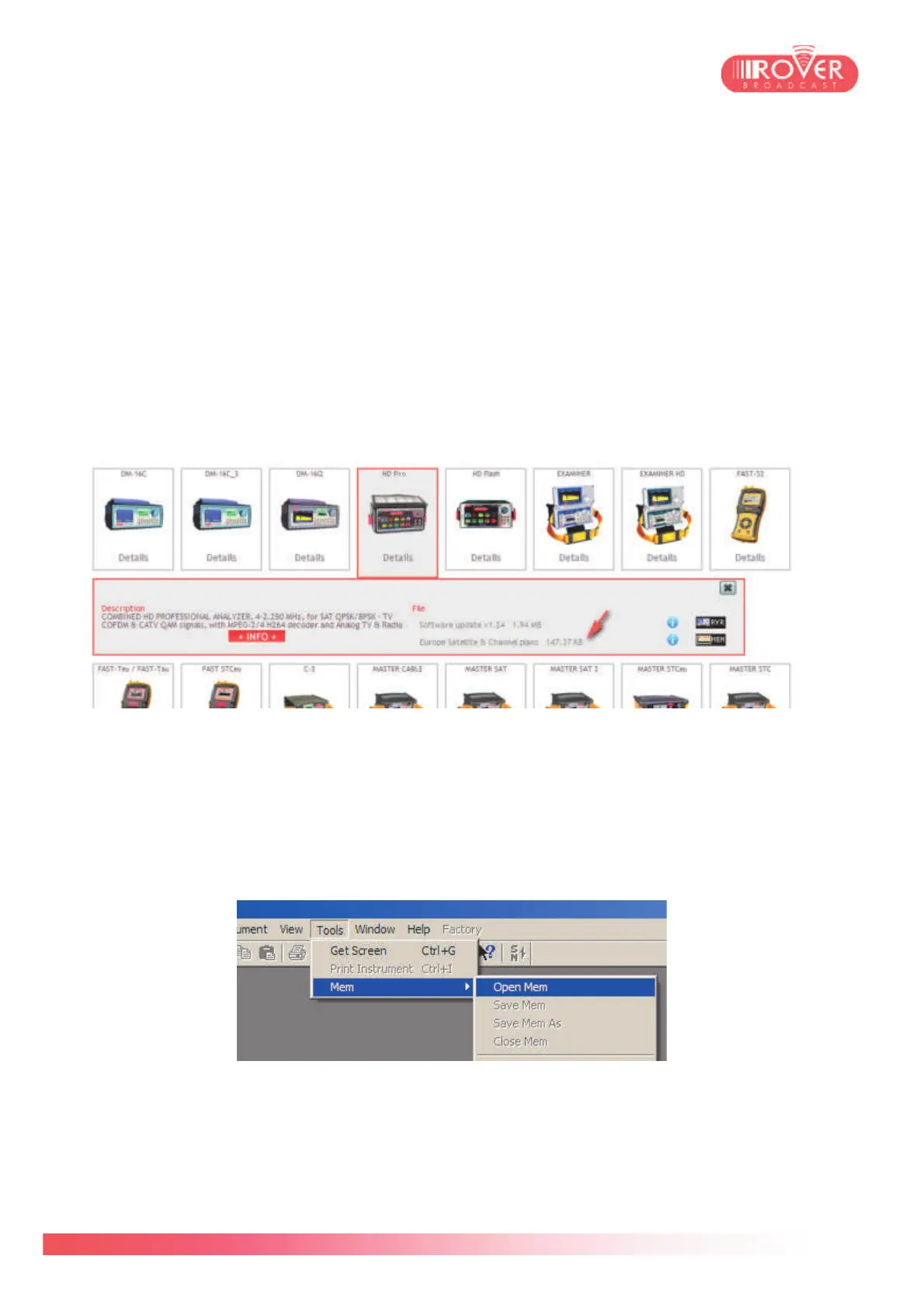
Once logged in into the Upgrade SW area and identified your meter, in the pop-up information box
you'll find the available channel plans just under the firmware upgrade package:
To download it on your Personal Computer, click on the MEM icon. Once the download has
finished, connect the meter to your Personal Computer via the USB-A / micro-USB cable and
launch the S.M.A.R.T. software.
In the toolbar, select the Connection command icon and once the meter is connected (you'll see
meter's model, serial number and firmware version in the bottom status bar) go to Tools menu and
select Open Mem function:
Now browse your PC to the download location where you stored the MEM file downloaded from
corporate website and confirm the selection by pressing the Open icon in the dialog window
appeared.


 To Next Page