74
Using MDC
3
3 Using MDC
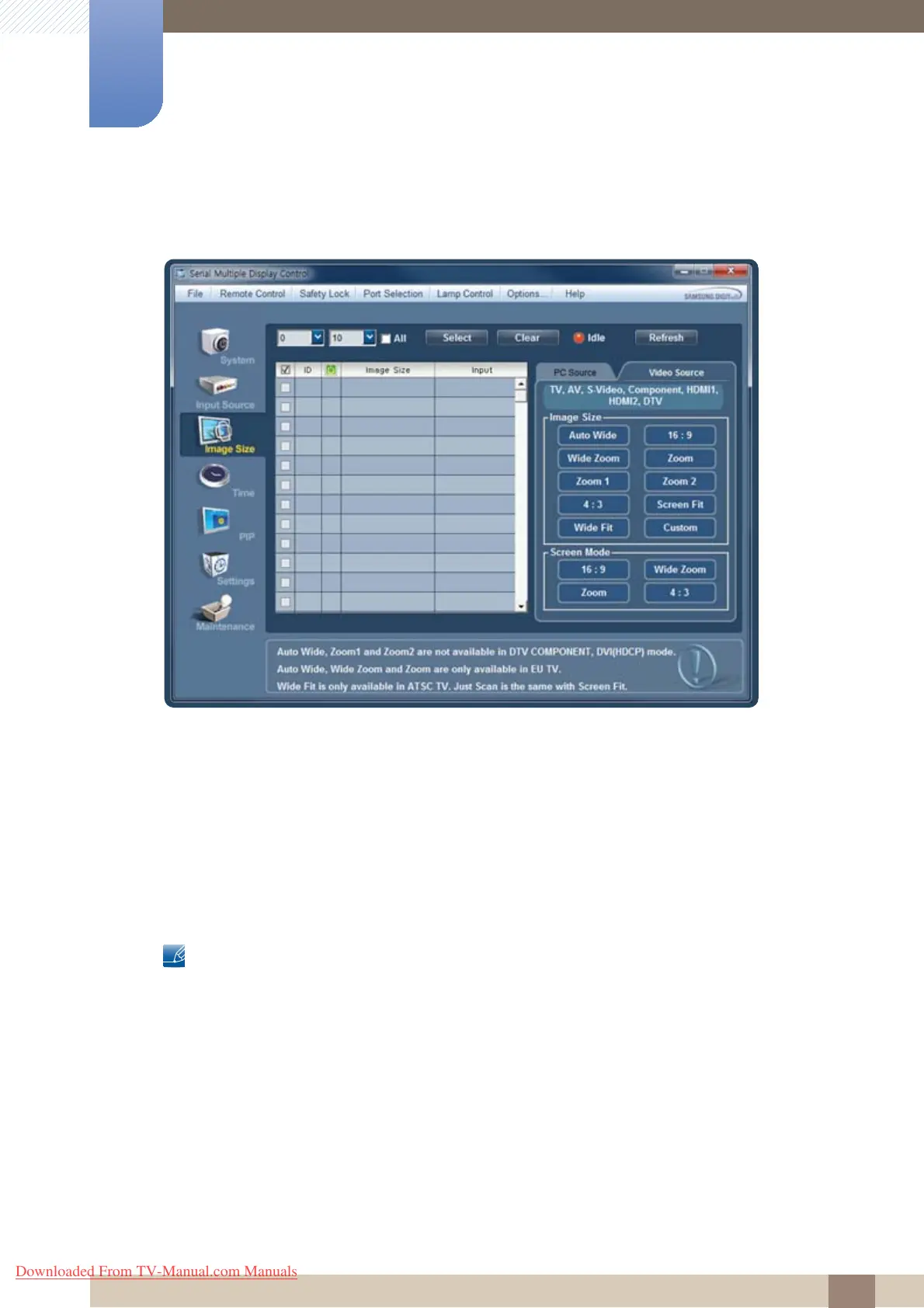
When connected in TV, AV, Component, DVI(HDCP) or DTV mode:
Click Video Source and change the aspect ratio.
You can specify Image Size and Screen Mode.
Image Size
z Auto Wide - 16 : 9 - Wide Zoom - Zoom - Zoom 1 - Zoom 2 - 4 : 3 - Screen Fit - Wide Fit - Custom
Screen Mode
z 16 : 9 - Wide Zoom - Zoom - 4 : 3
Screen Mode can only be adjusted when Image Size is set to Auto Wide in TV mode.
z Changes will only be applied to displays that are powered on.
z Select the displays you want to apply the changes to using the select window above.
z Only displays connected in TV, AV, Component, DVI(HDCP) or DTV mode will be displayed on the
left.
z Auto Wide, Zoom1 and Zoom2 are not enabled when 720p or 1080i signals are received in
Component mode.
z Magicinfo only functions on products that have the MagicInfo function.
z TV mode is only available on products that have the TV function.
Downloaded From TV-Manual.com Manuals



 To Next Page