SelectingtheAudio
Language .....
You can select a desired audio language quickly
and easily with the AUDIO button.
SelectingtheSubtitle
Language .....
You can select a desired subtitle quickly and easily
with the SUBTITLE button.
1
Using the AUDIO button
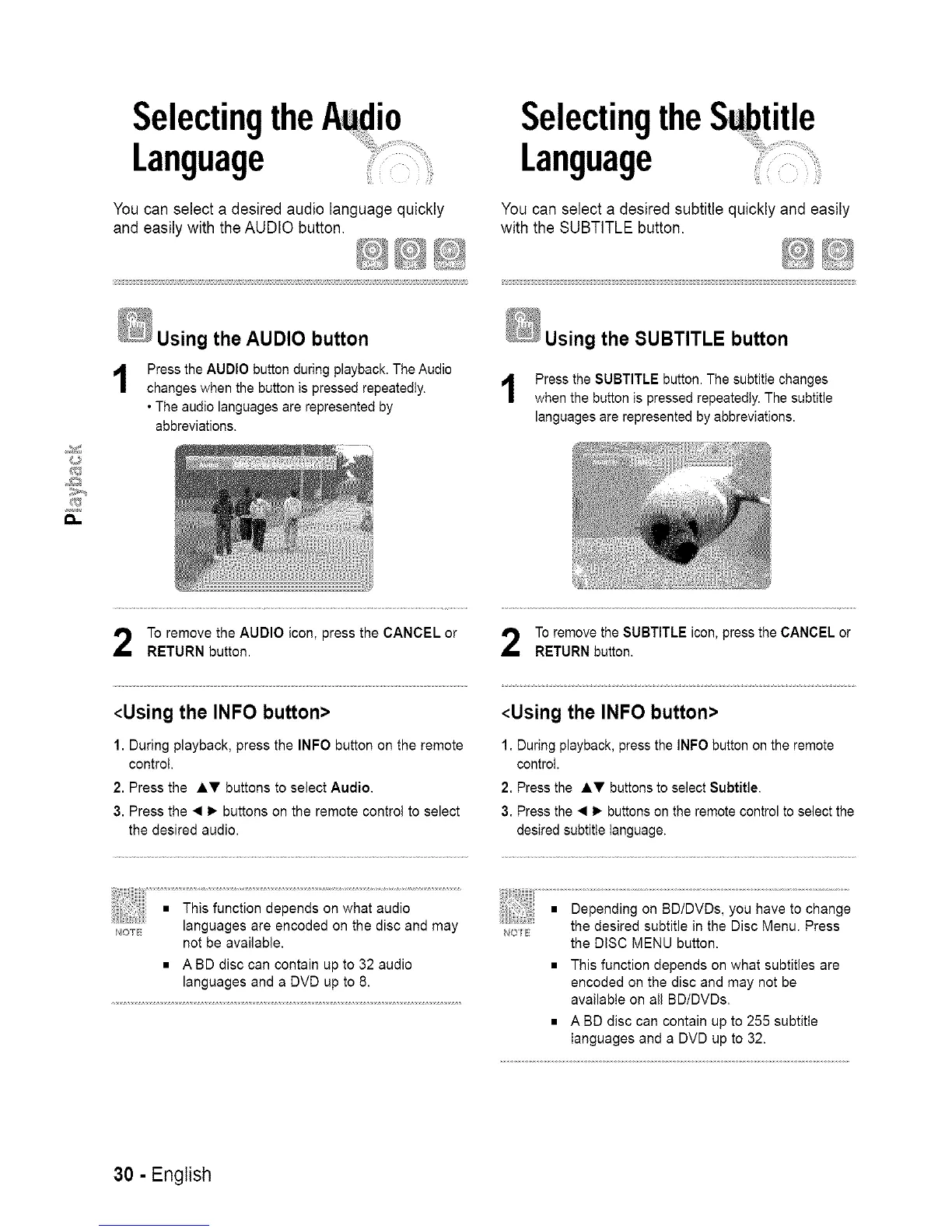
Press the AUDIO button during playback. The Audio
changes when the button is pressed repeatedly.
• The audio languages are represented by
abbreviations.
Using the SUBTITLE button
Press the SUBTITLE button. The subtitle changes
when the button is pressed repeatedly. The subtitle
languages are represented by abbreviations.
To remove the AUDIO icon, press the CANCEL or
RETURN button.
<Using the INFO button>
1. During playback, press the INFO button on the remote
control.
2. Press the AT buttons to select Audio.
3. Press the • 1_ buttons on the remote control to select
the desired audio.
To remove the SUBTITLE icon, press the CANCEL or
RETURN button.
<Using the INFO button>
1. During playback, press the INFO button on the remote
control.
2. Press the AT buttons to select Subtitle,
3. Press the • 1_ buttons on the remote control to select the
desired subtitle language.
NOT_
not be available.
• A BD disc can contain up to 32 audio
languages and a DVD up to 8.
_'_O
the DISC MENU button.
• This function depends on what subtitles are
encoded on the disc and may not be
available on all BD/DVDs,
• A BD disc can contain up to 255 subtitle
languages and a DVD up to 32.
30 - English






 To Next Page