ŝ77Ş
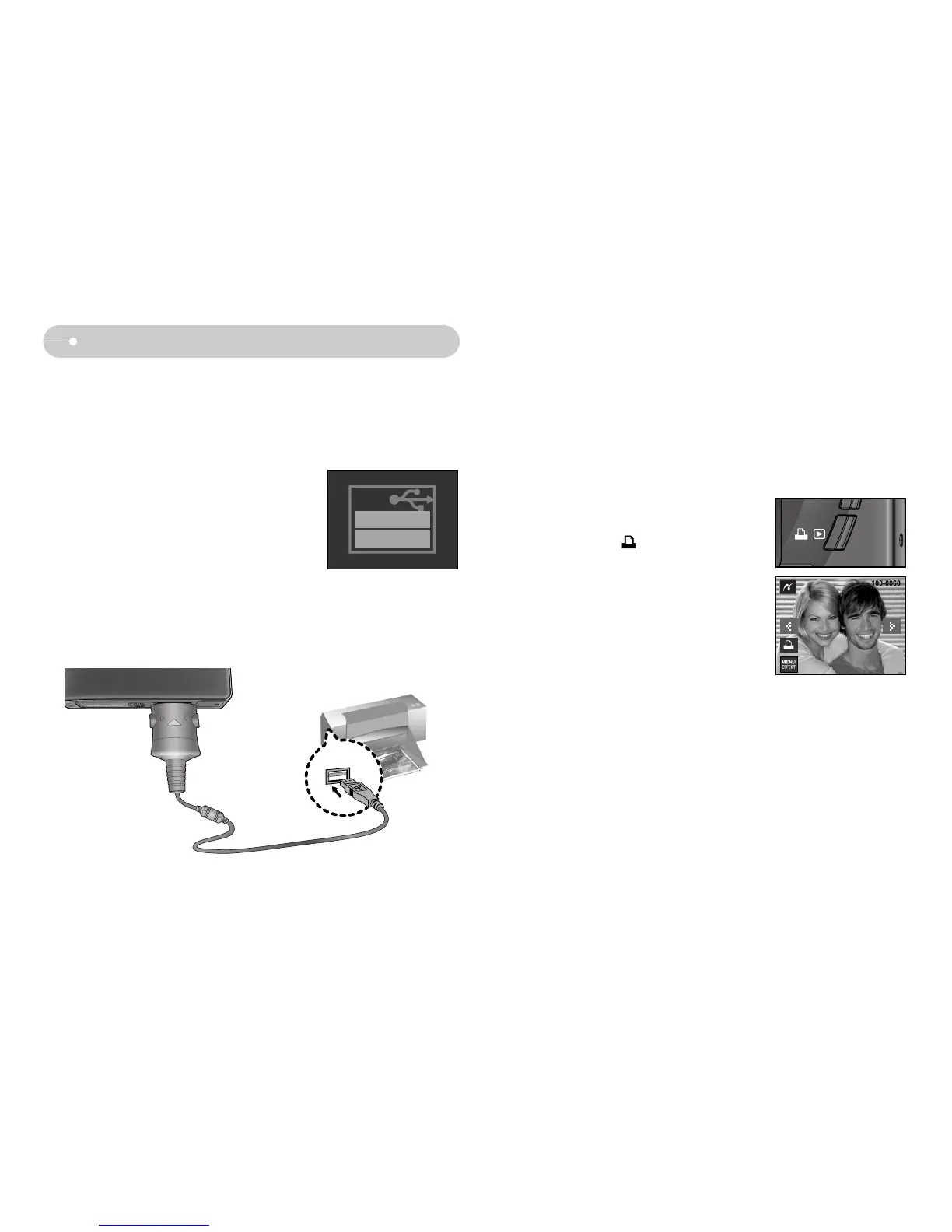
ƈ You can use the USB cable to connect this camera to a printer that supports
PictBridge (sold separately) and print the stored images directly. Movie clips and
voice files cannot be printed.
ƈ Connecting the Camera to a Printer
ƃ Setting up the camera for connection to the printer
1. Connect the camera and printer with USB
cable.
2. Select the [Printer] menu.
PictBridge
Computer
Printer
Select USB
ſ If the [USB] menu is set to the [Computer], you cannot connect a Pictbridge
compatible printer to the camera through USB cable with [Connecting Computer]
message. In this case, remove the cable and do the step 1, 2 again.
ƈ Easy printing
When you connect the camera to printer in the Play
back mode, you can print a picture easily.
- Pressing the printer ( ) icon :
Currently displayed image will be printed with the
printer’s default setting.
- Pressing the ȜȞ icon :
Selects a previous / next image.


 To Next Page