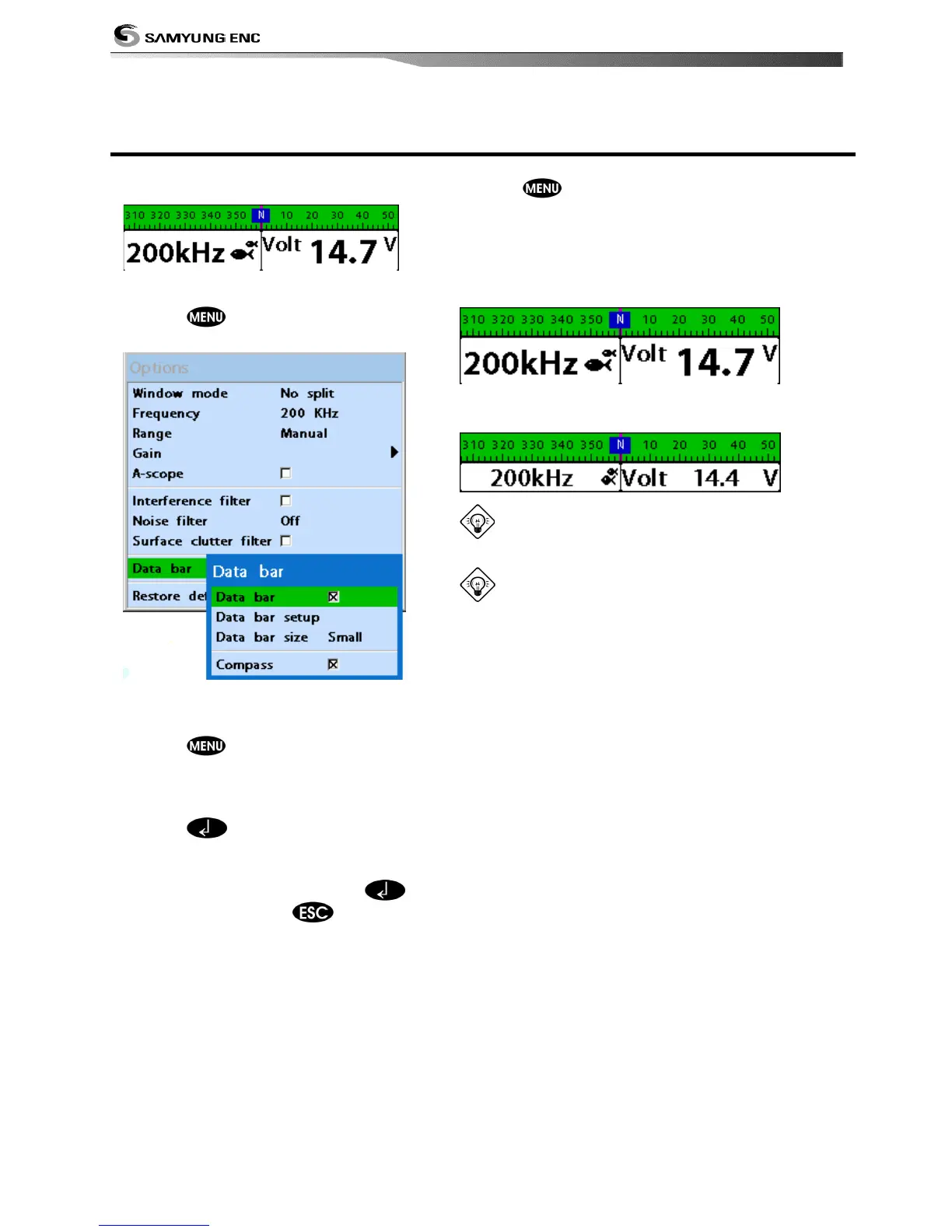
Data bar displays useful navigation
information at the top of the display.
Displaying Data bar
1 Press and select Data bar.
2 Select Data bar.
Setting the data displayed in data
bar
1 Press and select Data bar.
2 Select Data bar then Data bar setup.
3 Move the cursor key to highlight the
data field you want to change then
press .
4 Select Data type.
5 Select a desired data you want to
display in the field then press .
6 After selection, press .
7 Repeat above steps if necessary.
Selecting the Data bar size
1 Press and select Data bar.
2 Select Data bar then Data bar size.
3 Select the desired size of data bar.
.
[Large]
[Small]
Tip: If you select None for all data fields, the
data bar will disappear to save space for the chart.
Tip: Even though you setup a data bar for
specific window, the data bar is not apply to all
other window.


 To Next Page