nova250 Touch Panel
Start screen
7001064003 T1 Sauter Systems 9
2 Start screen
2.1 Main menu
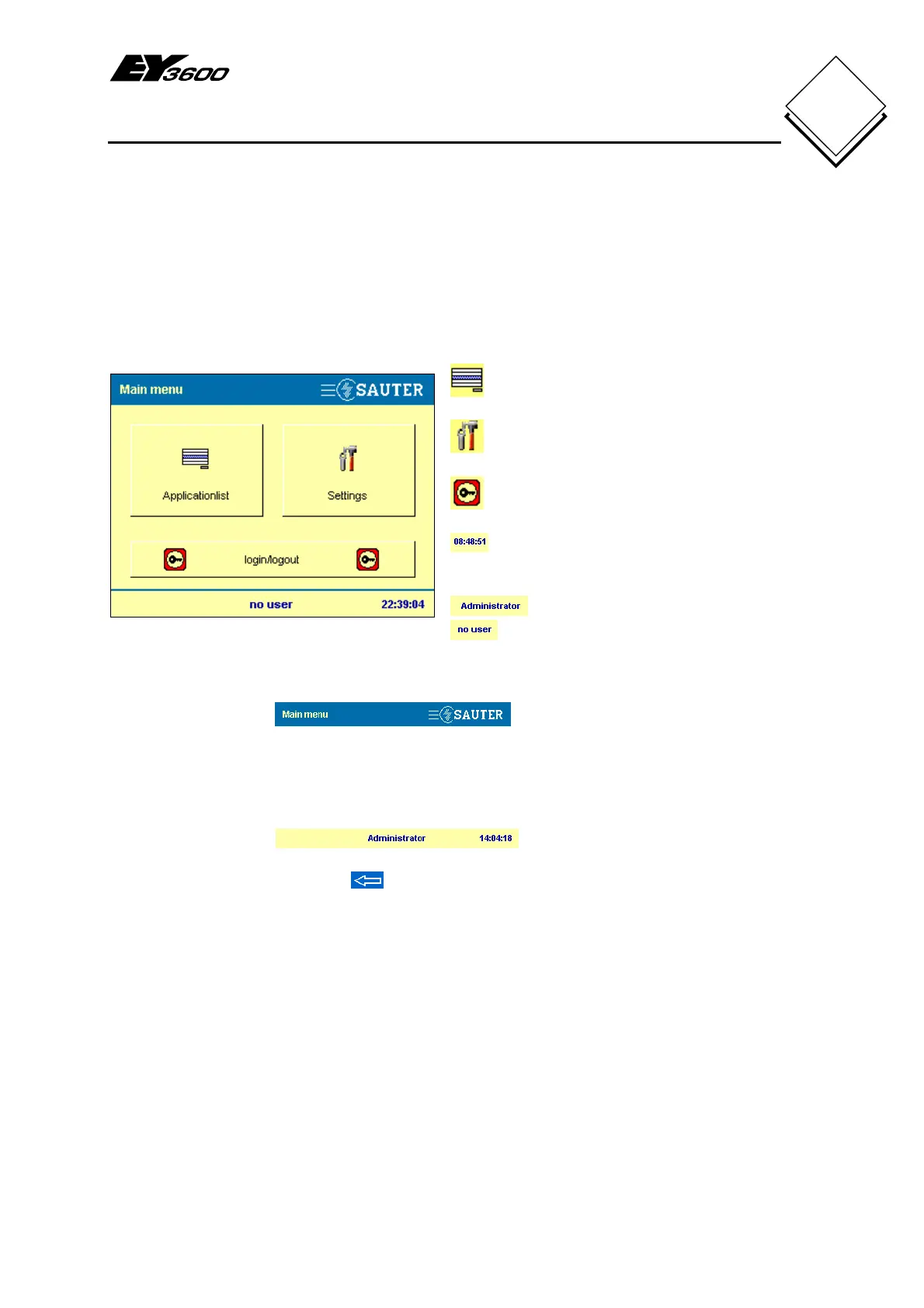
After you have successfully connected and started the touch-panel, the main menu
start screen is called up automatically. This contains the top level of menu items.
Fig. 2-1: Main Menu
Application list
Settings
Login/logout (with password)
Time (in the status bar)
User (in the status bar):
Default administrator
Logged out, no user
The touch screen is divided into three sections:-
1. Title bar:
Menu header with company logo
2. The central area is used to display the various functions and buttons as depicted
in Fig. 2-1.
3. Status bar:
Displays the logged-in user with the current time. Also, the status bar often
contains the back arrow
, which is used to go back to the previous window.
Touch one of the three buttons to select the function of your choice:-
•
Application list (section 3)
-
Selection of the automation station (AS) or plant that you want
•
Settings (section 5)
-
Calibration: calibration of the touch-panel screen
-
Reboot: restart the touch-panel software
-
System info: view the current system settings and versions
Other settings:-
-
Display parameters: setting the screen contrast
-
Clock: set the time
-
Profiles: create users
-
Filters: view, enable and disable filters


 To Next Page