nova250 Touch Panel
Standard application
7001064003 T1 Sauter Systems 19
4.3 Time programs and calendar
4.3.1 Data points for time programs
By pressing the time program button , you can visualise the existing time program for
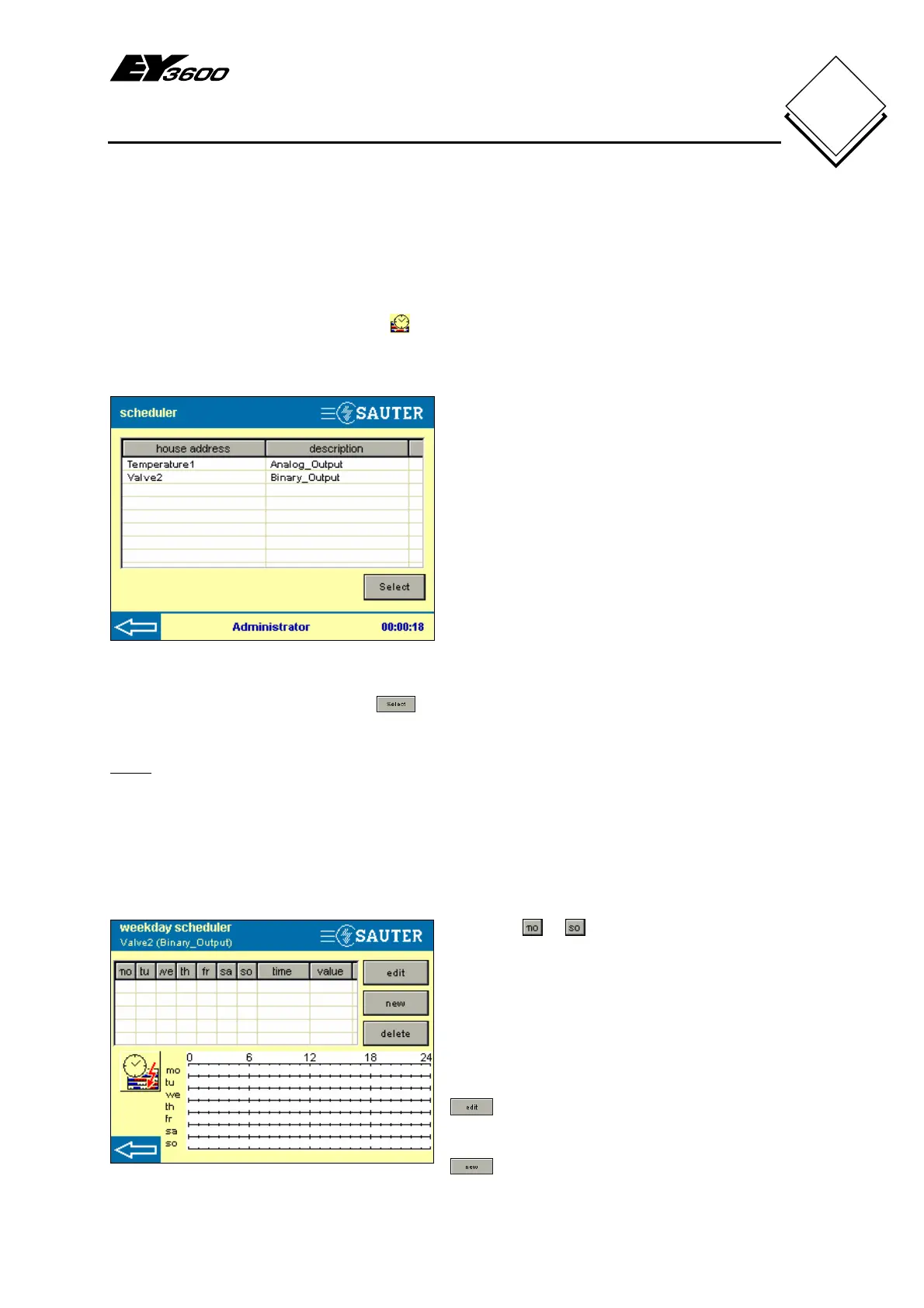
specified data points or define another time program. Fig. 4-9 shows a list of data points
that can be linked to a time program.
Fig. 4-9: Time Program
House address column: address of the
data point
Description column: data point description
(address text)
Press the column header – house address
or description – to sort the lines in
ascending or descending alphanumeric
order.
The status bar is also shown, allowing you
to return to the data-point list.
To visualise or change the time program or to create a new one, the data point must be
selected and activated by pressing
. The current time program for the data point is
then read from the AS.
Note:
To change time programs, you must be logged in as a user from the administrator
or user group. See section 5.7.
4.3.2 Time program for days of the week
Once the data point is selected, a window as shown in Fig. 4-10 will be displayed (data
point without weekday time program).
Fig. 4-10: Weekday Time Program
Columns to represent the seven
days of the week from Monday until
Sunday.
Time column: indicates the switching time
Value column: shows the value to be set
or the status to be switched.
allows you to change the selected
existing time program entry.
allows you to create new time
program entries.


 To Next Page