nova250 Touch Panel
Standard application
7001064003 T1 Sauter Systems 23
4.3.5 Send time programs
Press in the weekday time program (Fig. 4-10) or the special day time program
(Fig. 4-13) to prepare for writing the time program to the AS. Before the time program is
sent, you see a confirmation window.
Fig. 4-14: Send Time Program
Press to send the time program for the data point to the AS. If you press ,
the time program will not be sent and you 'lose' any entries that may have been
changed. In both cases, you exit the time program and go to the overview of data points
for time programs. Press
to stay in the weekday or special day time program.
4.3.6 Calendar
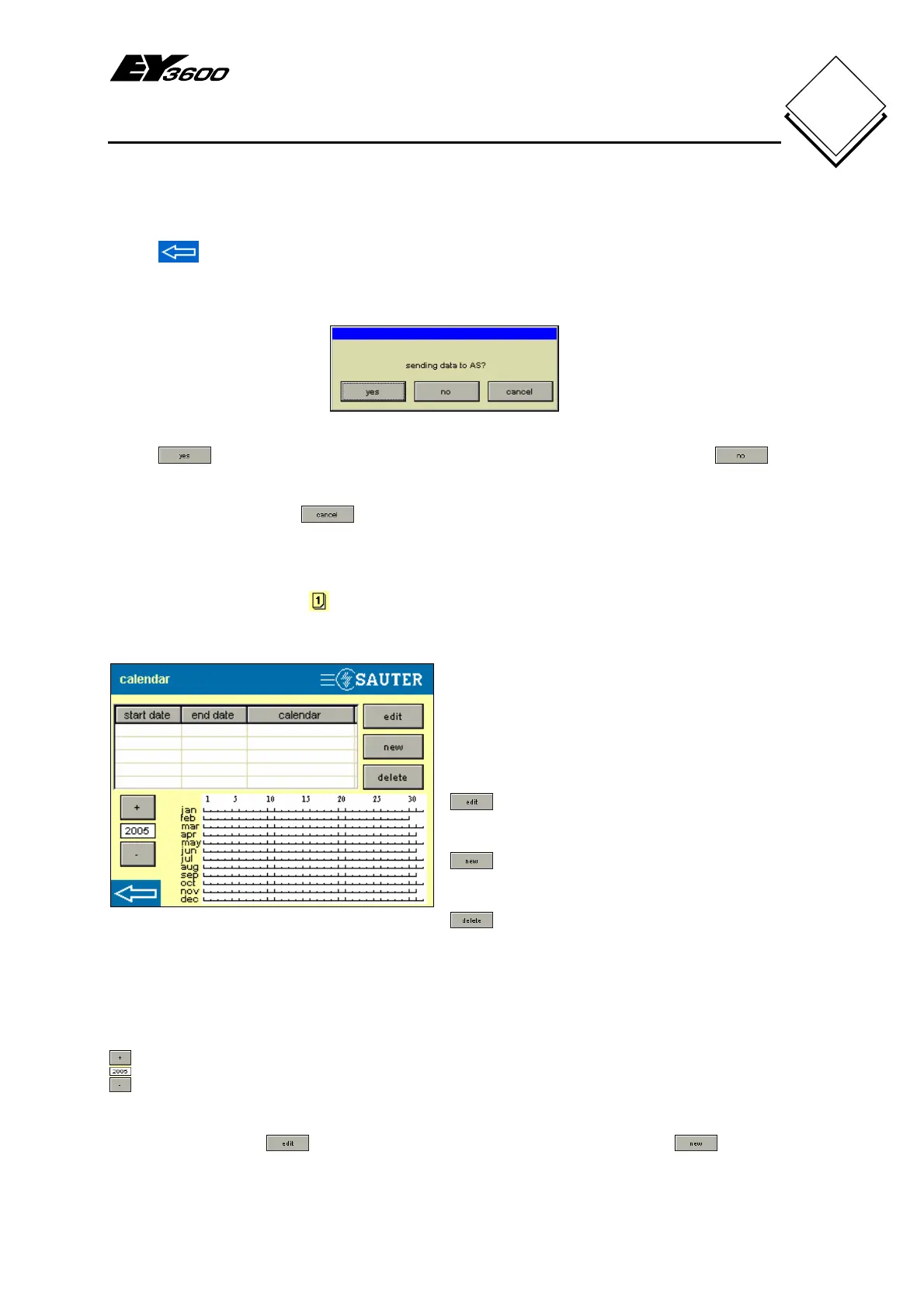
Press the calendar button to see the window shown in Fig. 4-15 (automation station
without defined calendar function).
Fig. 4-15: Calendar
The Start date and End date columns
define the period for the calendar entry.
The Calendar column shows the definition
of the calendar entry, either with special
day 1 to 8 or an assigned weekday.
allows you to change the selected
existing calendar entry.
allows you to create a new calendar
entry.
allows you to delete the selected
calendar entry.
The list view of the calendar entries (active special days) is in the upper section of the
window and a graphic view of the yearly calendar with visualised special days is in the
lower section. Special day periods are shown in red and individual special days are
shown in blue.
is used to change the year calendar over in the graphic view. Special days can be
defined 2 years in advance.
When you press the
button (after selecting a line from the list) or the button,
you see the window for making entries in the calendar (Fig. 4-16).


 To Next Page