PAGE 57
© 2022. All rights reserved. Used under license by Schlüter-Systems KG.
WiFi Connection* 1/4
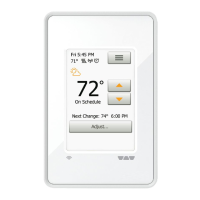
You can set up a WiFi connection in the following way:
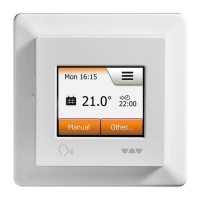
1. Tap the “Menu” button on the home screen.
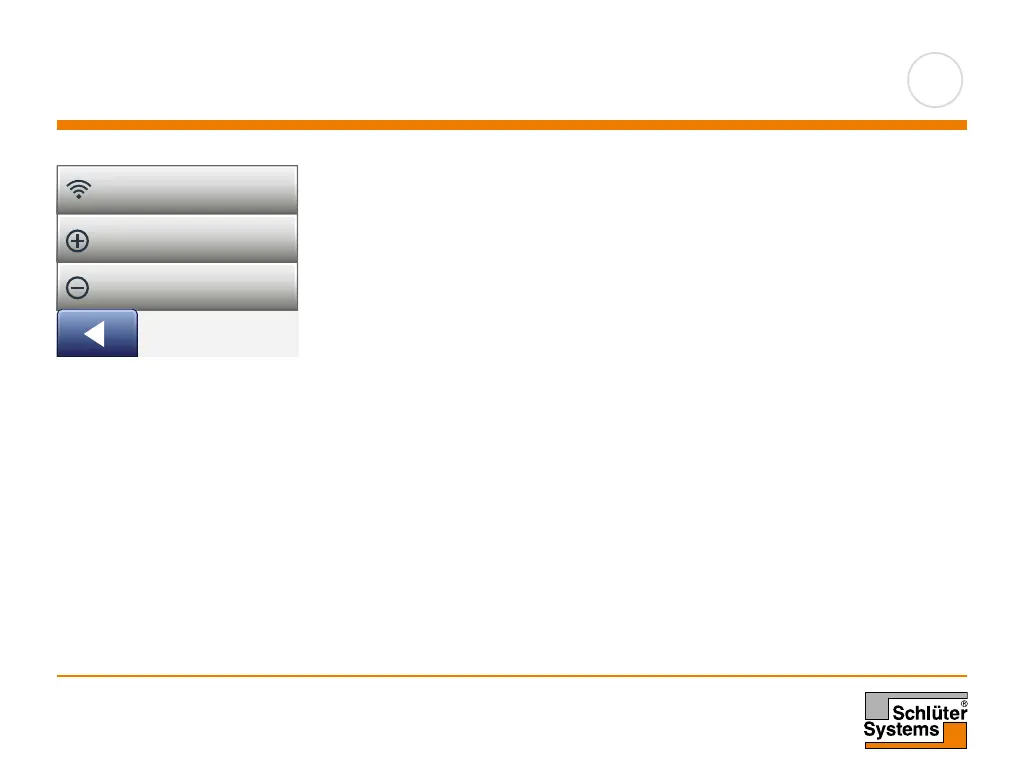
2. Tap the “App Control” button to access the app setup options.
3. Tap the “WiFi Connection” button to set up the WiFi connection.
Note that if a WiFi configuration is already made, the “Status” screen will be
displayed showing the current status of the WiFi connection. In this case, tap the
“Right Arrow” button to proceed, or the “Left Arrow” button to return to the main
menu.
4. Choose the desired connection type on the “Connection type” screen:
• Tap “WPS” for automatic setup. Proceed to steps 5 and 6.
• Tap “Manual” for manual setup. Proceed to steps 7 to 10.
Automatic setup requires that you can activate WPS on the router. For details about
the location of the WPS button on your router, please check your router manual.
5. Go to your WiFi router and activate WPS.
6. On your thermostat, tap the “Right Arrow” button to start connecting the
thermostat.
Wi-Fi Connection
Connect to App
Remove from App
WiFi Connection
Connect to app
Remove from app
*
)
Only available for the DHERT6/BW Smart (WiFi & Voice Control) thermostat


 To Next Page