M4200 - User manual
Revision: 07.03.2017 Page 26
Programming by PC
There are two ways of programming the alarm monitor; by dip switches on the rear of the unit or by any
standard ANSI compatible terminal application e.g. Microsoft
®
HyperTerminal (which is supplied with the
Windows
®
operating system) or any other ANSI terminal.
When using a standard ANSI compatible terminal application, the configuration is done through a PC, via the
special RS232 cable which is delivered with the alarm monitor.
The 16 dip switches have a limited number of combinations and provide only restricted combinations for e.g.
channels and delays. Otherwise the RS232 based configuration is unrestricted.
In this section, all necessary information regarding programming of the alarm monitor from a PC is available.
Read config
It is possible to read out the present configuration of the alarm monitor, by writing a single command into the
terminal window.
Make sure that the RS232 port on the alarm monitor is connected to the PC serial port (COM1), and the
power is turned on.
To start up the programming window (Microsoft
®
HyperTerminal):
1. Click on the Start button (in the lower left corner of the Windows
®
screen).
2. Click on the menu item All
programs*
)
.
3. Click on the menu item Accessories.
4. Click on the menu item Communication.
5. Click on the menu folder HyperTerminal.
6. Click on the menu item Direct COM1.
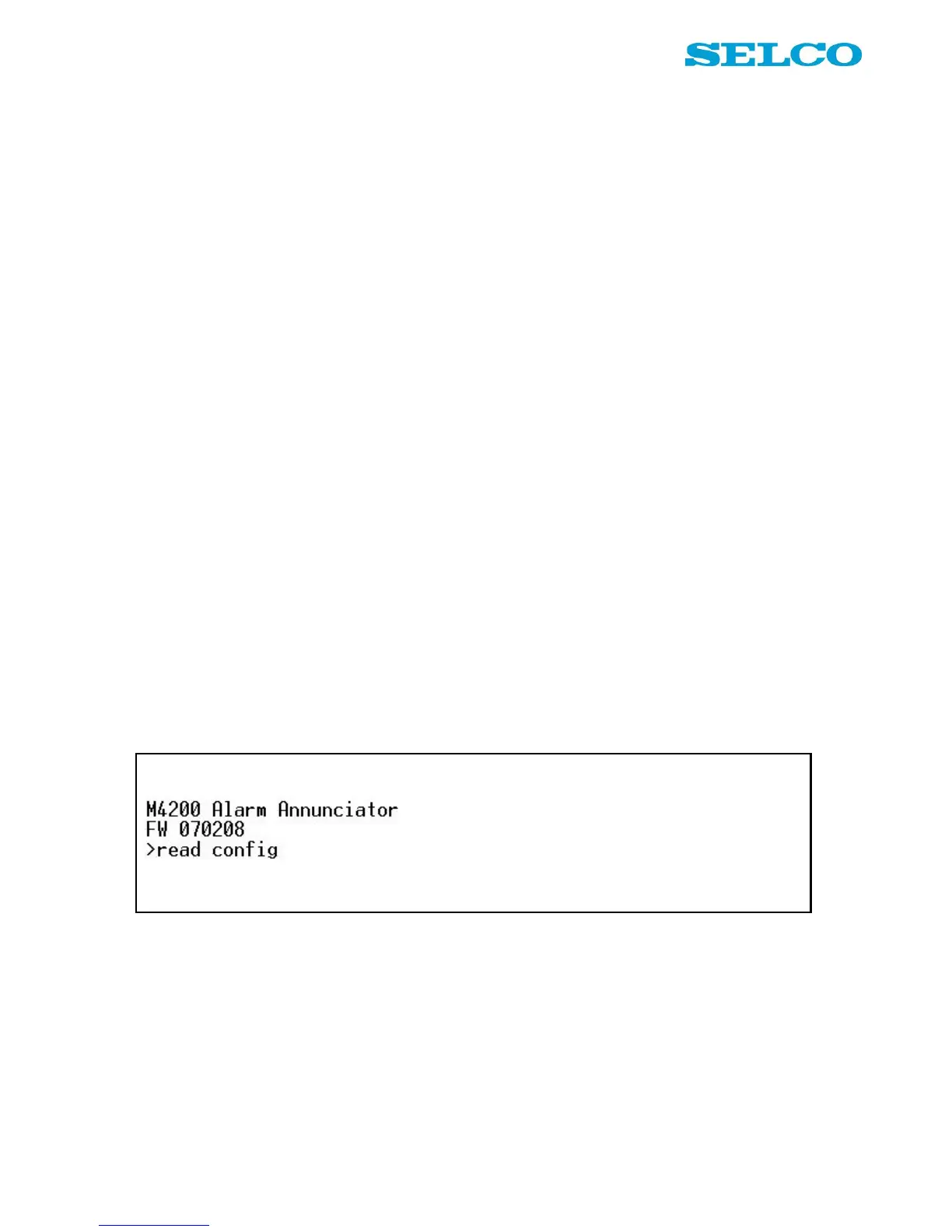
The HyperTerminal dialogue will appear on the screen:
7. Type the text read config in the terminal window.
8. Press the Enter key on the keyboard.
All parameters are now listed in the terminal window. All parameters can be changed or activated according
to the descriptions on every single parameter, which you are able to read about on the following pages.
Please type the complete command and press ENTER. The parameter is automatically saved into the unit.
*
)
On Windows
®
XP the button is named All programs. If the operating system is older than Windows
®
XP, the button is only named
Programs.


 To Next Page