Intercom
Pairing
Two-Way
Intercom
Universal
Intercom
Advanced
Noise
Control™
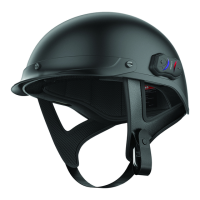
Sena Cavalry Lite Bluetooth
®
Half Helmet | 40
6. INTERCOM SETUP
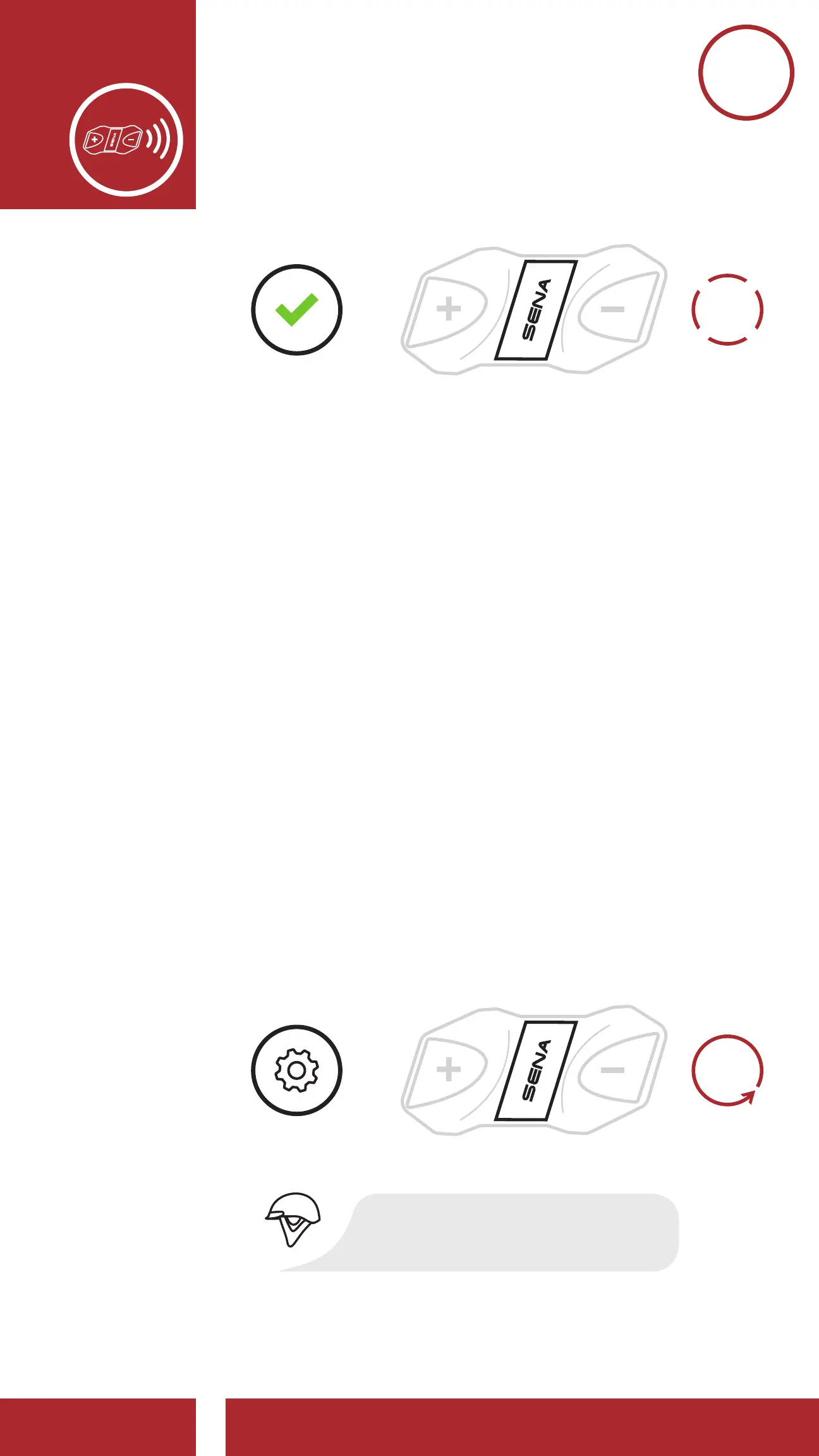
MENU
1x
TAP
Access Universal Intercom in the Confi guration Menu
EXECUTE
=
ACCESS
CONFIG.
MENU
“Universal intercom”
“Confi guration menu”
10s
HOLD
2. Put the non-Sena Bluetooth headset in Pairing
Mode. The Cavalry Lite Bluetooth Half Helmet
will automatically pair with a non-Sena Bluetooth
headset.
3. You can have Two-Way Intercom communication
using non-Sena headsets by following the
procedures described below.
6.4 Advanced Noise Control™
(Default: Enable)
An Advanced Noise Control setting can be found
in the Configuration Menu. Please refer to Section
2.7: “Configuration Menu” for more details.
If Advanced Noise Control
is enabled, background
noise is reduced during intercom conversations.
If Advanced Noise Control is disabled, the
background noise is mixed with your voice while
using the intercom.
6x
TAP
1x
TAP
Access Advanced Noise Control
in the Confi guration Menu
ENABLE OR
DISABLE
NAVIGATE
BACKWARD
6X
=
ACCESS
CONFIG.
MENU
“Confi guration menu”
10s
HOLD


 To Next Page