Quick start guide
in the field and is explained in detail in section ‘The setup phase of a flight’ on
page 37.
1.4 The mission phase of a flight
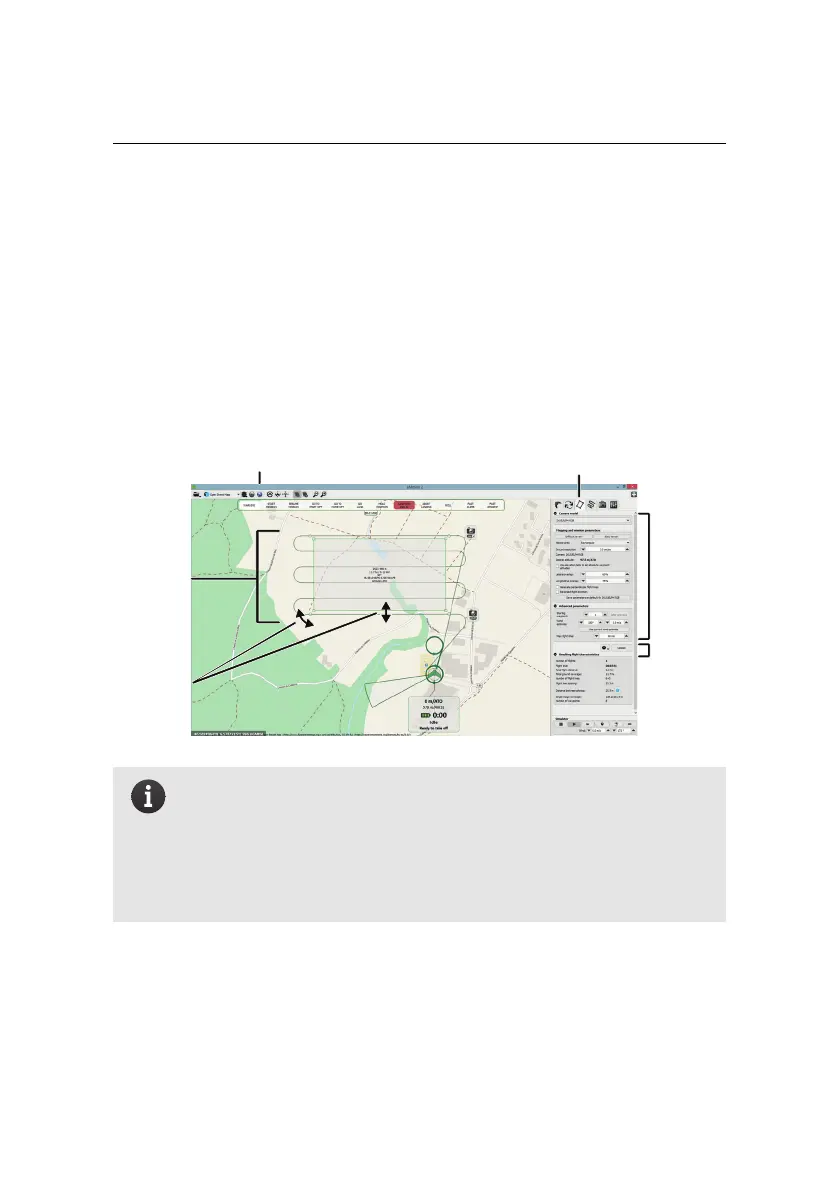
The easiest way to create a mapping flight for the systematic coverageof an area is
to use the automatic mission planning feature of eMotion. By simply positioning a
rectangle around the area you would like to cover, eMotion will generate a mission
plan optimised for the ground resolution that you desire.
mission
area
Step 1: open tab and select
Step 2:
rotate,
resize,
move
Step 3:
choose
params
Step 4:
upload
Step 5: check in Google Earth
correct camera
Note: For more complex terrain and missions, eMotion has the abil-
ity to set polygonal mission areas of any size and shape, and to au-
tomatically adjust waypoint altitudes based on elevation data. These
powerful features are described in more detail in section ‘Advanced
polygonal mission area’ on page 60and section ‘3D mission planning
using elevation data’ on page 61, respectively.
Follow these steps to automatically setup waypoints for a mapping mission:
1. Select the Mission Planning tab from the Sidebar. A grey zone will appear
in the Map Area to designate the mission area to cover. Information such
22



 To Next Page