Quick start guide
Caution: eMotion as well as the automatic mission planning tool are
not aware of any obstacles that may exist in the area. In addition,
when not using elevation data, the mission planning tool assumes
that the mission area is flat and at the same altitude than the take-off
location. It is also not aware of any legal restriction (such as minimum
or maximum altitude) that may exist in your region. The resulting
flight plan should be carefully reviewed in order to avoid any collision
with uneven terrain or tall objects such as buildings, and to comply
with local regulations.
The final step after you have prepared a flight plan is to save it to a file that you
can load into the eBee when you are in the field. Select the Setup Phase tab from
the Sidebar, click on ‘Save flight plan to file...’, choose a filename and location and
click ‘Save’.
1.5 Simulating your flight
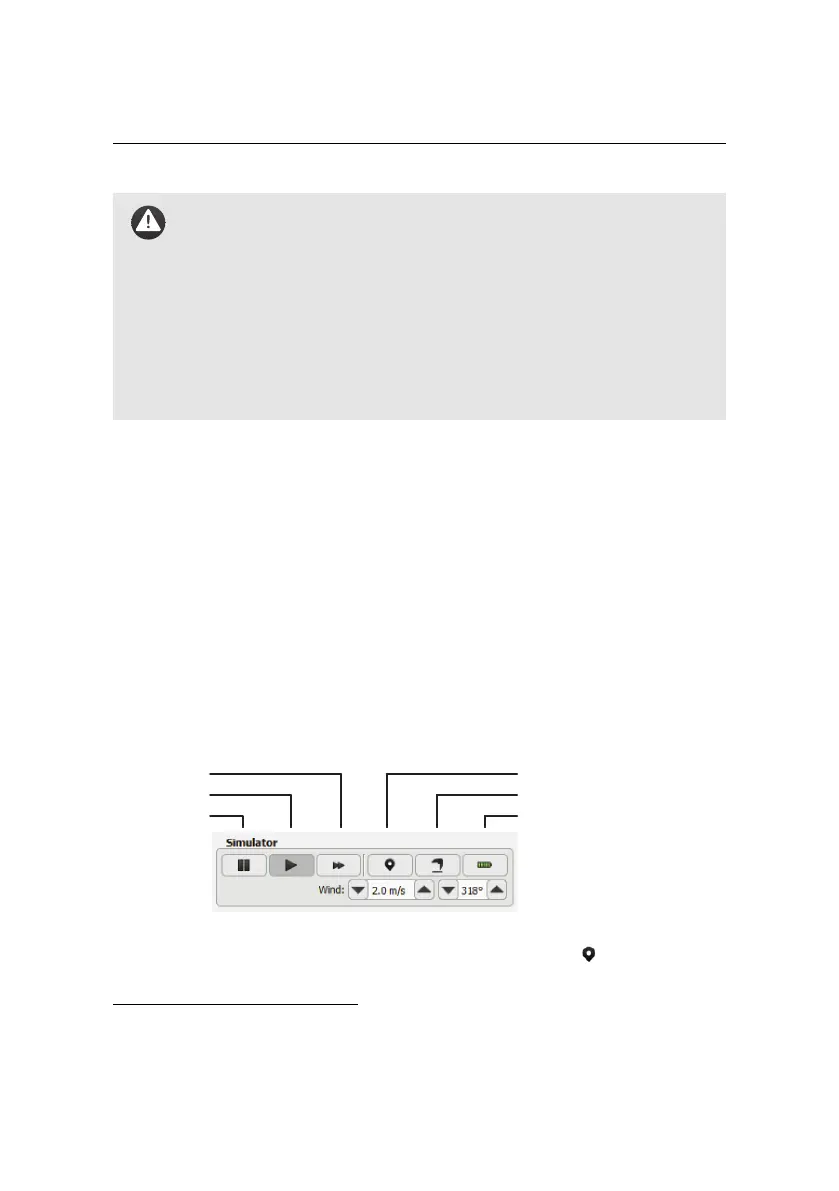
Simulating your flight gives you an idea of the position and size of images that
will be taken during the flight. In addition, it allows you to learn to use advanced
functions, such as in-flight waypoint editing and camera control, without putting
your eBee at risk³. When eMotion is connected to a simulated drone an extra set
of buttons appear in the Sidebar:
re-position take-off location
initiate take-off
instant recharge of battery
fast-forward
play
pause
You can set the take-off location of the eBee by clicking on the icon and placing
the point on the map. This simulates the action of switching on the real drone
³ see section ‘Simulator’ on page 87 for a complete description of the simulator
24



 To Next Page