eMotion in-depth guide
5.2 Simulator
Familiarising yourself with your eBee and its features will allow you to more ef-
ficiently plan and execute mapping flights, saving you time and improve your
imaging results. The Simulator in eMotion is designed to help you test the various
features of the drone and to better prepare a mapping mission before perform-
ing it in the field. Several simulated drones can be connected at the same time,
allowing you to test multi-drone functionalities.
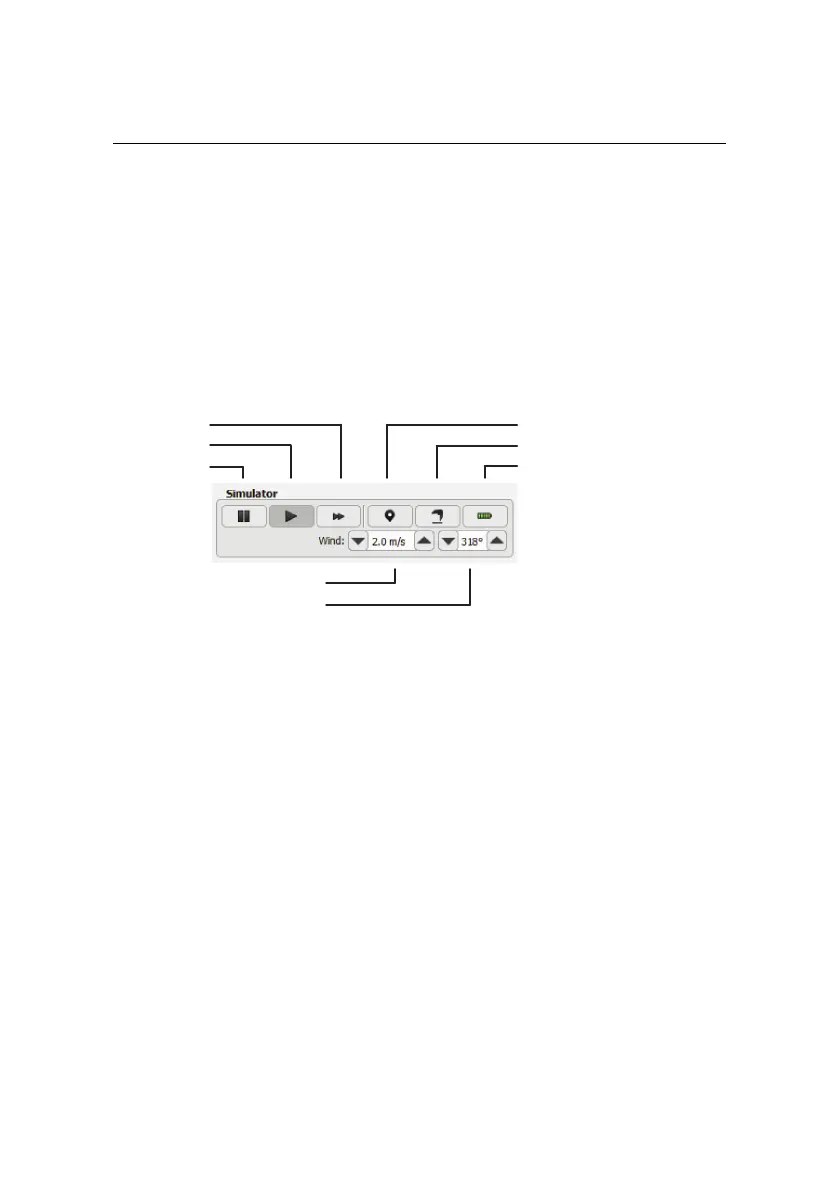
re-position take-off location
initiate take-off
instant recharge of battery
wind speed
wind direction
fast-forward
play
pause
The Simulator bar appears at the bottom of the Sidebar of eMotion when you con-
nect to a simulated drone. The simulated drone will go through the same pre-
flight checks as a real eBee, after which it will update the Home to its current posi-
tion (typically the last position that was used within the simulator) and the Start
waypoint to 80 m West of the Home waypoint. The various buttons available in
the Simulator bar are described in table 1 on the next page.
Feel free to modify the wind speed, waypoint positions and other parameters in
the Toolbar and the various tabs of the Sidebar in eMotion to see their effect on the
eBee while it is in flight. Also be sure to explore the effects of the various buttons
in the Control Bar on the behaviour of your drone. Don’t be afraid to push the
boundaries! Aborting a flight or causing an emergency landing in the simulator
will better prepare you for unexpected circumstances while in the field.
87



 To Next Page