Advanced functionalities
The main eMotion interface is composed of a Map Area, a Toolbar and a Sidebar²⁹.
The Map Area displays the current location of the eBee, a Status Panel with im-
portant information on the drone’s current status, and a Control Bar used to send
commands to the drone (section ‘Control Bar’ on page 89).
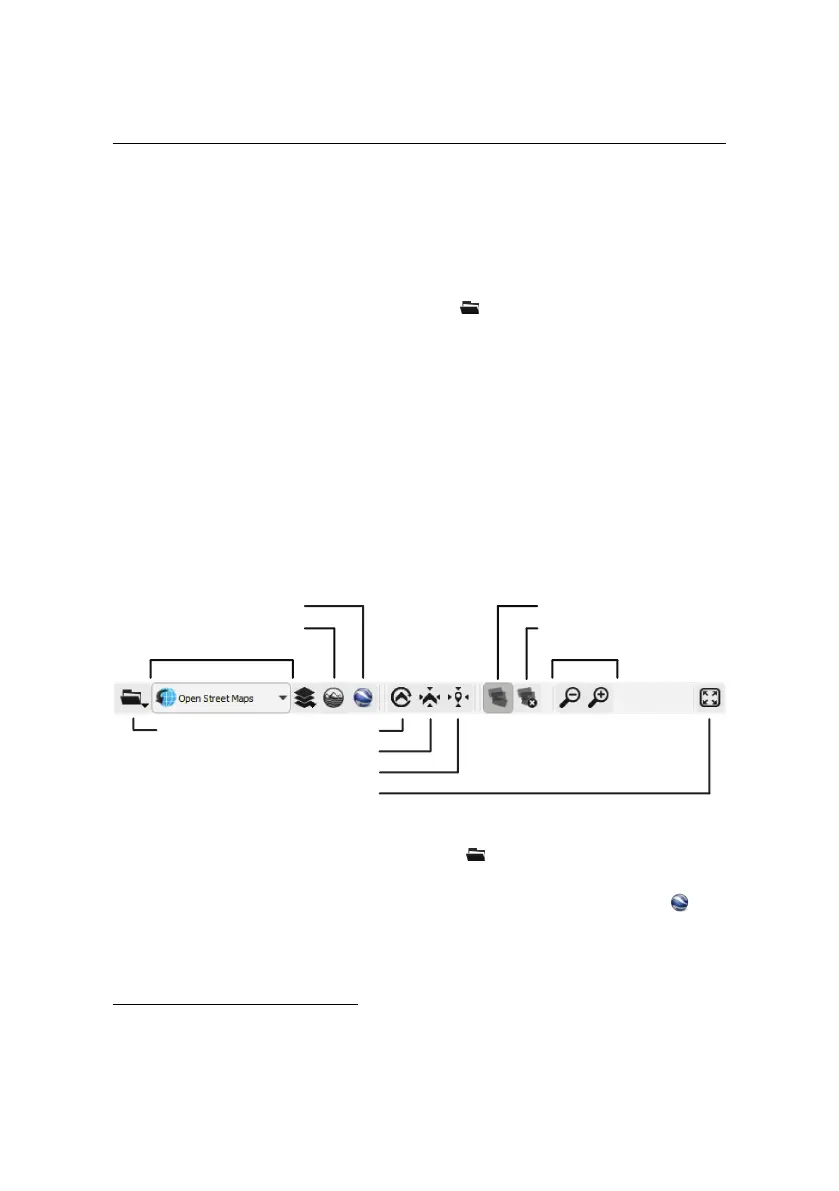
The Toolbar above the Map Area includes the File menu, controls for selecting
the sourceof map data, the display of picture footprints and various other controls
(section ‘Toolbar’ ).
The Sidebar is separated into six individual tabs that are used during different
phases of planning and monitoring a flight. The Sidebar tabs can be hidden at
any time by clicking on the left-hand edge of the Sidebar. Each tab is described
in detail in the following chapter. The Sidebar also contains controls for the Sim-
ulator (section ‘Simulator’ on page 87)
5.1 Toolbar
Map source Zoom
Google Earth display
Custom map source
Follow drone position
Center on drone
Center on coordinate
Fullscreen
File
Show/hide footprints
Clear all footprints
You can access the File menu byclicking on the buttonin the Toolbar. From this
menu you can connect to or disconnect from a drone, access the Flight Data Man-
ager, change eMotion preferences or import custom maps. Clicking the icon
will launchGoogle Earth
TM
and display the currentflight trajectories of dronescon-
nected toeMotion, as described in detail in section ‘Flightvisualizationin Google Earth
TM
’
on page 64.
²⁹ for an overview of the eMotion interface see section ‘The eMotion interface’ on page 19
84



 To Next Page