Planning and simulating a flight
See section ‘Updating the eBee software’ on page 128 if you have any difficulty
with software installation.
1.2 The eMotion interface
Thanks to the powerful tools available within eMotion, designing a mapping flight
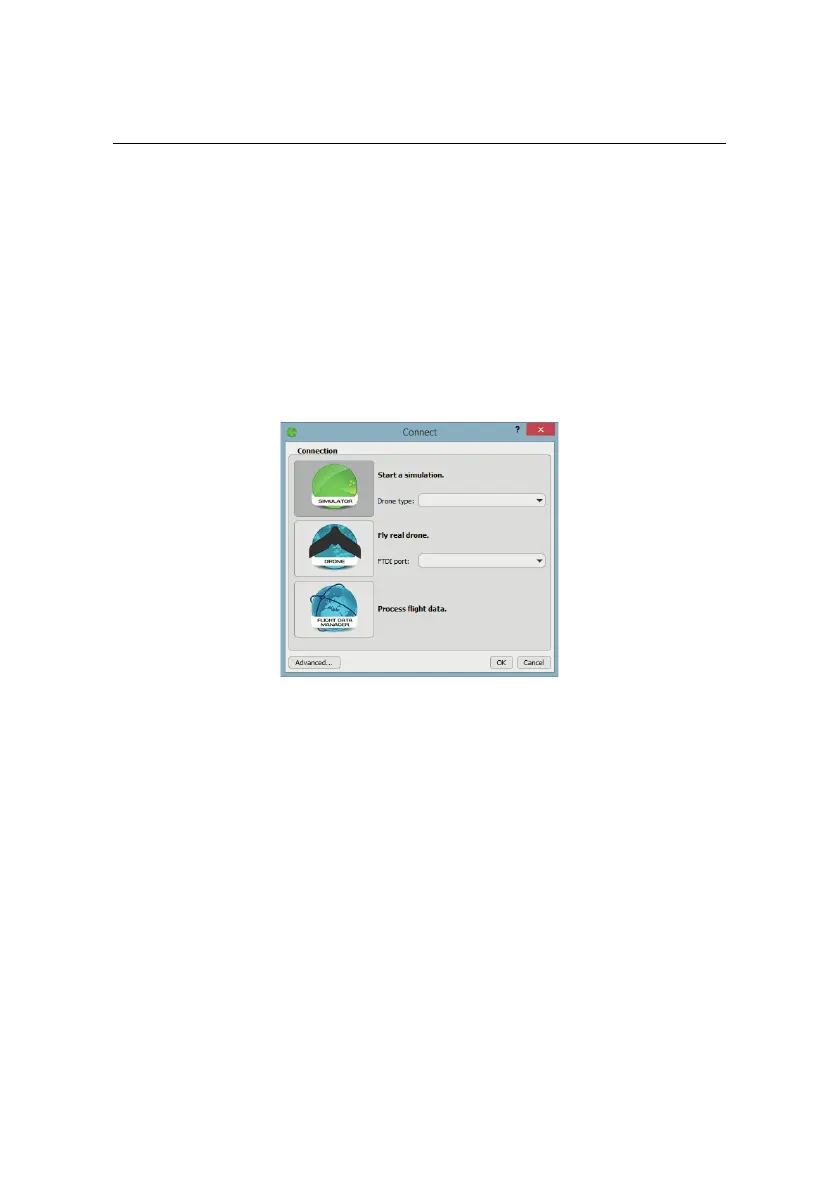
for your eBee is a simple process. To get started, launch eMotion and choose what
you would like to do...
• To run a simulation, select the simulator, choose the drone you want to
simulate and click OK.
• To fly a drone, connect your ground modem to your computer and select
Drone. Ifyou have more than one USB device connected to your PC , choose
the ground modem you want to connect to from the list and click OK. Oth-
erwise, just click OK.
• To process flight data you already created, select the Flight Data Manager
and click OK.
We recommend that you plan flights using a simulated drone. Once connected to
a real or simulated drone you will see the main screen of eMotion.
The main screen of eMotion is split into four sections:
19



 To Next Page