Understanding aerial mapping with the eBee
• Share simulators on my local network: If this box is checked, all Network
sharing options apply to both real and simulated drones connected to your
computer. In unchecked, they only apply to real drones.
4.8 Individual photo targets and oblique imagery
In some cases it may be interesting to take oblique photographs of objects, for
example to provide a nice image for documentation or to increase the quality
of 3D models that contain vertical facades and surfaces. eMotion includes a tool
for defining photo targets with a specific distance, heading and pitch angle. The
drone can then orient itself and capture the image using a patent-pending pitch-
down manoeuvre.
Capturing an oblique image can be done easily by following these steps:
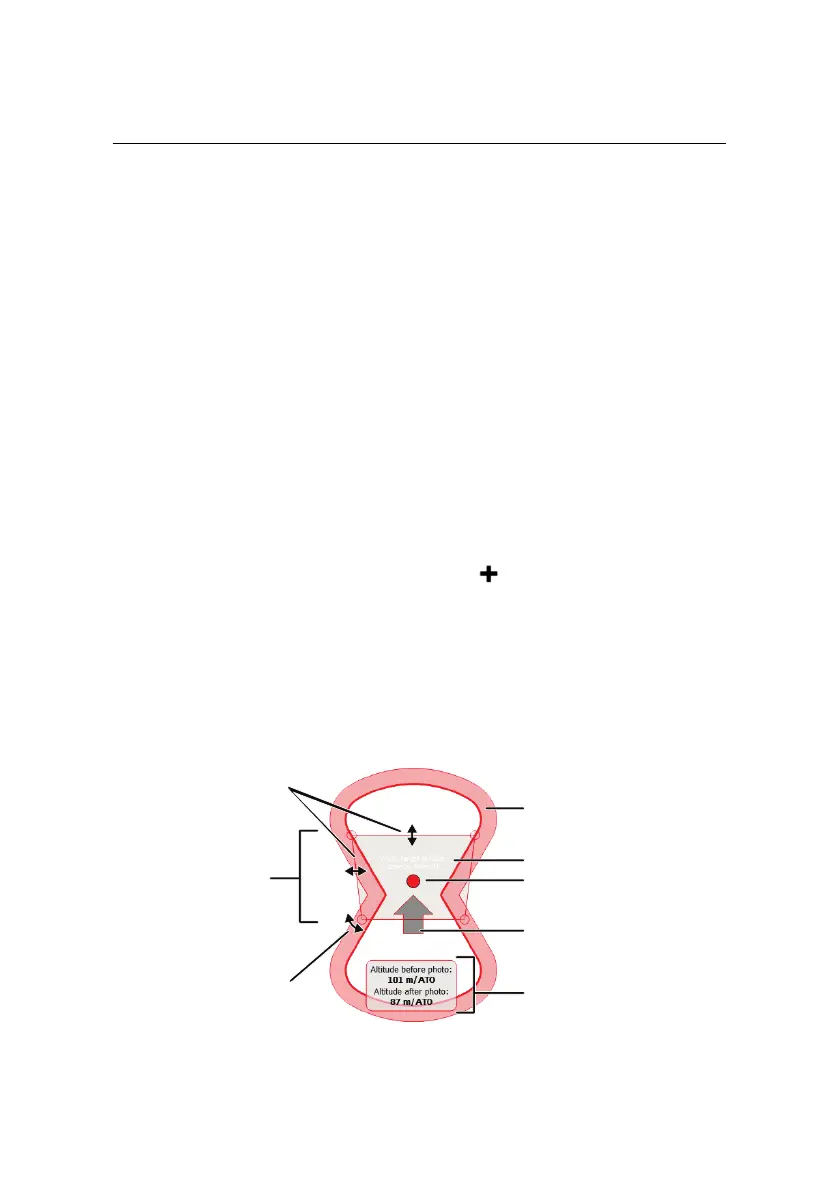
1. Add a new photo target by clicking on the button in the Camera tab. Use
the cross-hairs to place the photo target on the location of interest in the
Map Area. You may also right-click anywhere in the Map Area and select
‘Add photo target here’ from the contextual menu. The photo target will
appear as a circle in the Map Area with an estimated image footprint, a
manoeuvre zone and a status panel with estimated altitudes before and
after the image is taken.
estimated
footprint
rotate to change
heading
move in the arrow direction
to change pitch/persepctive
estimated altitudes
before/after photo
manoeuvre zone
photo target
photo target altitude
resize to change
ground resolution
81



 To Next Page