Advanced functionalities
5.6 Mission Planning tab
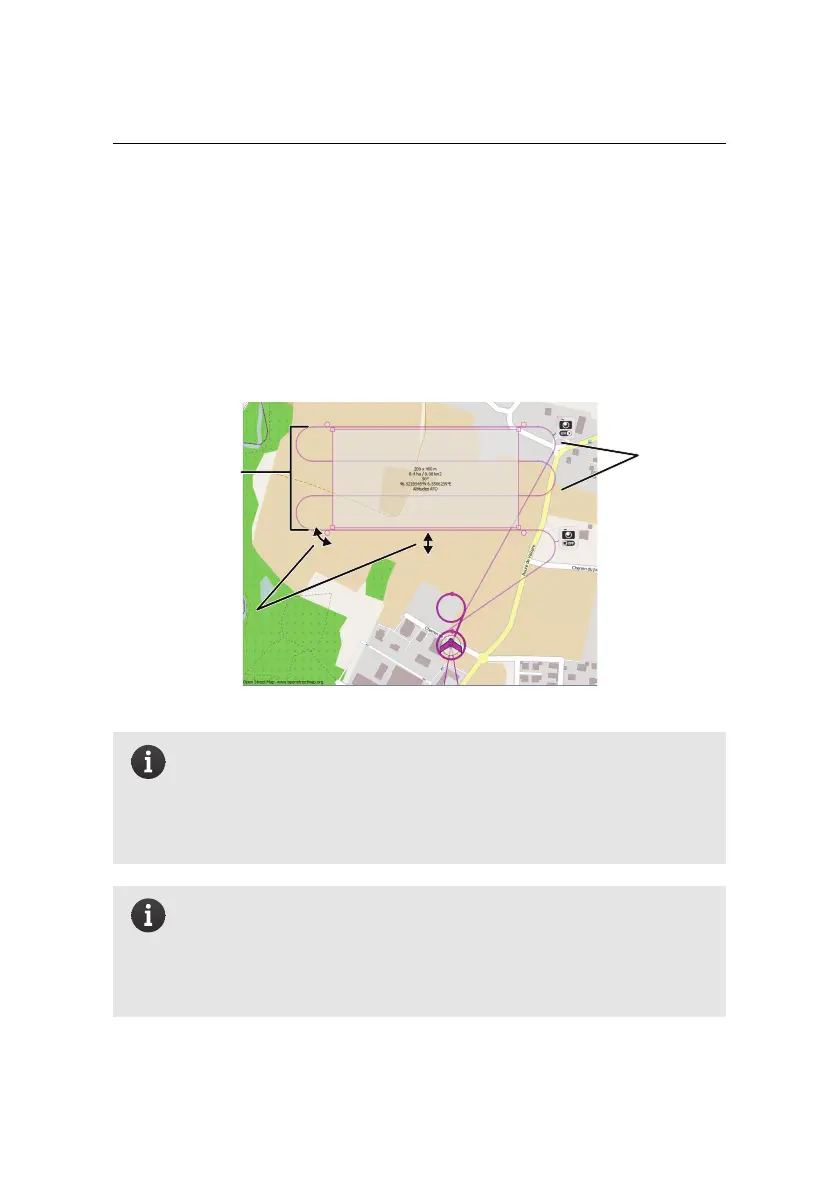
The Mission Planning tab is used to automatically define a set of waypoints based
on a mission area and a set of image parameters. Clicking on this tab will make a
grey box appear in the Map Area that represents the mission area to be mapped.
You can modify this area’s location, size and rotation using the handles around it,
as explained in section ‘The mission phase of a flight’ on page 22.
mission
area
rotate,
resize,
displace
generated
flight
lines
Note: The quality of the output orthomosaic is usually lower on the
outer edges of the area that is photographed, as there is less overlap
between images. The area photographed is thus always calculated
to be bigger than the mission area selected so as to ensure maximum
image overlap within the mission area itself.
Note: If there is no flight plan overlaid on the mission area rectangle
then the mission is too large and cannot be flown by the eBee. This
can be for two reasons: either the distance between two waypoints
is too long for the drone to cover in a single flight, or the waypoints
are too far from the Take-off and landing locations.
100



 To Next Page