Advanced functionalities
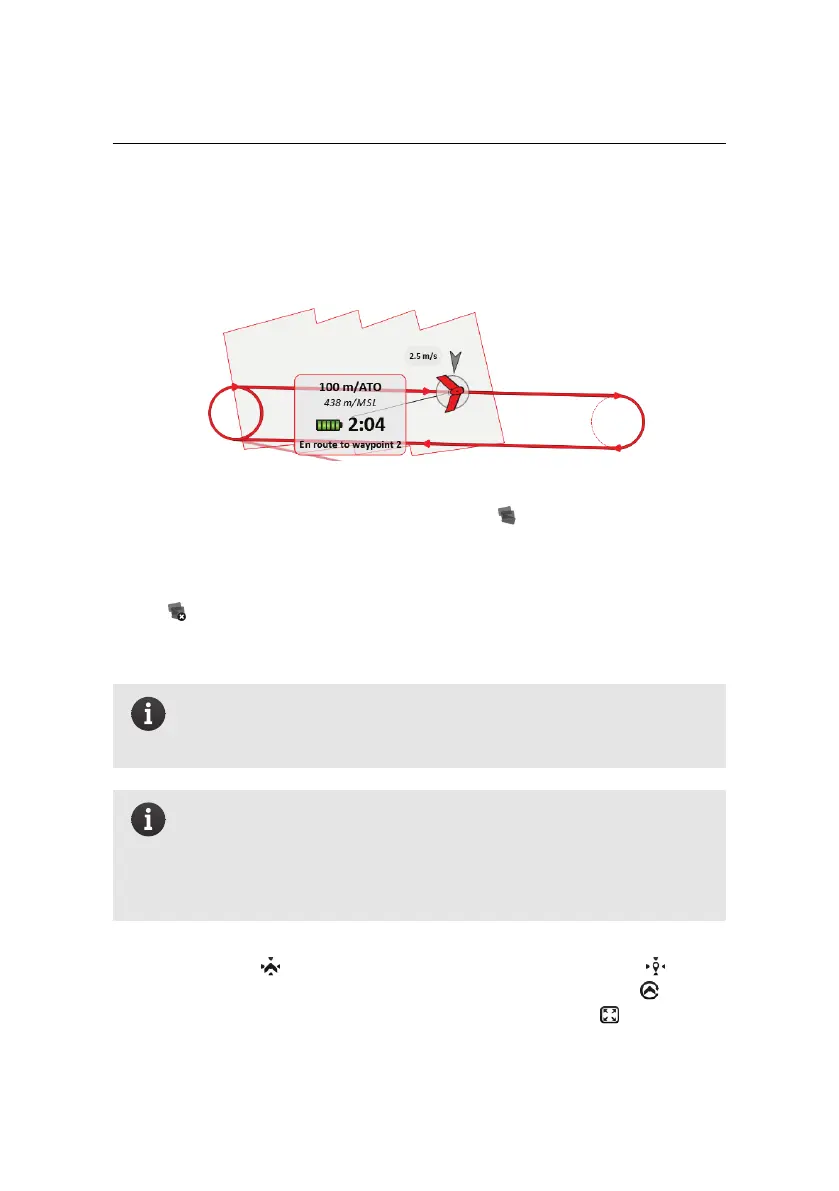
‘footprint’). All the footprints taken by a drone are added to a shaded polygon
outlined with the drone’s colour and displayed in the Map Area. This polygon
represents an estimate of the area that has been photographed by the drone.
The footprints can be shown or hidden using the button. When hidden, the
footprints are kept in memory and new photos continue to be recorded, but noth-
ing is displayed in the Map Area. Footprints for all drones remain in the memory
of eMotion, even when a drone is disconnected or eMotion is shut down. Clicking
on the button removes all footprint polygons from the Map Area the memory
of eMotion. New picture footprints will be created for subsequent pictures that
are taken.
Note: Clearing or hiding the footprints has no influence on what is
logged by eMotion and on-board the drone during the flight, such as
the information required to geotag the images after the flight.
Note: The footprints displayed on the map are only an approximate
estimation of the actual ground coverage of the corresponding im-
age. Cross-wind may introduce errors in the orientation of the dis-
played footprint compared to the actual coverage, whereas inaccu-
rate elevation data may result inaccurate footprint size.
The Toolbar also contains buttons for centering the Map Area on the current po-
sition of the drone ( button), on a searchable location or coordinate ( button)
or to continually follow the position of the drone while it is in flight ( button).
Finally you can view eMotion in full-screen mode by clicking the button.
86



 To Next Page