Quick start guide
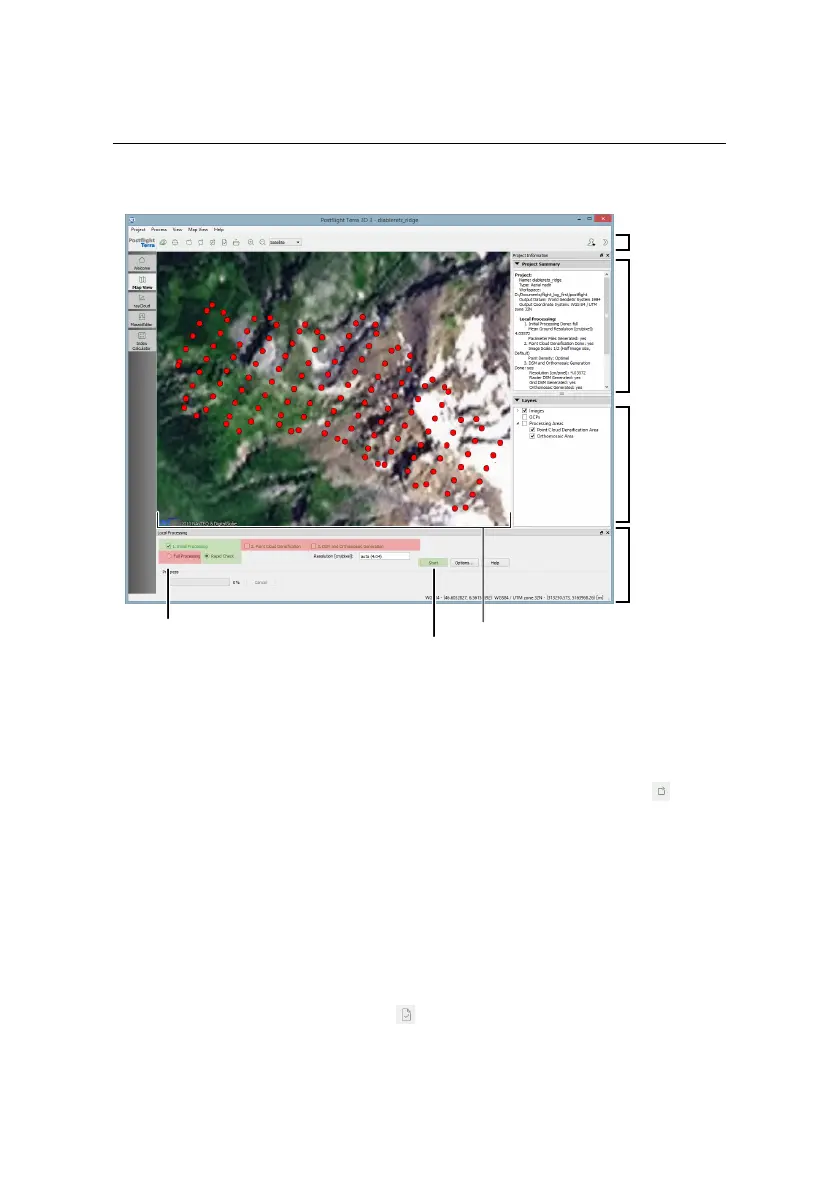
Map Area
Top Toolbar
Project
Summary
Local
Processing
panel
Layers
Step 1: select 1. Initial Processing,
Rapid Check
Step 2: click ‘Start’
Automatic Reconstruction Report generation
To create a Quality Report while in the field bring up the local processing panel by
selecting ‘Local processing’ from the ‘Process’ menu or by clicking the icon in
the Toolbar. Select only the ‘Initial project processing’ checkbox and the ‘Rapid’
button. If you wish to create a low-resolution orthomosaic while generating the
report, check the ‘Orthomosaic and DSM generation’ checkbox. Click ‘Start’ to
begin rapid processing.
Postflight Terra 3D will now process the data and produce a report that includes
the overall completeness and georeference quality of the images taken during
your last mission. You may use this information to decide whether further imag-
ing flights are required while you are still in the field. The quality report will be
displayed in a new window (click the icon in the Toolbar if it does not appear).
52



 To Next Page