Understanding aerial mapping with the eBee
and will select it for modification. It will also activate the Mission Waypoints tab
and highlight the selected waypoint.
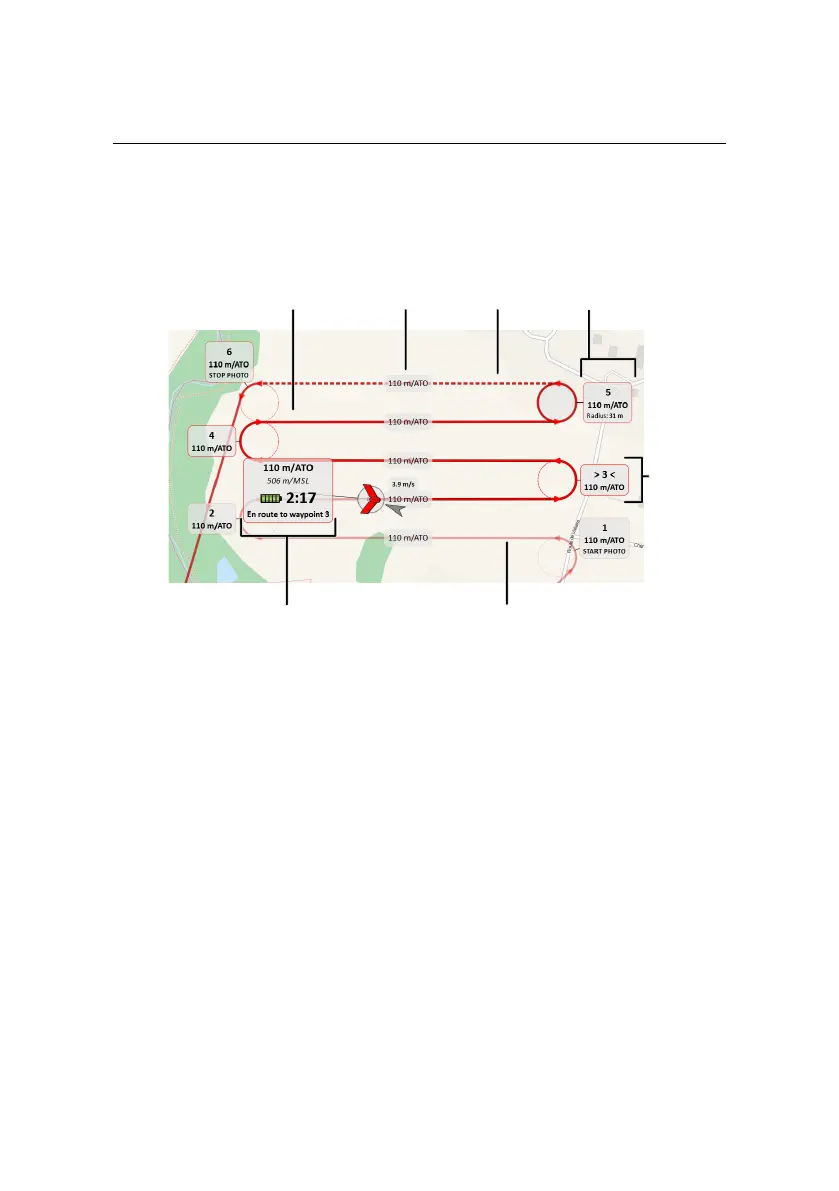
Current
waypoint
Selected
waypoint
Traversed flight path
Future
flight path
Inactive
flight path
Current status
Flight path
altitude
You can modify the waypoint’s parameters directly in the Map Area using your
mouse using the following actions:
• Position: Change the position by left-clicking on the waypoint and drag-
ging it around on the map. By default the waypoint snaps to a position in-
line with the current flight lines before and after the waypoint. Hold down
the ‘Alt’ button while dragging to disable the snapping feature.
• Turn direction: Hold down the ‘Shift’ button while left-clicking on a way-
point to toggle its turn direction.
• Radius: Modify the radius by left-clicking on the waypoint’s perimeter and
dragging it.
• Altitude: Hold down the ‘Ctrl’ button while left-clicking on the waypoint
and moving the mouse up or down to increase or decrease the altitude of
the waypoint, respectively.
59



 To Next Page