SCORPIO 38’ - 45’ - SPECIAL CONFIGURATIONS - Interface with Scorpio Heads
Version 1.02 May 27, 2022
84
Once the crane has been started, it has found the physical limits and
the main screen in the display of the crane is shown, the
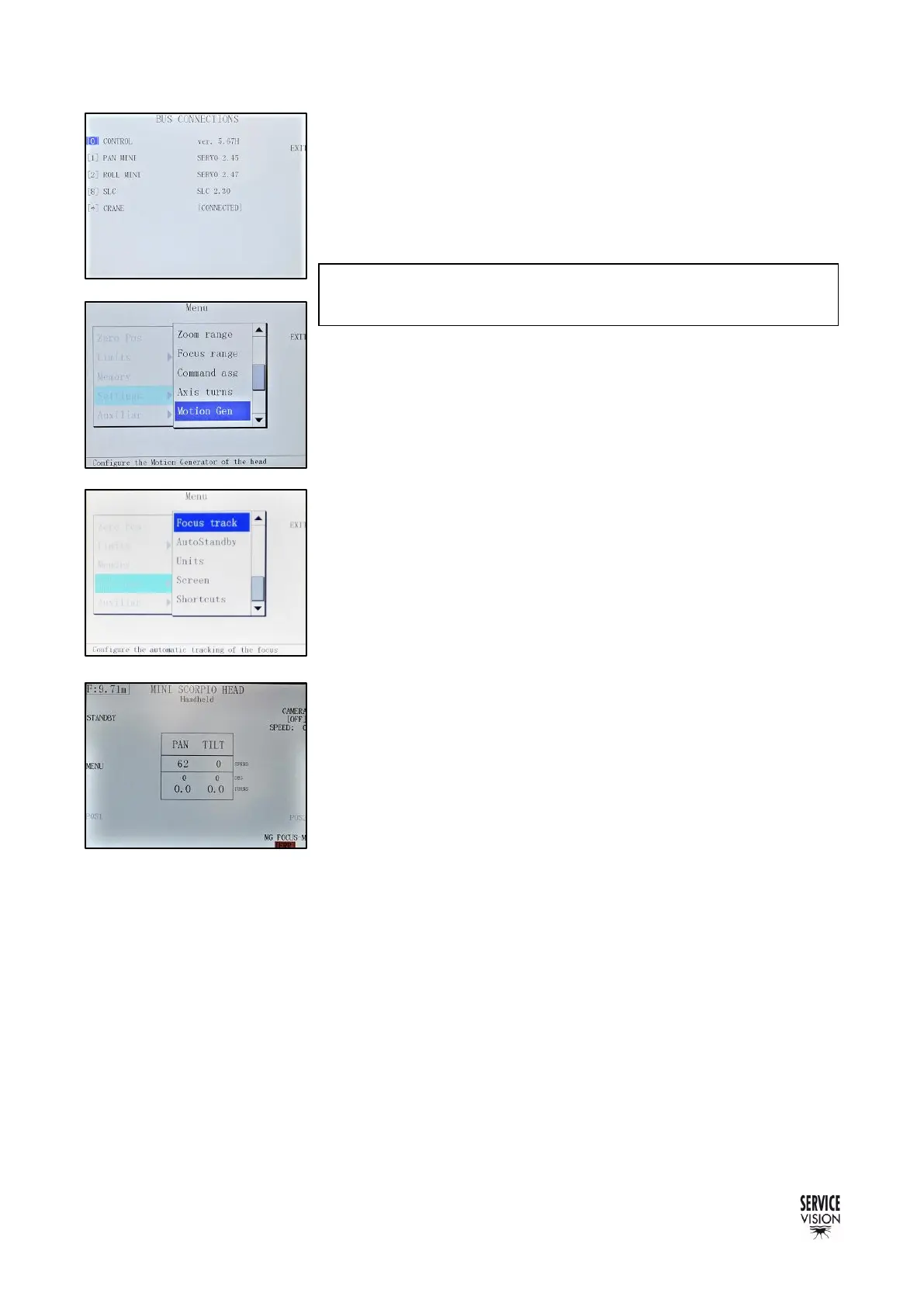
communication between the crane and the head is engaged. It can be
checked in the MENU
→
Auxiliary
→
Bus connections from the head
control. In this screen it can be seen the [*] CRANE identified by the
head control and the status [CONNECTED].
When the communication between the head and the crane is
established, the Motion Gen menu is available in the
MENU→Settings
→
Motion Gen.
The focus tracking function also appears now in MENU→ Settings
→
Focus track.
It is recommended to set a shortcut of these menus in the main
screen to have a quick access in case any adjustment needs to be
done. It will also warn the user in case the crane gets disconnected
displaying an error message in the main screen (fig. 08.07).
08.05 Bus connections in head control
Note: The crane needs to be engaged all the time to use the
Control interface (not compatible with the standby mode).



 To Next Page