EasyManua.ls Logo

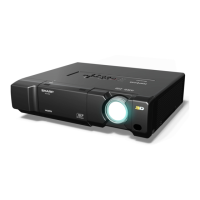
Sharp XV-Z15000 - User Manual

Sharp XV-Z15000
66 pages
Print Icon
To Next Page IconTo Next Page
Loading...
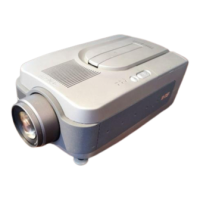
XV-Z15000
XV-Z15000
PROJECTOR
PROJECTEUR
PROYECTOR
PROJETOR
Printed in China
Imprimé en Chine
Impreso en China
Impresso na China
TINS-E012WJZZ
09P01-CH-NM
ENGLISH
FRANÇAIS ESPAÑOL PORTUGUÊS
OPERATION MANUAL
MODE D’EMPLOI
MANUAL DE MANEJO
MANUAL DE OPERAÇÃO
SHARP CORPORATION
XVZ15000EUSHyo1-4.indd1XVZ15000EUSHyo1-4.indd1 2008/12/2515:07:122008/12/2515:07:12

Table of Contents

Other manuals for Sharp XV-Z15000

Questions and Answers

  • A
    Alexander JohnsonAug 18, 2025
    Why Sharp Projector has no picture or does not start?
    • C
      Cynthia KingAug 18, 2025
      If your Sharp Projector isn't displaying a picture or won't start, several factors could be the cause. Here's what to check: * Ensure the projector's power cord is securely plugged into the wall outlet. * Verify that all connected external devices are powered on. * Make sure the lens shutter is open. * Confirm the correct input mode is selected. * Check that the cables are correctly connected to the projector. * Replace the remote control battery. * Set the external output when connecting a notebook computer. * Ensure the lamp unit cover is correctly installed. * Select the correct Signal Type. * Set the correct video signal format for the video equipment. * Adjust the brightness setting if it's set to the minimum.
  • B
    Benjamin WilkersonAug 20, 2025
    What to do if the color is faded or poor on my Sharp XV-Z15000?
    • E
      Eddie FieldsAug 20, 2025
      If the color on your Sharp Projector appears faded or poor, the following adjustments may resolve the issue: * Adjust the image settings. * Set the correct video input system. * Set the correct input signal type.
  • J
    Jessica GrahamAug 23, 2025
    What to do if picture is blurred or noise appears on Sharp XV-Z15000?
    • A
      Allen AdamsAug 23, 2025
      If the picture on your Sharp Projector is blurred or noisy, try these solutions: * Adjust the focus. * Ensure the projection distance is within the focus range. * Perform SIG-ADJ adjustments (Clock or Phase) for computer input. * Adjust the DNR (Digital Noise Reduction) or MNR (Mosquito Noise Reduction) settings. * If there is fog on the lens, allow the projector to acclimatize before use and remove power to clear condensation.
  • N
    Nicholas SullivanAug 26, 2025
    Why is my Sharp XV-Z15000 picture too bright and whitish?
    • R
      Robert GutierrezAug 26, 2025
      If the picture from your Sharp Projector appears too bright and whitish, the image adjustments may be incorrectly set. Try adjusting the image settings to correct this.
  • A
    Amy SantosAug 28, 2025
    Why the lamp does not light up even after the Sharp XV-Z15000 Projector turns on?
    • L
      Lawrence HernandezAug 28, 2025
      If the lamp on your Sharp Projector does not light up after turning the projector on, consider the following: * If the lamp indicator is illuminating in red, replace the lamp. * Ensure the lens shutter is fully opened.
  • T
    Tara MoonAug 30, 2025
    Why is One Touch Play not enabled on my Sharp XV-Z15000 Projector?
    • M
      mccarthybrandonAug 30, 2025
      If One Touch Play is not enabled on your Sharp Projector, consider the following: * Connect Sharp Video Products. * Use an HDMI cable for connection between the projector and the Sharp Video Products. * Set One Touch Play function to “On”. * Ensure CEC settings are correct. * Disable Economy mode to enable One Touch Play, as it is disabled when Economy mode is set to “On”.
  • A
    Alan PerezSep 2, 2025
    Why is System Standby not enabled on my Sharp XV-Z15000 Projector?
    • T
      Theresa Barrett DDSSep 2, 2025
      If System Standby is not enabled on your Sharp Projector, consider the following: * Connect Sharp Video Products. * Use an HDMI cable for connection between the projector and the Sharp Video Products. * Set System Standby function of the projector to “On”. * Ensure CEC settings are correct.
  • M
    Michael ReynoldsSep 4, 2025
    What to do if the image sometimes flickers on Sharp XV-Z15000 Projector?
    • A
      ashleyryanSep 5, 2025
      If the image on your Sharp Projector sometimes flickers: * Ensure the cables are correctly connected. * If flickering happens frequently, replace the lamp.
  • M
    Mary SwansonSep 7, 2025
    Why is the picture green when receiving component signals on Sharp Projector?
    • J
      Joshua HarrisSep 7, 2025
      To resolve a green picture when receiving component signals on your Sharp Projector, change the input signal type setting.
  • L
    larry79Sep 9, 2025
    What to do if the black levels of the image show banding or appear faded when HDMI1 or 2 is selected on Sharp XV-Z15000?
    • K
      katherinetaylorSep 10, 2025
      To improve the black levels on your Sharp Projector when using HDMI1 or 2, make adjustments that result in the best picture quality in the “Dynamic Range” setting.

Summary

Critical Safety Guidelines

General Safety Rules

Comprehensive list of 22 safety rules for operation, cleaning, attachments, and servicing.

Electrical and Environmental Safety

Warnings on grounding, power cord protection, lightning, overloading, liquid entry, and heat sources.

Projector Setup and Handling Precautions

Remote Control Functions

Quick Start: Initial Setup Steps

Quick Start: Operation and Adjustment

Projector Setup and Positioning

Projection Modes and Ceiling Mounting

Projection Distance and Screen Size Charts

Connecting Video Sources

Computer Connection via RGB Cable

Computer Control via RS-232 C

Powering the Projector On and Off

Basic Image Adjustments

Keystone Correction

Keystone Correction Functionality

Explains how to correct trapezoidal distortion and rotate images using keystone functions.

Advanced Image Distortion Correction

Input Selection and Image Shifting

Image Aspect Ratio Control

Projector Menu Structure

Navigating the Menu System

Menu Selection and Adjustment Process

Step-by-step guide on accessing and using the projector's menu system for adjustments.

Adjusting Menu Items

Selecting and Modifying Settings

Detailed steps on selecting items, adjusting values, and confirming changes within the menu system.

Picture Menu: Modes and Basic Adjustments

Picture Mode Selection and Defaults

Explains picture mode options and their default settings for various viewing scenarios.

Core Image Parameter Adjustments

Guides on adjusting Contrast, Brightness, Color, Tint, Sharpness, Red, Blue, and Color Temperature.

Picture Menu: Iris, Eco+Quiet, Advanced Settings

Picture Menu: Bright Boost, Film Mode, Noise Reduction

Computer Image Settings (SIG-ADJ)

Adjusting Computer Image Parameters

Guides on correcting noise and adjusting image position (Clock, Phase, H-Pos, V-Pos) for computer input.

Resolution, Auto Sync, and Signal Type

Settings for optimal resolution, automatic sync adjustment, and selecting signal types (RGB/Component).

Computer Signal Configuration (SIG-ADJ)

Projected Image Adjustments (SCR-ADJ)

Advanced Image Distortion Correction

V-Keystone, Keystone Mode, Sphere

Using V-Keystone, selecting Keystone modes, and correcting spherical screen distortion.

Projector Function Settings (PRJ-ADJ)

Advanced Projector Functions (PRJ-ADJ)

Projector Maintenance and Cleaning

Understanding Projector Indicators

Warning Indicator Functions and Meanings

Explains the purpose and states of Power, Lamp, and Temperature warning indicators.

Troubleshooting Indicator Light Issues

Diagnosing Problems via Indicators

A table mapping indicator status to problems, causes, and solutions for troubleshooting.

Lamp Information and Replacement

Lamp Life and Replacement Recommendations

Advises on when to replace the lamp based on usage time and picture quality, and how to check lamp life.

Lamp Failure Cautions and Safety

Warnings regarding potential lamp failure symptoms, bulb cracking, and safety precautions.

Lamp Unit Replacement Procedure

Safe Lamp Unit Handling and Removal

Crucial safety notes for lamp unit replacement, emphasizing cooling and careful handling.

Step-by-Step Lamp Installation

Detailed instructions for removing the old lamp unit and installing the new one correctly.

Lamp Timer Management

Resetting the Lamp Timer After Replacement

Procedure for resetting the lamp timer after a successful lamp replacement.

RS-232 C Control Interface Specifications

Communication Settings and Command Format

Details required communication settings and the basic command structure for RS-232C control.

Comprehensive RS-232 C Commands

Projector Control Command List

A list of commands for controlling various projector functions via RS-232C, with parameters and return codes.

Computer Signal Compatibility Information

PC, MAC, and DTV Signal Support

Tables detailing supported resolutions, frequencies, and signal types for computer and DTV inputs.

Troubleshooting Common Issues

No Picture, Poor Picture Quality, Noise

Solutions for common problems like no image, faded/blurred pictures, noise, and incorrect colors.

Advanced Troubleshooting Scenarios

Projector Technical Specifications

Sharp XV-Z15000 Specifications

General IconGeneral
Projection distance3.14 - 3.63 m
Projection technologyDLP
Contrast ratio (typical)-
Screen size compatibility300 \
Projector native resolution1080p (1920x1080)
Aspect ratio4:3, 16:9
RS-232 ports1
Dimensions (WxDxH)403 x 115 x 341 mm
Digital zoom1.15 x
Focal length range21 - 24.2 mm
Lamp typeSHP
Lamp power250 W
Light source typeLamp
Service life of light source2000 h
Service life of light source (economic mode)3000 h
Audio (L/R) in0
Serial interface typeRS-232
USB 2.0 ports quantityUSB 2.0 ports have a data transmission speed of 480 Mbps, and are backwards compatible with USB 1.1 ports. You can connect all kinds of peripheral devices to them.
Ethernet LANNo
Supported video modes1035i, 1080i, 1080p, 480i, 480p, 576i, 576p, 720i, 720p
Analog signal format systemNTSC, NTSC 4.43, PAL, PAL L, SECAM
Product colorBlack
Market positioningHome cinema
AC input voltage100 - 240 V
AC input frequency50 - 60 Hz
Power consumption (standby)- W
Power consumption (typical)353 W
Noise level23 dB
Weight and Dimensions IconWeight and Dimensions
Weight5800 g

Related product manuals