21
8 Installing the SDHmini User Tool
The SDHmini User Tool soware allows the instrument to be connected to a PC,
enabling easy conguraon of the SDHmini sengs and funcons.
Please note: For the best visual appearance it is recommended that the PC display
text and icons opon is set to default rather than medium or larger.
In order to install the soware the user must ensure that they have the
permissions to do so from their respecve manager or IT systems manager.
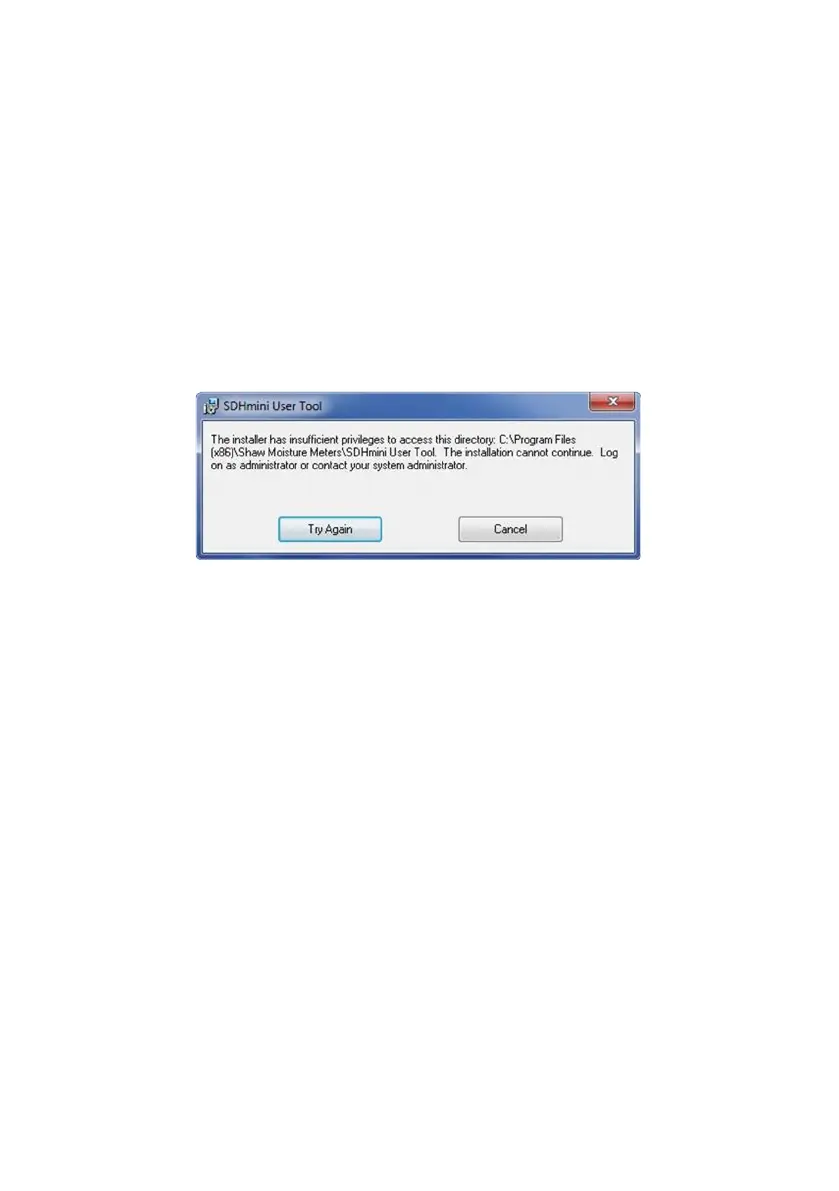
Users with limited permissions in the Windows environment also may nd that
they might not be able to install soware unl administrave privileges are set.
On installaon the soware will only work on Windows version XP (SP3), Vista,
7, 8 and 10 and requires Microso .NET 3.5. Once installed this soware is
warranted not to need any access to the internet or any other sort of network
acvies. However there are two links on the Help/About Menu item which if
used on a non-connected PC will not funcon. If you have a more up-to-date
version of Microso .NET you may need to enable v3.5 via the Windows features/
control panel.
There are two ways to install the SDHmini User Tool soware.
From the supplied USB ash drive (memory sck)
From the instrument’s memory card
8.1 Extracng the SDHmini User Tool Soware from the USB Flash
Drive (Memory Sck)
To install
Insert the USB ash drive in to the PC.
On your PC open the “my computer” or “computer” folder (the folder tle will
depend on which Windows Operang System you are running).
•
•
•
•



 To Next Page