77
12. Connections and Communications with External Equipment
2
4
1
3
5
6
7
11
13
12
8
9
10
14
Notes
[Balance Keys] data collection software
It is the [Balance Keys] software that enables numerals entered from
keyboards with the use of the balance’s serial communication function to be
easily transferred to the position where the PC cursor lies. Data can be
directly loaded as long as key input is possible, regardless of the application.
Points to Note
• If communications are to be performed with communication software
installed onto the personal computer, make sure the settings are made in
accordance with the instructions for that software.
• Programing that uses command codes is necessary to control the
balance from a personal computer.
7 Decompress the downloaded [Balance Keys] file
Right-click on the file downloaded in Step 5, and then click on [Open All] or [Decompress].
8 Set up [Balance Keys]
See the instruction manual for the [Balance Keys Data Collection Software] decompressed in Step 6 for
details on set-up, start up the setup file (Setup.exe), follow the instructions displayed to set it up, and
then set the [Balance Keys] parameters.
9 Confirming operations
Run an operation test while setting the parameters by pressing [PRINT] on the balance and checking
that the measurement values displayed are correct. If everything is normal, press the [TEST OK] button.
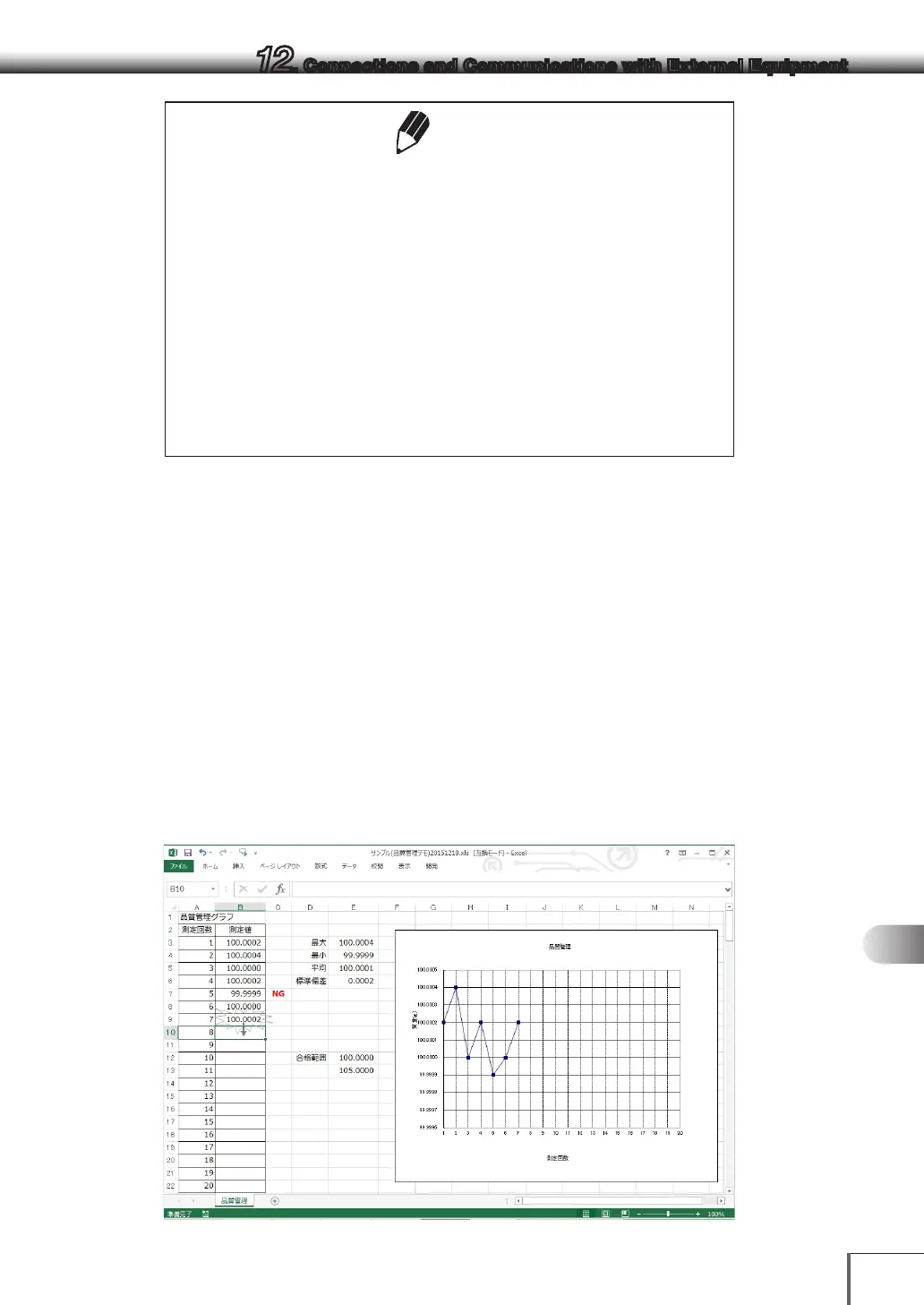
Next, start up [Excel] (or [Notepad] or a similar application) on the personal computer Key input will be
enabled, and the cursor will be displayed at a location where input is possible. Press [PRINT] on
Balance, The values displayed on the balance will be transferred to the cursor position.
Example of balance data loaded onto an Excel worksheet



 To Next Page