99
TO LOCK A SINGLE IMAGE
1
Display the image that you wish to lock.
2
Press the button and open [ Playback Menu] (P. 2 8 ) to select
[Lock].( [Lock] in the sub-menu is already selected.)
3
Press the button or button.
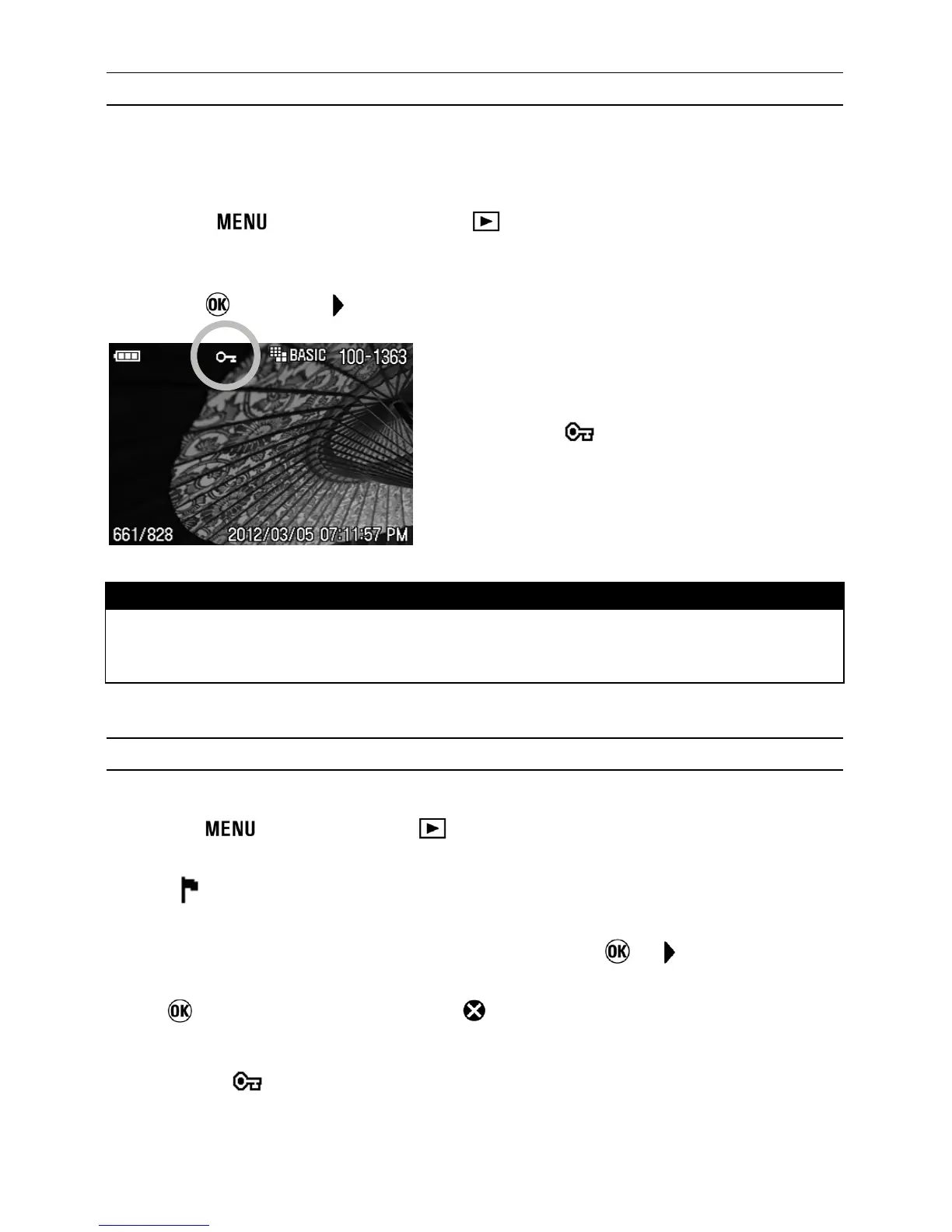
z A key icon
will appear in the image
indicating that the image is locked.
TIP
• To unlock a locked image, select the locked image and follow the same steps
as above.
TO LOCK MULTIPLE IMAGES
1
Press the button and open [ Playback Menu] (P. 2 8 ) to select [Lock].
2
Select [
Lock] or [Lock All] from the sub-menu.
3
A confirmation dialog will be displayed by pressing the or button.
4
Press
to lock the images or press
to return to reviewing images without
locking.
z A key icon
will appear in all locked images.


 To Next Page