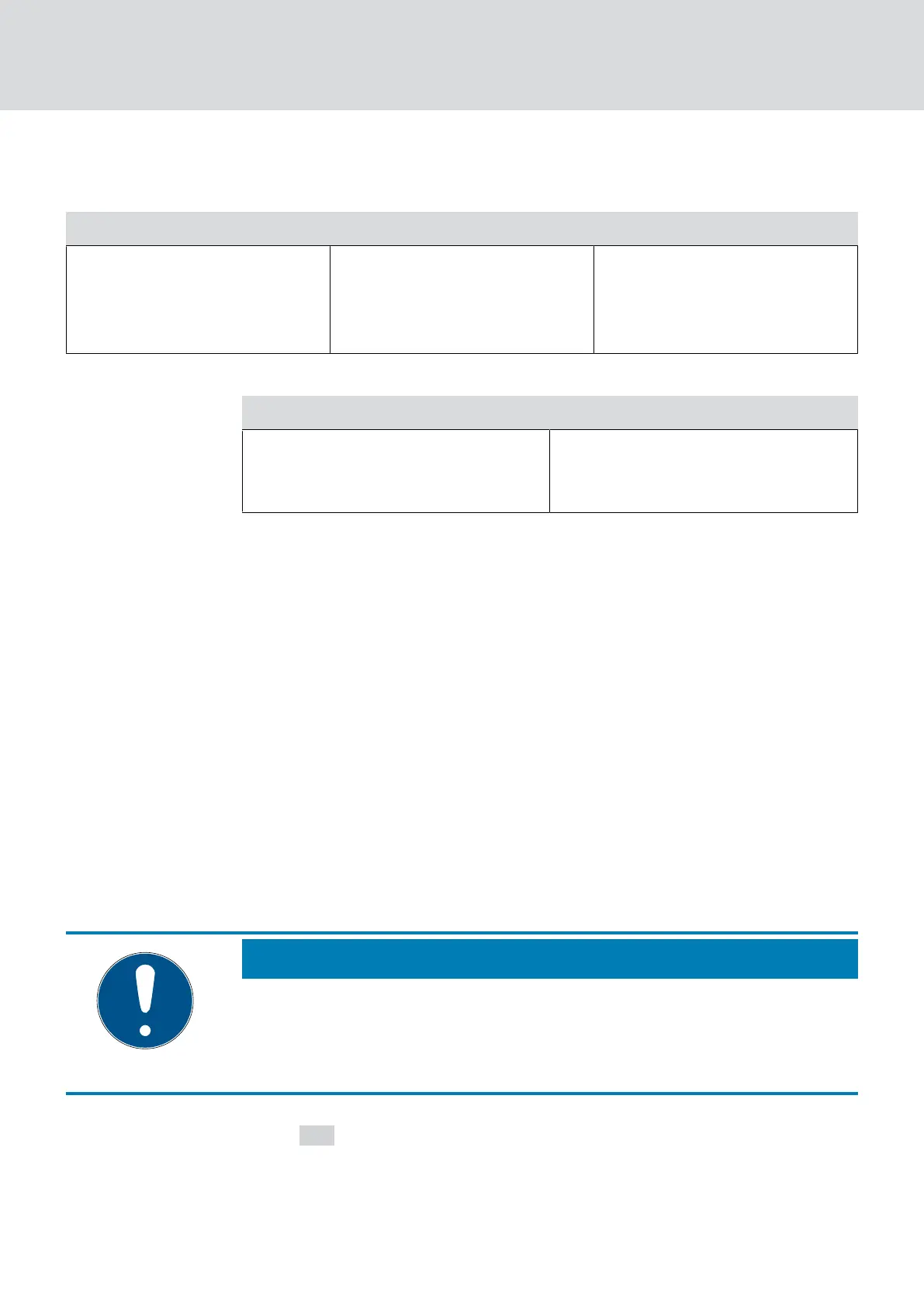
You will see an overview table of the LockNodes found by the RouterNode
during the search. This table has three columns:
Nodes in this segment Nodes from other segments New nodes
These LockNodes are located
in the WaveNet topology and
are already assigned to the
RouterNode.
These LockNodes are located
in the WaveNet topology, but
are assigned to a different
RouterNode.
These RouterNodes are un-
configured and are not located
in any topology.
Each column contains two sub-columns:
Node RSSI
Name of the LockNode
Signal strength of the connection of
the LockNode to the searching
RouterNode
Unit of signal strength
The WaveNet Manager displays the signal strength as an RSSI value
(Received Signal Strength) in dBm. This value is:
Logarithmic: In practice, an improvement of 10 dBm means twice the
signal strength.
Negative: The theoretical best value is 0 dBm and is only achieved by
cable connections. The closer the value is to 0 dBm (i.e. the smaller the
amount), the better the reception.
1. Select the LockNodes of the right column (New Nodes) that you want
to assign to the RouterNode.
2. Drag and drop the LockNodes to the left column (Nodes in this seg-
ment) to assign them to the current RouterNode (the one you used to
search).
9 LockNodes are assigned to the current RouterNode.
NOTE
Assignment duration
When you reassign LockNodes, the WaveNet Manager communicates with
the LockNodes to transfer the configuration and check the LockNode. This
check takes a few seconds
3. If necessary, confirm the IO configuration of the LockNode by clicking
the
OK (you can change the IO configuration at any time, see
I/O con-
figuration and protection functions [}68]
).
9 LockNode is imported and linked to the selected RouterNode.
LockNodes are displayed in the WaveNet topology below the RouterNode
to which they are assigned.
WaveNet (Manual)
5. WaveNet Manager
63 / 210


 To Next Page