NANYTE BEAM Manual
NANYTE BEAM Manual BM-001-A3 / V1.1a Page 24 of 33
2. A load bitmap window will appear and provide several patterning options (see above). To
navigate on the pattern preview, use similar controls as the preview window. X and Y
repeats allow the creation of arrays. X and Y offset controls the distance between adjacent
patterns in an array. The scale of the bitmap is set using the microns per pixel text box.
Finally, a choice is also given for the write field area.
3. For first layer exposures, choose a point on the wafer where you want the bottom left of
the pattern to be, by moving the BEAM ENGINE. Once the position is confirmed, press the
zero button. Note that all axes will be zeroed.
4. For second/multilayer exposures refer to the alignment section.
Draw patterns
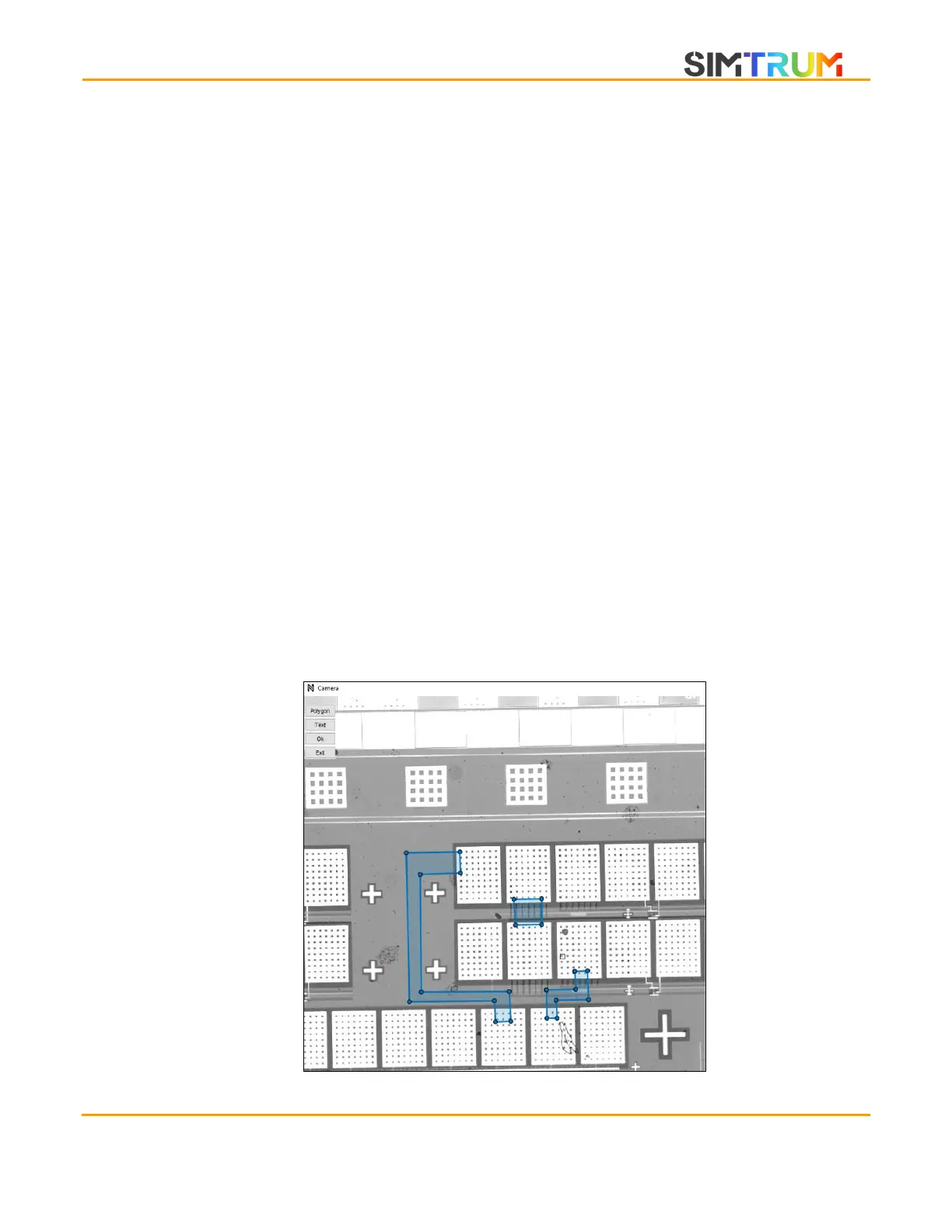
1. Click on the draw custom button. On the top left of the camera window, there will be
several options. The most basic option is to use polygons to form shapes for exposure.
Click on polygon, then click on the camera window where the vertices of the polygon
should be.
2. To finish off the polygon, double left click on the original vertices. To move the polygon,
simply left click and drag to the desired position. To delete a polygon, right click on the
polygon and select delete. It is possible to have multiple polygons at the same time on the
camera window. When the Ok button is activated, any overlapping polygons will be
combined.
www.simtrum.com


 To Next Page