NANYTE BEAM Manual
NANYTE BEAM Manual BM-001-A3 / V1.1a Page 25 of 33
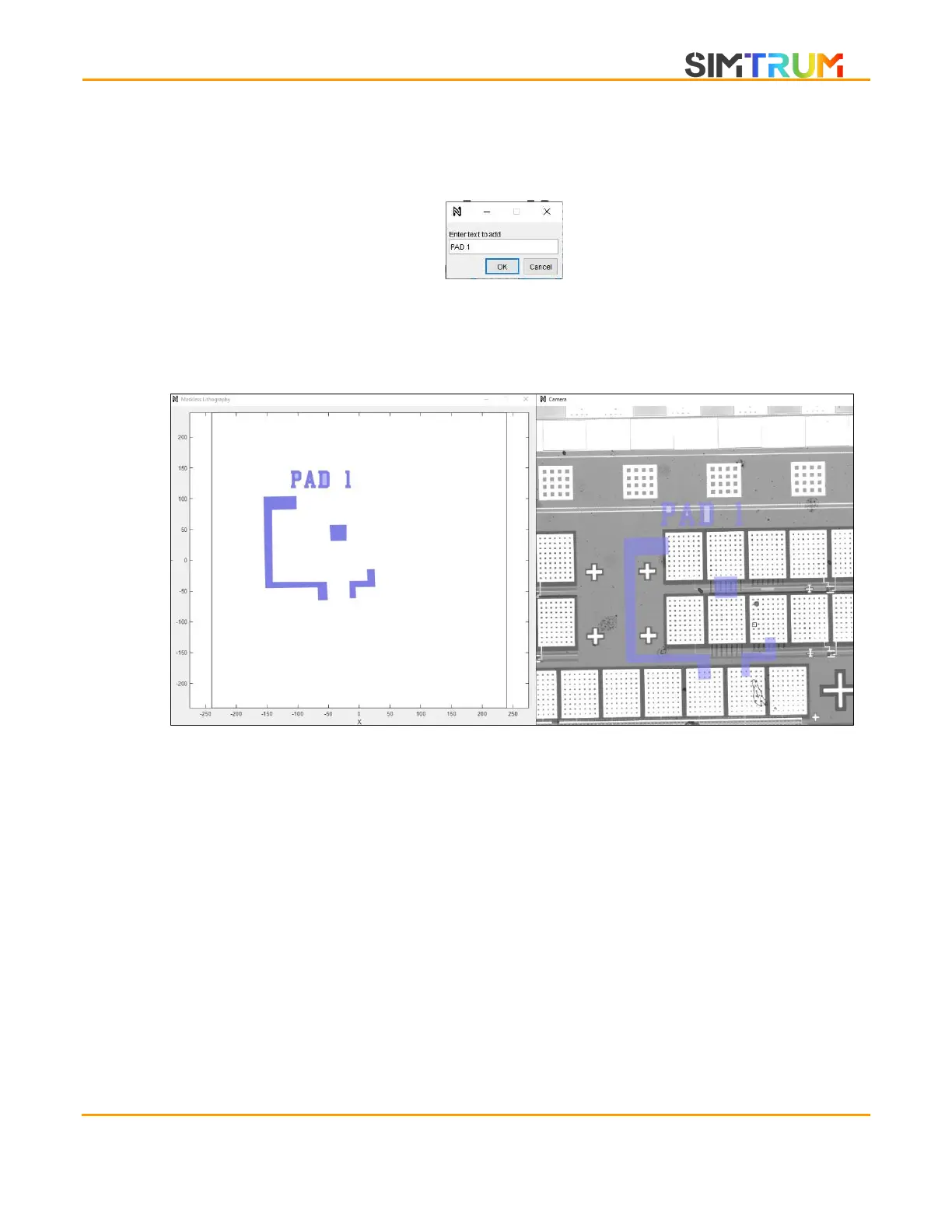
3. Text can also be added to label patterns. Click on the Text button on the top left of the
camera window, the below dialog will appear. Enter any text that you wish to create and
click ok. The text pattern can also be moved around by dragging and deleted by right
clicking and select delete.
4. It is possible to have a mix of both text and polygons. Once done, click on the Ok button
on the top left of the camera window. The preview window should update with the drawn
patterns.
5. Proceed to the exposure section
Alignment
1. For second/multilayer exposures, click the align button. The below popup window should
appear. Please key in the layer that you wish to use for alignment. i.e. The GDS layer that
contains all the features that are also found on the sample. An option is given to invert the
layer for alignment. Select this option if the selected alignment layer was patterned via
the inverted mode as well. Lastly, the use camera for local alignment option allows the
software to use image recognition methods to perform fine alignment at each write field.
Click Ok to proceed.
www.simtrum.com


 To Next Page