M300 Plus GNSS Receiver User Guide
10
12
EVENT Signal Connector
Access Event signal trigger and can be configured through a web browser
13 PPS Signal Connector
Output PPS signal and can be configured through a web browser
4. Receiver configuration through a Web Browser
M300Plus has an advanced built-in web server, you can access the web setting page
and do configurations remotely. This section describes how to change receiver’s
settings through a web server.
4.1 Login the configuration page of M300Plus
The M300Plus receiver can connect to an Ethernet network through its Ethernet port.
It means that you can configure and monitor the receiver’s settings without a serial
cable connection.
1. Firstly, make sure that the M300Plus and your computer are within the same
Local Area Network (LAN). Then change your receiver’s IP address by commands
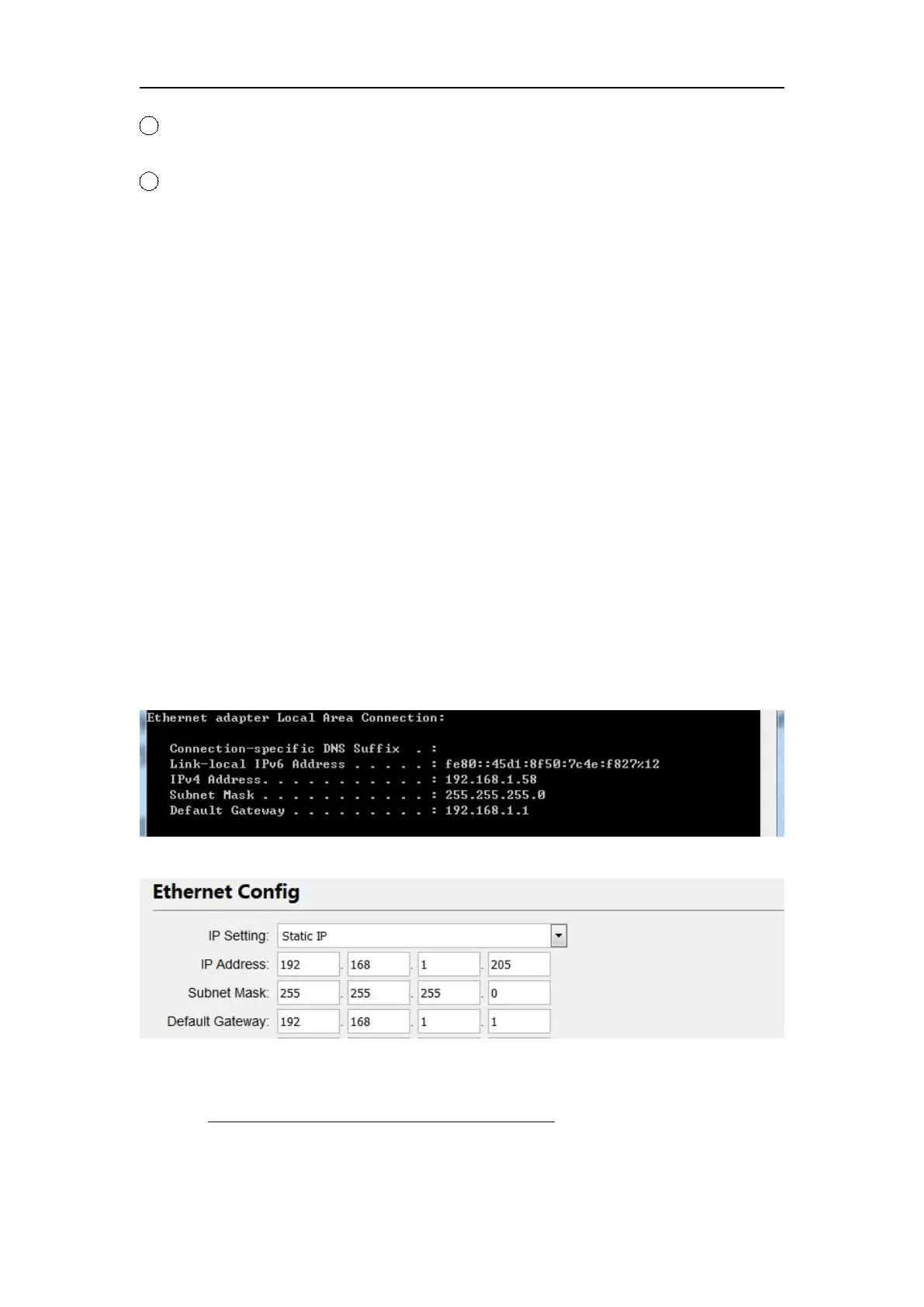
based on your office computer. For example IP address on your computer:
IP address of M300Plus:
For configuring the IP, Subnet Mask, Gateway, please send the commands to
M300Plus by com port, CRU software is recommended. You can get it from our
website: http://www.comnavtech.com/companyfile/1/
Log ipconfig # Check current IP settings


 To Next Page