SITA Messtechnik GmbH – Operating Instructions SITA ConSpector
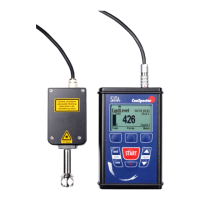
To work with the Windows software SITA-ProcessLog, connect your
SITA ConSpector to a USB port on your computer with the included USB
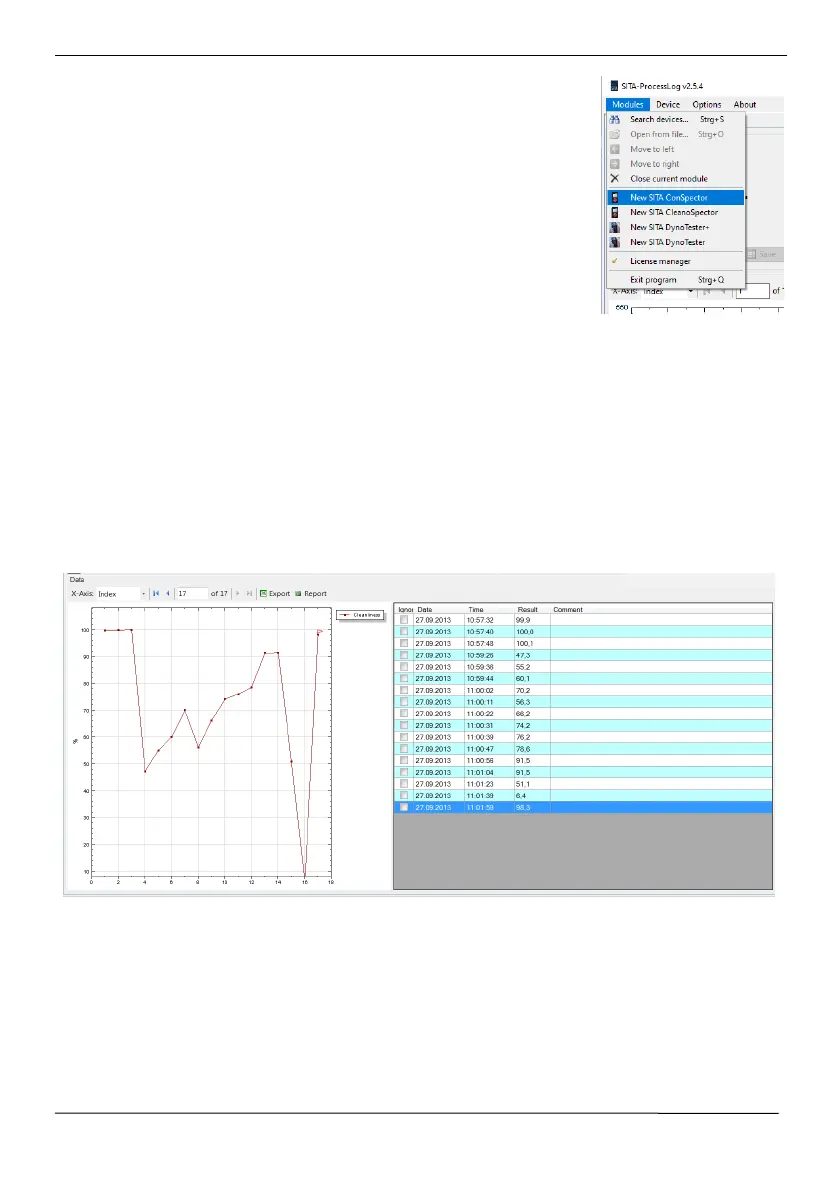
cable. Start the Windows software SITA-ProcessLog and then open a
new module for the SITA ConSpector over Modules in the menu bar.
Make sure that you have purchased a valid license for every device that
you want to connect with the software. To unlock one or more devices
for the software, enter your valid license code into the License Manager
(Menu/Modules/License manager). If the connection to your SITA Con-
Spector fails, you must reconnect the device manually (Menu/De-
vice/Connect).
The block for the software display of the current measuring value is similar to the display of the
device SITA ConSpector.
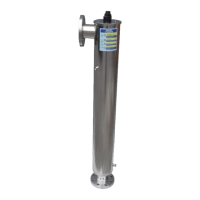
The block Data (see image below) in the main view of the Windows software SITA-ProcessLog
shows the measuring values in a diagram and a table. The table on the right side of the block lists
the measuring values according to date and time. In the first column you can determine whether
the measuring value should be ignored in the diagram or during export. In the last column you
can enter individual comments about each measuring value. A right click into diagram opens
another context menu.
The following functions are available in the menu of the Data block (see image):
• X-Axis Determines the values for the x-axis, index or date and time
• Export Exports the selected data in the table in an xls- or csv-file
• Report Creates a report with the selected data containing a diagram and the
selected measuring values


 To Next Page