38
User Manual M70 / M80 / M90 Getting to know
5. Scroll to Work (or one of the other numbers) and press the function key underneath Edit. The
blank editing field for the type of number opens (Fig. 11).
6. Enter the number and press the function key underneath Save. The number is stored temporarily
in the Edit contact menu (Fig. 13).
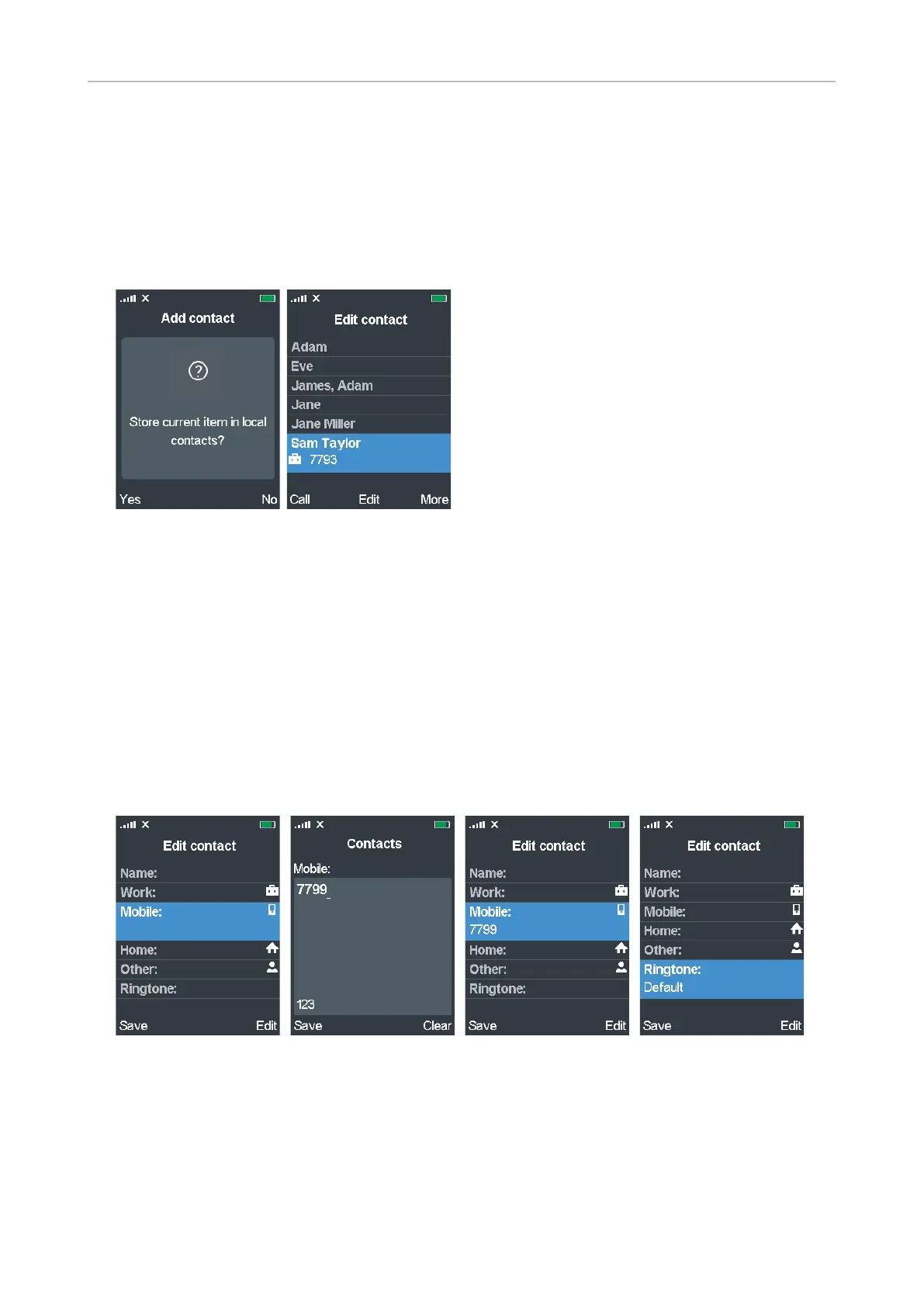
7. Press Save. You will be asked whether you want to save the contact in the local contacts on the
handset (Fig. 14).
Fig. 14 Fig. 15
8. Press the function key underneath Yes if you do. The contact has been added to the handset's
contacts (Fig. 15).
Editing contacts
1. Scroll to the contact with the navigation key (Fig. 15, above).
2. Press the function key underneath Edit. The Edit contact screen opens (Fig. 16).
3. Scroll to the data you want to edit. In our example we will add a Mobile number to the contact and
select a dierent ringtone.
4. Press Edit. The Contacts screen opens (Fig. 17).
Fig. 16 Fig. 17 Fig. 18 Fig. 19
5. Enter the number and press Save. The Edit contact menu appears (Fig. 18).
6. Scroll to Ringtone and press Edit (Fig. 19). The default setting is melody 1.


 To Next Page