4
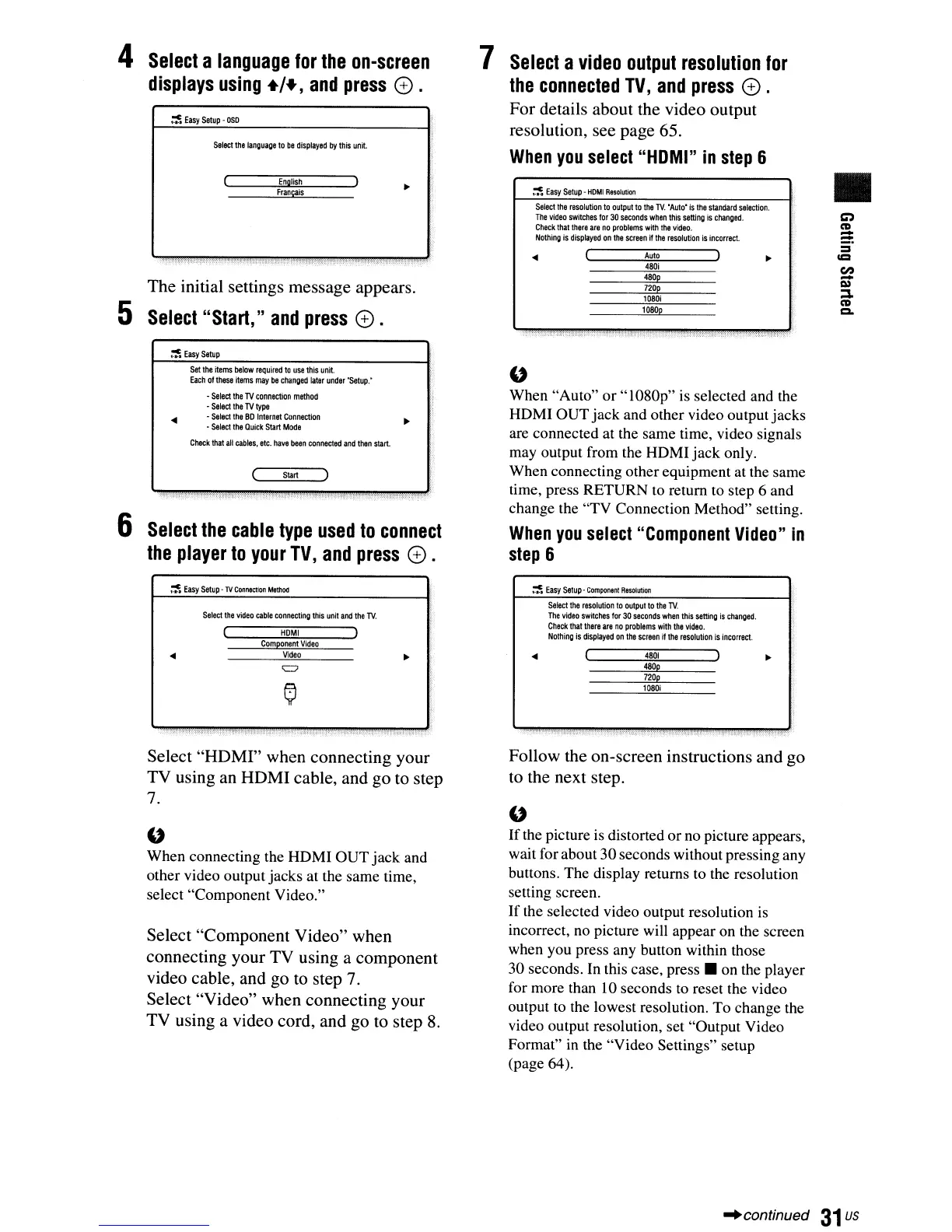
Select
a
language
for
the
on-screen
displays
using
+'+,
and
press
e .
:!
Easy
Setup
-
OSD
Select
th,
languaoelo
b,
display,d
by
Ihis
untt.
English
Francais
~
..
:;"d.:
.
The initial settings message appears.
5
Select
"Start,"
and
press
e .
7
Select
a
video
output
resolution
for
the
connected
TV,
and
press
e .
For details about the video output
resolution, see page 65.
When
you
select
"HOMI"
in
step
6
~
Easy
Setup
-
HOMI
Resolution
$elect
the
resolution
to
output
to
the
TV.
"Auto·
is
the
standard
selection.
The
video
switches
for
30
seconds
when
this
setting
is
changed.
Check
that
there
are
no
problems
with
the
video.
Nothing
is
displayed
on
the
screen
if
the
resolution
is
incorrect.
Auto
480i
480p
720p
1080;
1080p
•
CO)
CD
-
=:
=
ICI
en
-
I»
:::J,
CD
Q,
6
~
Easy
Setup
Set
the
items
below
required
to
use
this
unit.
Each
of
these
items
may
be
changed
later
under
·Setup.·
- S,lect
the
TV
conn,ctlon
m,lhod
- S,I,cllhe
TV
type
-
Select
the
80
Internet
ConnectIon
- Sel,ct
the
Quick
Start
Mod,
Check
that
all
cables,
etc.
have
been
connected
and
then
start.
(
Start
Select
the
cable
type
used
to
connect
the
player
to
your
TV,
and
press
e .
:!
Easy
Setup·
TV
COnnection
Method
"
When "Auto" or "1080p"
is
selected and the
HOMI OUT
jack
and other video output jacks
are connected at the same time, video signals
may output from the HOMI
jack
only.
When connecting other equipment at the same
time, press RETURN to return to step 6 and
change the "TV Connection Method" setting.
When
you
select
"Component
Video"
in
step
6
~
Easy
setup
-
Component
ResOlution
Select
the
video
cable
connecting
this
unit
and
the
lV.
HOMI
Component
Video
Video
=
..
$elect
the
resolution
to
output
to
the
TV.
The
video
switches
for
30
seconds
when
this
setting
is
chanoed.
Check
that
there
are
no
problems
with
the
vid&o.
Nettling
is
displayed
on
the
screen
if
the
resolution
is
incorrect.
4801
480p
720p
1080i
Select "HDMI" when connecting your
TV using an HDMI cable, and go to step
7.
"
When connecting the HOMI
OUT
jack
and
other video outputjacks at the same time,
select "Component Video."
Select "Component Video" when
connecting your TV using a component
video cable, and go to step 7.
Select "Video" when connecting your
TV using a video cord, and go to step
8.
Follow the on-screen instructions and go
to the next step.
"
If
the picture is distorted or no picture appears,
wait for about
30
seconds without pressing any
buttons. The display returns to the resolution
setting screen.
If
the selected video output resolution is
incorrect, no picture will appear on the screen
when you press any button within those
30 seconds. In this case,
press.
on the player
for more than 10 seconds to reset the video
output to the lowest resolution. To change the
video output resolution, set "Output Video
Format" in the "Video Settings" setup
(page 64).
"'continued
31
us


 To Next Page