Audio dubbing
(1) Insert tile recorded tape into your camcorder.
(2) Set tile POWER switch to VCR on your camcorder.
(3) Locate the recording start point by pressing _. Then press II at tile point
where you want to start recording to set your camcorder to tile playback pause
mode.
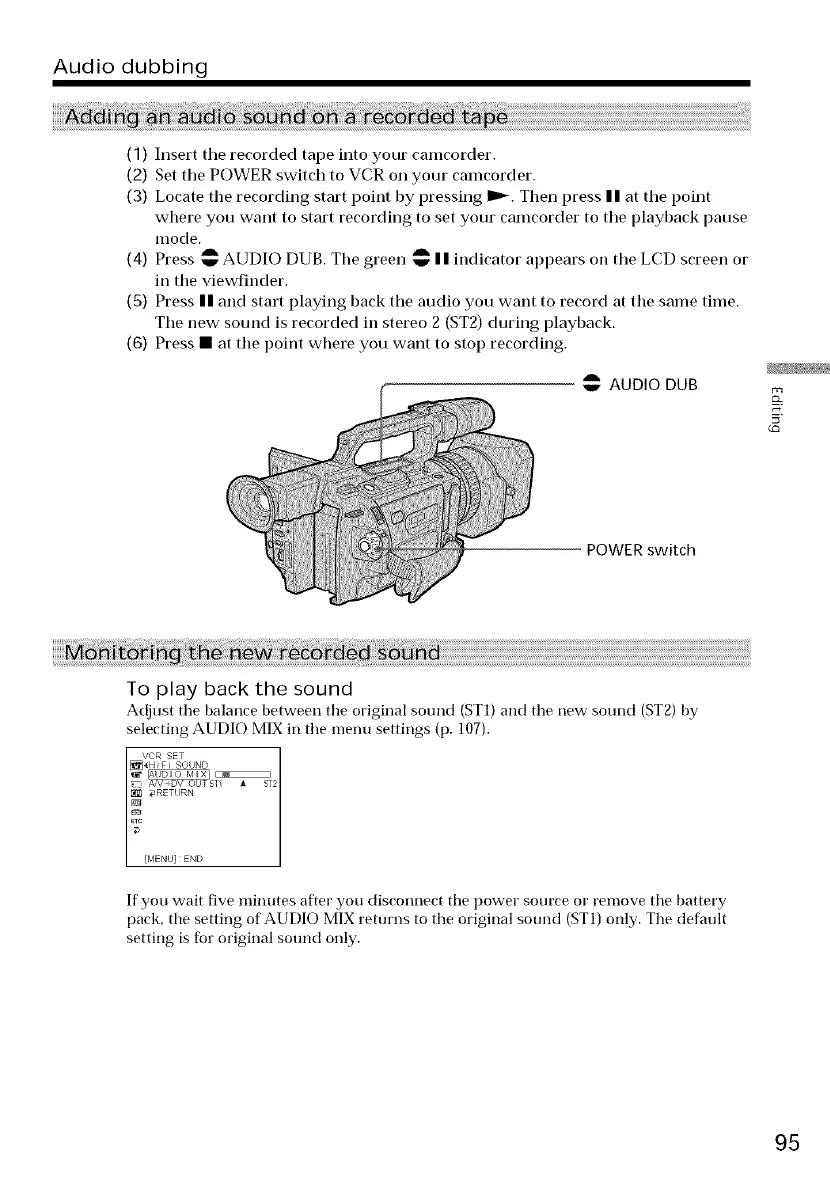
(4) Press _ AUDIO DUB. Tile green w I I indicator appears oil tile LCD screen or
in the viewfinder.
(5) Press II and start playing back tile audio you want to record at the same time.
Tile new sound is recorded ill stereo 2 (ST2) during playback.
(6) Press • at the point wbere you want to stop recording.
A
AUDIO DUB
POWER switch
To play back the sound
Adjust tile balance between tile original sound (STI) and tile new sound (ST2) by
selecting AUDIO MIX in tile menu settings (p. 107).
_':_T_ I
[MENU} END
If you wait five minutes after you disconnect tile power source or remove tile battery
pack, tile setting of AUDIO MIX returns to the original sound (ST1) only. The default
setting is fbr original sound only.
95




 To Next Page