45
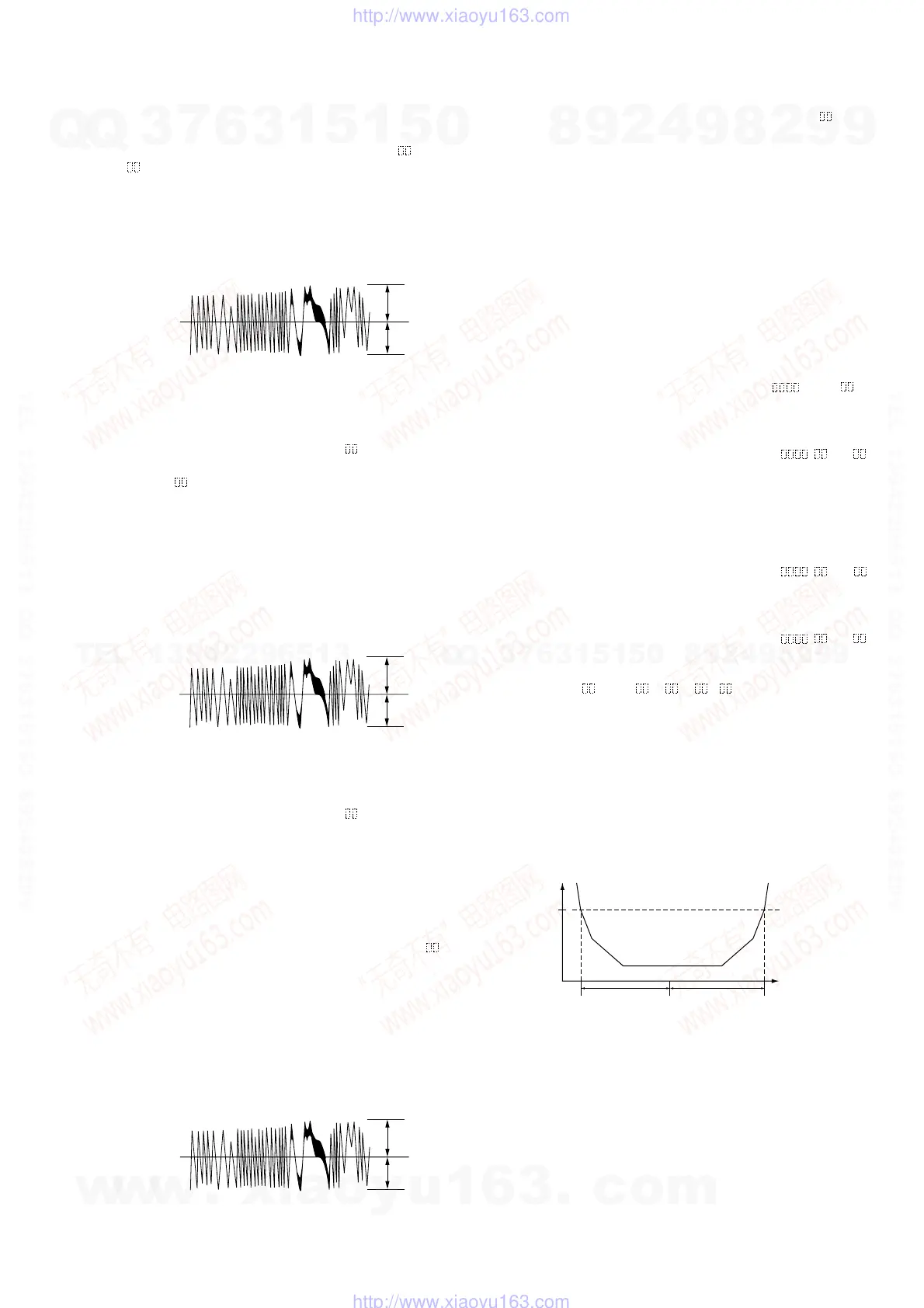
8. Turn the [ENTER/YES] knob so that the waveform of the os-
cilloscope becomes the specified value.
(When the [ENTER/YES] knob is turned, the of “EFB=
” changes and the waveform changes) In this adjustment,
waveform varies at intervals of approx. 2%. Adjust the wave-
form so that the specified value is satisfied as much as pos-
sible.
(Write power traverse adjustment)
Traverse Waveform
9. Press the [ENTER/YES] button, and save the adjustment results
in the non-volatile memory. (“EFB = SAVE” will be dis-
played for a moment)
10. “EFB = MO-P” will be displayed.
The optical pick-up moves to the pit area automatically and
servo is imposed.
11. Turn the [ENTER/YES] knob until the waveform of the oscil-
loscope moves closer to the specified value.
In this adjustment, waveform varies at intervals of approx. 2%.
Adjust the waveform so that the specified value is satisfied as
much as possible.
Traverse Waveform
12. Press the [ENTER/YES] button, and save the adjustment results
in the non-volatile memory. (“EFB = SAVE” will be dis-
played for a moment)
Next “EF MO ADJUST” (C07) is displayed. The disc stops
rotating automatically.
13. Press the [MD ] button and take out the disc.
14. Load the check disc (TDYS-1).
15. Turn the [ENTER/YES] knob to display “EF CD ADJUST”
(C08).
16. Press the [ENTER/YES] button to display “EFB = CD”.
Servo is imposed automatically.
17. Turn the [ENTER/YES] knob so that the waveform of the os-
cilloscope moves closer to the specified value.
In this adjustment, waveform varies at intervals of approx. 2%.
Adjust the waveform so that the specified value is satisfied as
much as possible.
Traverse Waveform
18. Press the [ENTER/YES] button, display “EFB = SAVE”
for a moment and save the adjustment results in the non-volatile
memory.
Next “EF CD ADJUST” (C08) will be displayed.
19. Press the [MD ] button and take out the check disc.
Adjustment Location: BD (MD) board (see page 47)
5-13. FOCUS BIAS ADJUSTMENT
Procedure:
1. Load the continuously-recorded disc. (Refer to “5-5. USING
THE CONTINUOUSLY RECORDED DISC” (See page 40))
2. Turn the [ENTER/YES] knob to display “CPLAY2 MODE”
(C36).
3. Press the [ENTER/YES] button to display “CPLAY2MID”.
4. Press the [MENU/NO] button when “C = AD = )” is
displayed.
5. Turn the [ENTER/YES] knob to display “FBIAS ADJUST”
(C09).
6. Press the [ENTER/YES] button to display “ / a = ”.
The first four digits indicate the C1 error rate, the two digits
after “/ ” indicate ADER, and the 2 digits after “a =” indicate
the focus bias value.
7. Turn the [ENTER/YES] knob in the clockwise and find the
focus bias value at which the C1 error rate becomes about 200
(refer to Note 2).
8. Press the [ENTER/YES] button to display “ / b = ”.
9. Turn the [ENTER/YES] knob in the counterclockwise and find
the focus bias value at which the C1 error rate becomes about
200.
10. Press the [ENTER/YES] button to display “ / c = ”.
11. Check that the C1 error rate is below 20 and ADER is 00.
Then press the
[ENTER/YES] button.
12. If the “( )” in “ - - ( )” is above 20, press the
[ENTER/YES] button.
If below 20, press the [MENU/NO] button and repeat the ad-
justment from step 2.
13. Press the [MD ] button and take out the disc.
Note 1: The relation between the C1 error and focus bias is as shown in
the following figure. Find points A and B in the following figure
using the above adjustment. The focal point position C is auto-
matically calculated from points A and B.
Note 2: As the C1 error rate changes, perform the adjustment using the
average vale.
A
B
VC
Specification A = B
A
B
VC
Specification A = B
A
B
VC
Specification A = B
Z
Z
Z
C1 error
about
200
B
CA
Focus bias value
w
w
w
.
x
i
a
o
y
u
1
6
3
.
c
o
m
Q
Q
3
7
6
3
1
5
1
5
0
9
9
2
8
9
4
2
9
8
T
E
L
1
3
9
4
2
2
9
6
5
1
3
9
9
2
8
9
4
2
9
8
0
5
1
5
1
3
6
7
3
Q
Q
TEL 13942296513 QQ 376315150 892498299
TEL 13942296513 QQ 376315150 892498299
http://www.xiaoyu163.com
http://www.xiaoyu163.com


 To Next Page