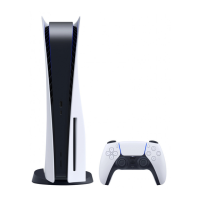
Transfer files from PC to PS3 via WmP11/
Nero (via DLNA/MediaServers)
This tutorial will teach you how to transfer and view Movies, Music, and Pictures from PS3 by streaming/
connected to PC.
REQUIREMENTS:
● Firmware 1.80 (For PS3)
● Windows Media Player 11 BUILD#:11.0.5721.5145 FINAL {DOWNLOAD HERE}
● (If you don't like WMP11 then go for this): Nero MediaHome - PRODUCT INFORMATION
DLNA is an industry standard for media (audio, video, photo) sharing within concept of a digital home and
is supported by many hardware and software manufacturers. As of FW1.80, DLNA is supported by
Playstation 3 entertainment system. PS3 takes a role of DLNA Player, not DLNA server, so it can play a
content of any DLNA server (source) in you digital home, but can not stream the content to other server
within DLNA protocols. (Remote connect to PSP is using proprietary protocols.)
What it means is that you have to have a DLNA server installed, either hardware (like some HDD storages,
DVRs or set-top boxes) or as a software on your PC.
The latter is most interesting for majority of us, since DLNA certified CE equipment is not that widespread
yet.
Your options for the software naturally depends on your operating system. DLNA is an open protocol based
on UPnP (Universal PnP) and therefore can work on any operating system. So far we found a reasonably
good solution only for Windows OSes, so I'll start with it.
SHARING FILES FROM PC TO PS3 VIA WINDOWS MEDIA
PLAYER:
1. Install Windows Media Player 11 on your PC (MUST BE CORRECT BUILD AS STATED
ABOVE!!!)
2. In WMP11 go to Tools > Options > Library
3. Click on the configure sharing button (first time use the button may not appear until you check the
allow sharing box) (MUST BE CORRECT BUILD AS STATED ABOVE!!!)
4. Turn on the PS3 at this point. You should see Unknown Device or PS3 listed there.


 To Next Page