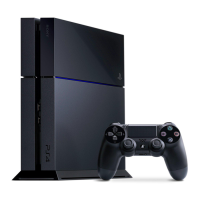
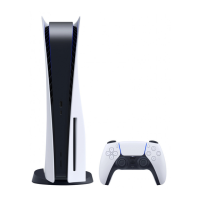
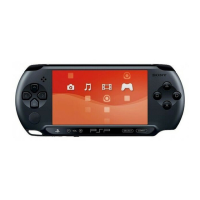
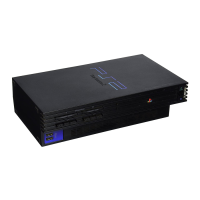
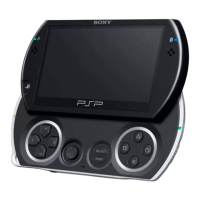
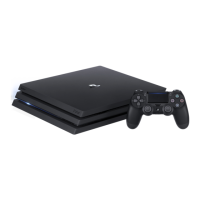
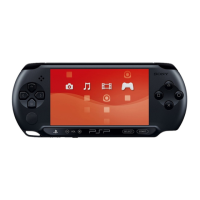
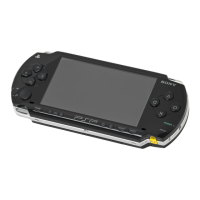
Remote Play On-The-Go
The title says it all. Here is a how to set up PS3 Remote Play, so that it should be accessible from just
about any Wi-Fi internet connection! Before you get your hopes up too much, I need to say that this did
work for me, but some people may have problems if their router does not support IP forwarding.
To follow this guide, you will need:
● 1 PS3
● 1 PSP
● 1 PC
● 1 Wi-Fi Router w/ IP forwarding
● 1 Wi-Fi To Ethernet Game Adaptor
OK, lets get started
1. Power on your PS3 and PSP. Set up remote play as usual (if you have trouble, please examine
the PS3 manual), when it is finished, go to Remote Play settings on your PS3 and choose
"Custom Connection Settings". Take note of the SSID, and then change the WPA Key to
"12345678".
2. On your Wi-Fi to Ethernet game adaptor, set the target SSID and WPA settings to that of the
PS3, and connect it to your router via Ethernet cable. In your router settings, choose to forward
the router's internet connection to the IP address of the game adaptor. Run remote play on your
PS3. Now, basically you have a Remote play server, which can be accessed by any PSP in the
world that knows your WPA key! On to the final part.
3. On your PSP, go to the Network section and choose Remote Play, it will ask you to choose a
connection, move the highlight bar down to "PLAYSTATION(R)3" and press the triangle
button, choose edit. Next you will be presented with the "WLAN Settings" screen. Choose "Enter
Manually" and enter your router's SSID. Now you are asked for the security type. Leave this as it
is and continue to the "WPA Key" screen, where you enter the same numbers as you did on your
PS3 "12345678". At the next screen, select "Easy" under "Address Settings". Now, you will be
given the option to change your connection name, followed by a summary of your settings.
Continue and press "X" to finish.


 To Next Page