43
GB
Other Recording Operations
Recording via Other Devices
Recording with an external
microphone
When you connect a stereo microphone
(not supplied) to the IC recorder and the
recording mode is set to “SHQ” or “HQ”
mode, you can record sound in stereo.
You can play back the sound in stereo using
the stereo headphones.
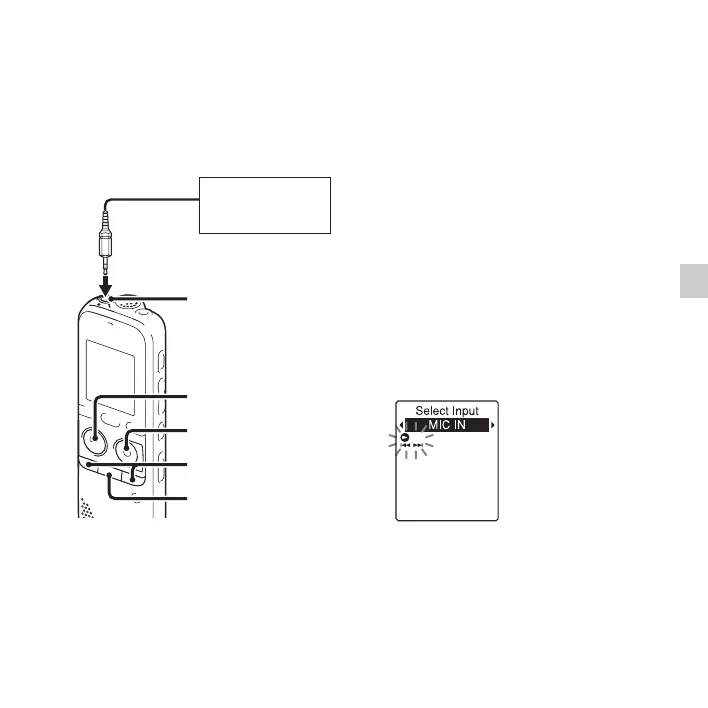
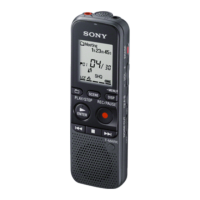
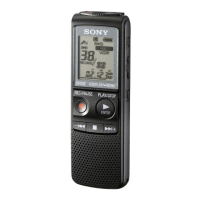
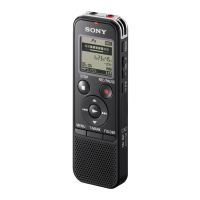
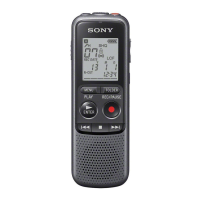
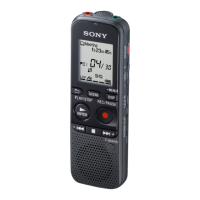
1 Connect an external microphone (not
supplied) to the m (microphone) jack
when the IC recorder is in the stop mode.
“Select Input” appears in the display
window.
If “Select Input” is not displayed, set it in
the menu (page 92).
2 Press –. or >+ to select “MIC IN,”
and then press
N PLAY/
STOP•ENTER.
“Select Input” is set to “MIC IN” when
you purchase the IC recorder.
3 Press x (stop) to exit the menu mode.
m (microphone)
jack
x
External
microphone
(not supplied)
–., >+
N PLAY/
STOP•ENTER
z REC/PAUSE


 To Next Page