1-11
44
Playing a tape
Basic Operations
Playing a tape
Before you start...
• Refer to “Index to parts and controls” for button locations.
Additional tasks
To set the colour system
If the playback picture has no colour, or streaks appear during playback, set
COLOUR SYSTEM in the OPTIONS-1 menu to conform to the system that
the tape was recorded in (see page 85). (Normally set the option to AUTO.)
To use the time counter
Press CLEAR at the point on the tape that you want to find later. The
counter in the display window resets to “0:00:00.” Search for the point
afterwards by referring to the counter.
To display the counter on the TV screen, press DISPLAY.
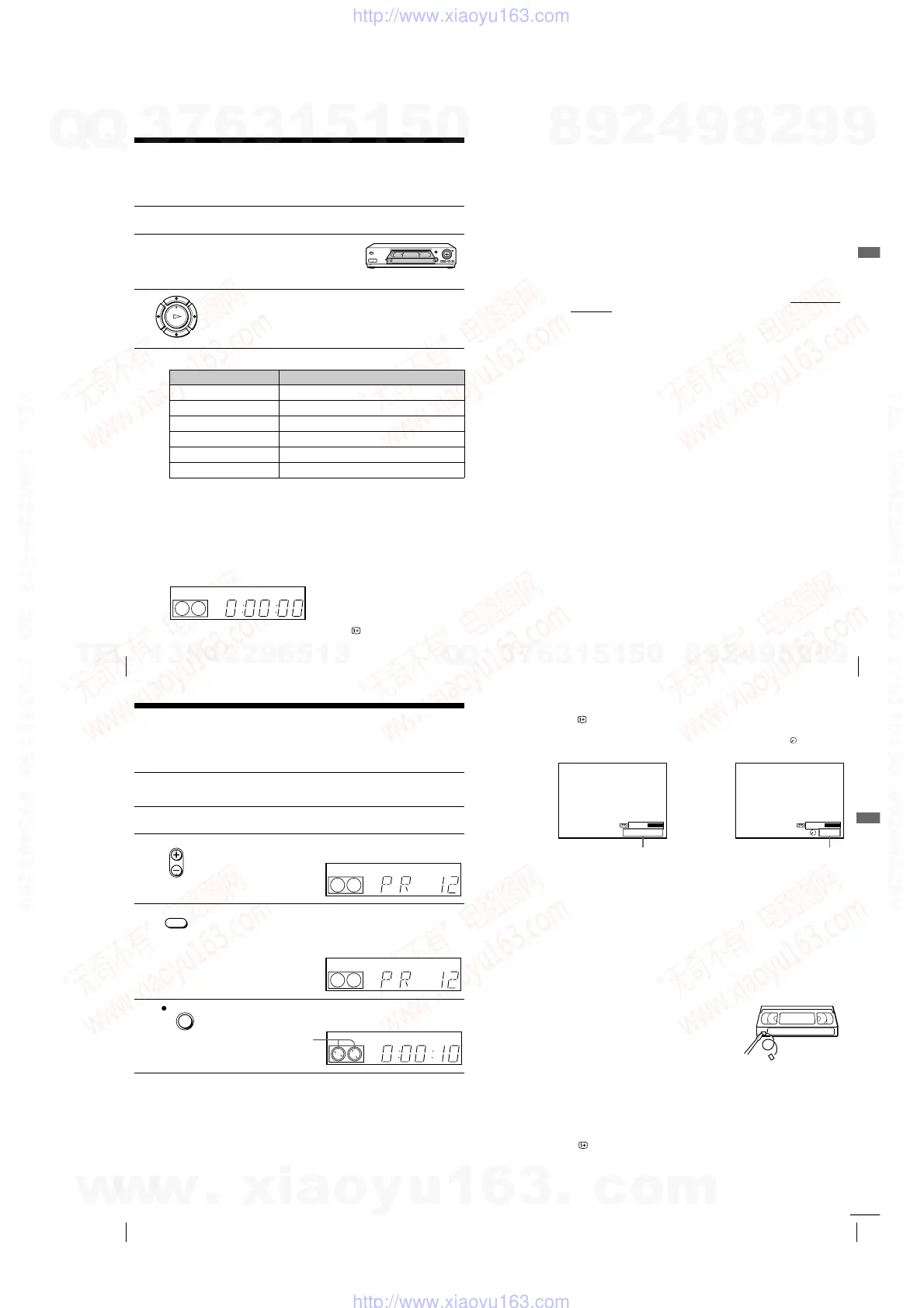
1
Turn on your TV and set it to the video channel.
2
Insert a tape.
The VCR turns on and starts playing
automatically if you insert a tape with
its safety tab removed.
3
Press H PLAY.
When the tape reaches the end, it will rewind automatically.
To Press
Stop play
x
STOP
Pause play
X
PAU SE
Resume play after pause
X
PAU S E o r
H
PLAY
Fast-forward the tape
M
FF during stop
Rewind the tape
m
REW during stop
Eject the tape
Z
EJECT
OK
PLAY
SP OPCVIDEO
45
Playing a tape
Basic Operations
Notes
• The counter resets to “0:00:00” whenever a tape is reinserted.
• The counter stops counting when it comes to a portion with no recording.
• The time counter does not appear on the TV screen when using an NTSC-recorded
tape.
• Depending on your TV, the following may occur while playing an NTSC-recorded
tape:
– The picture becomes black and white.
– The picture shakes.
– No picture appears on the TV screen.
– Black streaks appear horizontally on the TV screen.
– The colour density increases or decreases.
• If you play back a tape in LP or EP mode with the NTSC system, the sound
becomes monaural.
• The picture’s colour may be affected when playing a MESECAM-recorded tape in
the LP mode.
• While setting the menu on the TV screen, buttons for playback on the remote
commander do not function.
Starting playback automatically with one button (One
Touch Play) (not available on SLV-SE610N/K)
If you use the SMARTLINK connection, you can turn on the VCR and the
TV, set the TV to the video channel, and start playback automatically with
one button.
Tip
• When there already is a tape in the VCR, the VCR and the TV turn on, the TV is
set to the video channel, and playback starts automatically in one sequence when
you press
H
PLAY.
Note
• When you use the One Touch Play function, leave the TV on or in the standby
mode.
1
Insert a tape.
The VCR automatically turns on.
If you insert a tape with its safety tab removed, the TV turns on and
switches to the video channel. Playback starts automatically.
2
Press H PLAY.
The TV turns on and switches to the video channel automatically.
Playback starts.
46
Recording TV programmes
Recording TV programmes
Before you start...
• Refer to “Index to parts and controls” for button locations.
To stop recording
Press x STOP.
1
Turn on your TV and set it to the video channel.
To record from a decoder, turn it on.
2
Insert a tape with its safety tab in place.
3
Press PROG +/– to select the programme position or station name*
you want to record.
4
Press SP/LP to select the tape speed, SP or LP.
LP (Long Play) provides recording time twice as long as SP.
However, SP (Standard Play) produces better picture and audio
quality.
5
Press z REC to start recording.
The recording indicator lights up red in the display window.
• PROG
SP OPCVIDEO
SP / LP
LP OPCVIDEO
REC
LP OPCVIDEO
Recording indicator
47
Recording TV programmes
Basic Operations
To check the remaining time
Press DISPLAY. With the display on, press COUNTER/REMAIN to
check the remaining time. Each time you press COUNTER/REMAIN, the
time counter and the remaining time appear alternately. The indicator
indicates the remaining time.
In order to get an accurate remaining time indication, be sure TAPE
LENGTH in the OPTIONS-1 menu is set according to the tape type you use
(see page 85).
To watch another TV programme while recording
To save a recording
To prevent accidental erasure, break off the
safety tab as illustrated. To record on the
same tape again, cover the tab hole with
adhesive tape.
Tips
• To select a programme position, you can use the programme number buttons on the
remote commander. For two-digit numbers, press the
-
(ten’s digit) button
followed by the programme number buttons.
• If you connect additional equipment to a LINE connector or jack, you can select
the input signal using the INPUT SELECT or PROG +/– buttons.
• The DISPLAY information appears on the TV screen indicating information
about the tape, but the information won’t be recorded on the tape.
• If you don’t want to watch TV while recording, you can turn off the TV. When
using a decoder, make sure to leave it on.
1
Press
t
TV/VIDEO to turn off the VIDEO indicator in the display
window.
2
Select another programme position on the TV.
SP 20:00:2
Remaining timeTime counter
Safety tab
continued
w
w
w
.
x
i
a
o
y
u
1
6
3
.
c
o
m
Q
Q
3
7
6
3
1
5
1
5
0
9
9
2
8
9
4
2
9
8
T
E
L
1
3
9
4
2
2
9
6
5
1
3
9
9
2
8
9
4
2
9
8
0
5
1
5
1
3
6
7
3
Q
Q
TEL 13942296513 QQ 376315150 892498299
TEL 13942296513 QQ 376315150 892498299
http://www.xiaoyu163.com
http://www.xiaoyu163.com



 To Next Page