EasyManua.ls Logo

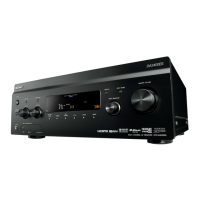
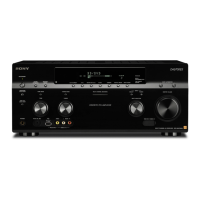
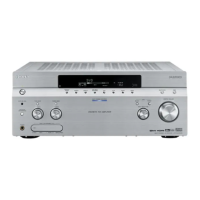
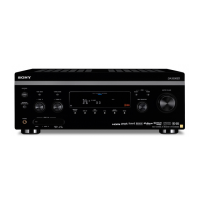
Sony STR-DA2800ES - User Manual

Sony STR-DA2800ES
138 pages
Print Icon
To Next Page IconTo Next Page
Loading...
C:\data\STR-DA2800ES_UC\4429113121\4429113121STRDA2800ESUC\00COV-
STRDA2800ESUC\010COVBCO.fm
masterpage: Left
STR-DA2800ES
4-429-113-12(1)
©2012 Sony Corporation Printed in Malaysia
010COVBCO.fm Page 2 Tuesday, September 11, 2012 5:21 PM
C:\data\STR-DA2800ES_UC\4429113121\4429113121STRDA2800ESUC\00COV-
STRDA2800ESUC\010COVBCO.fm
masterpage: Right
STR-DA2800ES
4-429-113-12(1)
STR-DA2800ES
4-429-113-12(1)
Multi Channel
AV Receiver
Please read the Quick Setup Guide supplied with the receiver first. This allows
you to understand the connections and operations flow of the receiver more
easily.
Operating Instructions
010COVBCO.fm Page 1 Tuesday, September 11, 2012 5:21 PM

Table of Contents

Other manuals for Sony STR-DA2800ES

Questions and Answers

  • D
    Debra TaylorAug 28, 2025
    How to fix severe hum or noise on Sony STR-DA2800ES Receiver?
    • R
      Ryan McdonaldAug 28, 2025
      If you are experiencing severe hum or noise with your Sony Receiver, check that the speakers and equipment are connected correctly. Ensure connecting cords are away from transformers, motors, TVs, or fluorescent lights. Move your TV away from the audio equipment. If the plugs and jacks are dirty, wipe them with a cloth slightly moistened with alcohol.
  • S
    Sean RuizSep 18, 2025
    How to resolve when a specific type of image is not output or corrupted on Sony STR-DA2800ES Receiver?
    • C
      Christina GutierrezSep 18, 2025
      If a specific type of image is not output or is corrupted on your Sony Receiver, select the appropriate resolution on the receiver, as the resolution of output signals from the COMPONENT VIDEO OUT jacks may not be supported by your TV. The resolution of the signals output to the COMPONENT VIDEO MONITOR OUT jacks is converted up to 480p/576p because COMPONENT VIDEO MONITOR OUT jacks have restrictions on resolution when the resolution of video signals protected by copyright technology is converted.
  • D
    Darryl BellAug 28, 2025
    What to do if my 3D image is not displayed on Sony STR-DA2800ES Receiver?
    • Z
      zachary72Aug 29, 2025
      If a 3D image is not displayed on your Sony Receiver, check the 3D image formats supported by the receiver.
  • A
    amoodyAug 29, 2025
    What to do if images appear later than the associated sound is played on my Sony STR-DA2800ES?
    • M
      martinsmithAug 29, 2025
      If images appear later than the associated sound is played on your Sony Receiver, change the setting of “A/V Sync” in the Audio Settings menu.
  • S
    Sabrina ColemanAug 29, 2025
    How to fix radio stations that cannot be tuned in on Sony STR-DA2800ES Receiver?
    • K
      kathryngreeneAug 29, 2025
      If radio stations cannot be tuned in on your Sony Receiver, check that the antennas (aerials) are connected securely. Adjust the antennas (aerials) and connect an external antenna (aerial), if necessary.
  • R
    ratkinsonSep 23, 2025
    What to do if no picture is output when selecting media options on Sony STR-DA2800ES Receiver?
    • S
      stevenhortonSep 23, 2025
      Select “BD” or “DVD” using INPUT SELECTOR on the receiver once, then set “Playback Resolution” to “480i/576i” or “480p/576p” in the Video Settings menu using the GUI, and select the content again.
  • B
    bhunterSep 15, 2025
    What to do if Sony STR-DA2800ES Receiver does not recognize USB device?
    • M
      Mr. John WilliamsSep 15, 2025
      If the USB device is not recognized by your Sony Receiver, turn off the receiver, disconnect the USB device, then turn the receiver back on and reconnect the USB device. Ensure that you connect a supported USB device. If the USB device still doesn't work properly, refer to its operating instructions for troubleshooting.
  • G
    Gary WhiteSep 12, 2025
    What to do if the ventilation hole on the top of the receiver is blocked on my Sony STR-DA2800ES?
    • W
      William GeorgeSep 12, 2025
      Check that the ventilation hole on the top of the receiver is not blocked.
  • P
    Paul ClarkAug 31, 2025
    What to do if there is no sound from a specific device connected to my Sony Receiver?
    • C
      Christopher EverettAug 31, 2025
      If there is no sound from a specific device connected to your Sony Receiver, check that the device is connected correctly to the audio input jacks for that device. Verify that the cord(s) used for the connection is (are) fully inserted into the jacks on both the receiver and the device. Set the INPUT MODE to “AUTO”.
  • C
    Courtney NicholsonAug 31, 2025
    How to fix multi-channel sound that cannot be output on Sony STR-DA2800ES Receiver?
    • M
      markbellAug 31, 2025
      When “Control for HDMI” is set to “On,” “Audio Out” may be automatically set to “AMP.” In this case, set “Audio Out” to “AMP.

Summary

Safety and Compliance Information

Important Safety Instructions

Essential safety guidelines to prevent hazards like fire and electric shock.

Regulatory and Safety Guidelines

Component Identification

Front Panel Layout and Controls

Identification and function of the receiver's front panel components.

Rear Panel Connections

Rear Panel Input;Output Jacks

Details on digital, antenna, LAN, RS232C, and control jacks on the rear.

Remote Control Operation

Remote Control Button Guide

Identification and function of buttons on the RM-AAU155 remote control.

Getting Started Guide

Pre-Connection Checklist

Essential steps and information before connecting any equipment to the receiver.

Speaker Installation Guide

Speaker System Configurations

Explains different speaker setups like 7.1, 5.1 channels, and their configurations.

Speaker Connection Guide

Connecting Speaker Wires to Terminals

Detailed diagrams and instructions for connecting speaker wires to receiver terminals.

Monitor and TV Connection

Connecting Via HDMI

Steps and diagrams for connecting a TV using an HDMI cable.

Video Equipment Connection

Connecting HDMI Video Sources

How to connect devices with HDMI output jacks to the receiver's HDMI inputs.

Advanced HDMI Capabilities

HDMI Features Overview

Explanation of HDMI audio/video support, Control for HDMI, and high-resolution formats.

Audio Equipment Connection

Connecting HDMI Audio Sources

How to connect audio equipment with HDMI output jacks to the receiver.

Initial Receiver and Remote Setup

Connecting the Power Cord

How to properly connect the AC power cord to the receiver and wall outlet.

Receiver Initial Setup and Configuration

Easy Setup for Basic Configuration

Using the on-screen Easy Setup for initial receiver configuration.

Navigating the Receiver Menus

Using the Home Menu

How to access and navigate the main home menu options.

Enjoying Content from Connected Devices

Selecting and Playing Content

Steps to select, play, and control audio/video content from connected devices.

USB Device and WALKMAN Playback

Connecting and Playing USB Files

Steps to connect a USB device and play back video, music, or photo files.

iPod and iPhone Integration

Connecting and Operating iPod;iPhone

How to connect and control iPod/iPhone for music, video, and photo playback.

Sound Field Selection and Playback

Selecting Sound Fields for Playback

How to choose and apply different sound field modes for audio playback.

Multi-Channel Surround Sound

Movie Sound Field Enhancements

Specific sound fields optimized for movie playback like HD-D.C.S. and Dolby/DTS modes.

Universal Remote Control Operation

Selecting Equipment for Remote Control

How to select and switch between different AV equipment for remote operation.

Multi-Zone Audio and Video

Multi-Zone Function Overview

Explains enjoying audio/video in a zone other than the main zone.

BRAVIA Sync Integration

Understanding BRAVIA Sync

Explanation of Sony's BRAVIA Sync feature and its reliance on HDMI CEC.

Factory Reset and Speaker Setup Notes

Restoring Factory Default Settings

Procedure to clear all settings and reset the receiver to its original factory defaults.

Navigating the Settings Menu

Accessing the Settings Menu

Steps to enter and navigate the main settings menu on the TV screen.

Comprehensive Settings Menu Structure

Easy Setup and Speaker Settings

Overview of settings related to initial setup and speaker configuration options.

Speaker Calibration and Setup

Easy Setup Functionality

Re-running the Easy Setup process for basic receiver configuration.

Automatic Speaker Calibration (D.C.A.C.)

Using the Digital Cinema Auto Calibration for automatic speaker setup and matching.

Advanced Speaker Calibration Options

Automatic Phase Matching (A.P.M.)

Calibrating speaker phase characteristics for better surround sound imaging.

Speaker Level, Distance, and Size Adjustment

Speaker Level Adjustment

Manually adjusting the volume level for each individual speaker.

Audio Settings and Enhancements

Video Settings and Resolution

Video Signal Resolution Conversion

Converting analog video input signals to various resolutions for output.

HDMI and Display Settings

Advanced HDMI Control Features

Control for HDMI and Pass Through

Enabling HDMI control and signal pass-through functions.

Input Management and Assignment

Input Editing Options

Customizing input display names, icons, and visibility in menus.

Zone Settings and Volume Control

System Maintenance and Updates

Important Safety Precautions

General Safety and Power Precautions

Safety guidelines for handling objects, power sources, and heat buildup.

Troubleshooting Common Issues

Receiver Power and Output Problems

Solutions for automatic power changes, no picture/sound, and hot receiver issues.

Troubleshooting Specific Output Issues

Troubleshooting Audio and Connectivity Issues

Troubleshooting Speaker and Device Connectivity

Troubleshooting Audio Formats and Effects

Troubleshooting USB, iPod;iPhone, and Network

Troubleshooting BRAVIA Sync and Remote Control

Receiver Error Messages and Output Issues

Sony STR-DA2800ES Specifications

General IconGeneral
Bi-ampingYes
Night modeNo
Sample rate192 kHz
Product colorBlack
Connector contacts platingNickel
Case or master carton weight15 kg
Power consumption (standby)0.5 W
Power consumption (typical)290 W
Dimensions (WxDxH)500 x 258 x 487 mm
Total Harmonic Distortion (THD)0.09 %
Weight and Dimensions IconWeight and Dimensions
Weight12400 g

Related product manuals